• ×
    Information
    Need Windows 11 help?
    Check documents on compatibility, FAQs, upgrade information and available fixes.
    Windows 11 Support Center.
  • post a message
  • ×
    Information
    Need Windows 11 help?
    Check documents on compatibility, FAQs, upgrade information and available fixes.
    Windows 11 Support Center.
  • post a message
Guidelines
Seize the moment! nominate yourself or a tech enthusiast you admire & join the HP Community Experts!
Check some of the most frequent questions about Instant Ink: HP INSTANT INK, HP+ PLANS: INK AND TONER.


Check out our Black or Color Ink Not Printing, Other Print Quality Issues info about: Print quality and Cartridge Issues.
HP Recommended
5525
Microsoft Windows 10 (64-bit)

Hi, I have weird issue. It worked perfectly for 5-6 years. And suddenly it won't print black text (Word, notepad) without lines, Copy is fine, picture printing is fine. Test pages are fine. I print text, only black letters have stripes always on the same part of page. If I printscreen Word text and print it as image, problem is gone. Here's example, it's same for any type of text, word, notepad...:


I updated firmware, drivers, tried all cleaning utilities (on printer itself and on Windows HP software). No luck for now.

20181213_160302.jpg

3 REPLIES 3
HP Recommended

Hi! @Witz666, Welcome to HP forums.


Thank you for posting your query, I'll be more than glad to help you.


I understand you have issues printing in black text from your printer.


Don't worry I'll try to help you out.


Did you make any changes to your printer?


Does the issue persist when you make a copy from your printer?


Have you tried printing a different application?


Have you tried checking with a different ink cartridge?


Does the issue persist when you make a copy from your printer?


Splendid analysis and remarkable patience shown. It is immensely appreciated.


Replace low, empty or faulty ink cartridges on your printer.


Try changing the print setting from the application you are using to print.


Try cleaning the printer heads with ethanol and check if it helps.


If the copy works fine try the steps recommended below.


Try the steps recommended below and uninstall the full feature printer software from root level on your PC and install the full feature printer software.


In Windows, search for and open Programs and Features.

Select your HP printer.

Select Uninstall.

In Windows, search for and open Devices and Printers.

In the Devices and Printers window look for your HP Printer. If you see it listed, right-click on it and choose "Delete" or "Remove Device.”

Open up the run command with the "Windows Key + R" key combo.

Type printui.exe /s and click OK.

Click on Drivers tab.

Look for HP Printer driver. If you see it click on it and click remove at the bottom.


Update the full feature printer software using this link. Click Here


Also, try the steps recommended below.


Clean the printhead


If you found defects on the Print Quality Diagnostic report, run an automated tool to clean the printhead.

  1. Make sure that plain white U.S. letter or A4 size paper is loaded in the tray.

  2. From the control panel home screen, touch the Settings icon (), and then touch Tools.

  3. Touch the Down Arrow (), and then touch Clean Printhead. The product cleans the printheads, and then prints a test page.
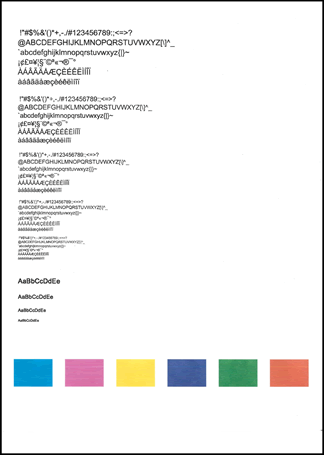
  4. Review the print quality on the test page.

    Figure : Example of the printhead cleaning test page

    Image: Example of the printhead cleaning test page.
    • If the print quality on the test page is satisfactory, return to the current print job.

    • If the print quality on the test page is unsatisfactory, perform a secondary cleaning of the printhead.

      If the printhead is badly clogged, it might require another cleaning cycle. If so, wait 30 minutes after the last cleaning stage to start the first stage of the cleaning process over again.

  • If these steps resolved the issue, there is no need to continue troubleshooting. The following precautions might prevent the issue in the future.

    • Avoid leaving unprotected ink cartridges out of the printer for an extended period of time.

    • Always use the Power button to turn off the printer. This protects the ink cartridges from exposure to air.

Align the Printer


If there were defects on the Print Quality Diagnostic report, align the printhead.

Follow these steps to align the printer using the control panel.

  1. From the home screen, touch the Setup icon (), and then touch Tools.

  2. Touch the Down Arrow (), and then touch Align Printer. The alignment page prints.

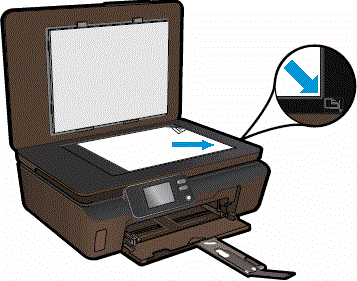
  3. Lift the lid on the printer, and then place the alignment page print side down in the right front corner of the scanner glass.

    Figure : Place the alignment page on the scanner glass

    Image: Place the alignment page on the scanner glass.
  4. Close the lid, and then press OK on the control panel. The printer will align automatically. Press OK to continue.


Refer this article to further troubleshoot print quality issues with your printer. Click Here


If the issue still persists after trying out the steps. Replace the faulty ink cartridges or printhead on your printer.


Let me know if this helps!

Take Care! 🙂


Please click “Accept as Solution” if you feel my post solved your issue, it will help others find the solution.

Click the “Kudos, Thumbs Up" on the bottom right to say “Thanks” for helping!

A4Apollo
I am an HP Employee

HP Recommended

No changes made, it started to happen overnight, Making copy is fine, I tried printing from Word and notepad, on both/two PCs which are connected (one over wifi, one over USB), I installed new catridge (I received error that first one isn't original, even I bought them at authorised HP shop, and payed them as original). I cleaned printer head and align with software utility, and hardware (button on printer itself), and physicly with ethanol couple of times. Installed new drives and updated firmware on printer. Only issue I have is printing black text from word/notepad, it's striked out. If I printscreen same text and print it as image from Paintbrush/Irfan, it's fine. 


I assume it's software issue, because printing "black stuff in vectors" make this stripes, printing images don't. Is there any difference in communication "PC to printer" when printing vector graphic/text and "pure images"?

HP Recommended

@Witz666


I see that you were interacting with @MrRobot. I'd like to help.


Thanks for the reply.

I appreciate your time and effort.

I understood the issue better now.


Perform root level uninstalltion to remove all the printer related software's.

  • In Windows, search for and open Programs and Features.
  • Select your HP printer.
  • Select Uninstall.
  • In Windows, search for and open Devices and Printers.
  • In the Devices and Printers window look for your HP Printer. If you see it listed, right-click on it and choose "Delete" or "Remove Device.”
  • Open up the run command with the "Windows Key + R" key combo.
  • Type printui.exe /s and click OK.
  • Click on Drivers tab.
  • Look for HP Printer driver. If you see it click on it and click Remove at the bottom.
  • Select OK.
  • Remove all instances of the same.
  • Select Apply and OK on the Print Server Properties windows.
  • Close Devices and Printers. 
  • Restart the PC again.

Download and install full feature driver from HP website

Click here to download the driver.


Let me know how it goes.

To thank me for my efforts to help you, please mark my post as an accepted solution so that it benefits several others.

Cheers.

Sandytechy20
I am an HP Employee

† The opinions expressed above are the personal opinions of the authors, not of HP. By using this site, you accept the <a href="https://www8.hp.com/us/en/terms-of-use.html" class="udrlinesmall">Terms of Use</a> and <a href="/t5/custom/page/page-id/hp.rulespage" class="udrlinesmall"> Rules of Participation</a>.