• ×
    Information
    Need Windows 11 help?
    Check documents on compatibility, FAQs, upgrade information and available fixes.
    Windows 11 Support Center.
  • post a message
  • ×
    Information
    Need Windows 11 help?
    Check documents on compatibility, FAQs, upgrade information and available fixes.
    Windows 11 Support Center.
  • post a message
Guidelines
Join the HP Community Solve‑a‑thon | Help Others & Share Your Solutions | Live on Zoom | 2:30 PM to 2:30 AM IST | Every Wednesday Click here to know more
Check some of the most frequent questions about Instant Ink: HP INSTANT INK, HP+ PLANS: INK AND TONER.


Check out our Black or Color Ink Not Printing, Other Print Quality Issues info about: Print quality and Cartridge Issues.
HP Recommended
Office Jet pro 8600+
Microsoft Windows 10 (64-bit)

Error Message only says: Printer failure - Power down & restart. HAve cycle dpower several times with no change.

LAst operation was auto document scanning. page jammed. removed page & error popped up.


4 REPLIES 4
HP Recommended

@DetailMan


Welcome to HP forums.


Update the printer firmware.

  1. From the home screen on the printer control panel, touch the ePrint icon ().

  2. Wait for the printer to connect to the ePrint server. The ePrint status displays.

  3. Touch Settings on the bottom left corner of the screen.

  4. Touch Printer Update, and then touch Check for Update Now.

Reseat the printhead up to three times.

Step 1: Remove the printhead

Open the ink cartridge access door, disconnect the power cord from the rear of the printer, and then remove the printhead.

  1. Press the Power button to turn on the printer, if it is not already on. Wait until the warm-up period finishes and your printer is idle and silent before you proceed.

  2. Disconnect the power cord from the rear of the printer. Unplugging the printer prevents the carriage from moving.

       WARNING: 

    You must disconnect the power cord before reaching inside the printer to avoid risk of injuries or electric shock.

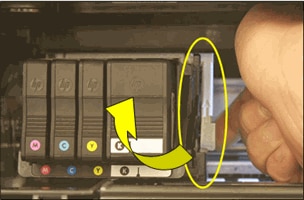
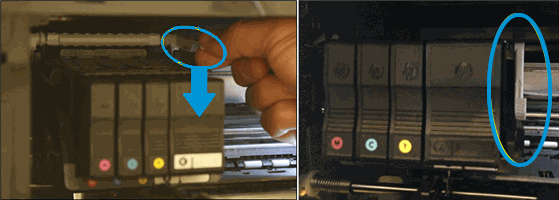
  3. Lift the carriage latch.

    Figure : Lift the carriage latch

    Image: Lift the carriage latch.
  4. Grasp the sides of the printhead, gently lift and remove the printhead from the carriage.

    NOTE: 

    Do not remove the cartridges from the printhead. You can safely remove the printhead with all of the cartridges inserted.


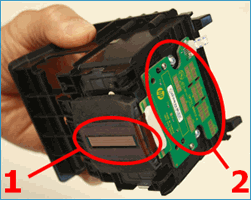
    Figure : Nozzles and electrical contacts

    1.  

      Image: Nozzles and electrical contacts

      Nozzles
    2. Electrical contacts

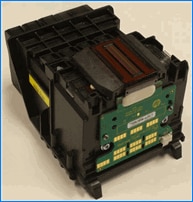
  5. Place the printhead assembly (with the cartridges still installed) upside down on a clean sheet of paper.

       CAUTION: 

    Do not leave the printhead assembly outside of the printer for an extended period. Doing so can result in damage to the printhead or the printer.

    Figure : Printhead upside down on a clean sheet of paper

    Image: Printhead upside down on a clean sheet of paper.

Step 2: Inspect the carriage path inside the printer

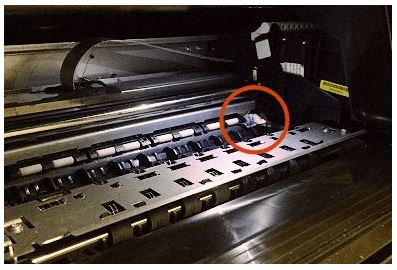
Inside the printer, look for and remove any obstructions from the printhead compartment. If necessary, use a flashlight to thoroughly check for any obstructions.

Figure : Check for paper jammed in the carriage path

Image: Check for paper jammed in the carriage path

Step 3: Reinsert the printhead, and then lower the carriage latch

After checking the carriage path for jammed paper, reinsert the printhead into the carriage, and then lower the carriage latch.

  1. Grasp the sides of the printhead and turn it right side up with the nozzles facing down and the electrical contacts facing away from you.

  2. Gently rock the printhead to the left and right to make sure that the printhead fully seats in the carriage.

  3. Carefully lower the carriage latch to secure the printhead.

    Figure : Lower the carriage latch

    Image: Lower the carriage latch.
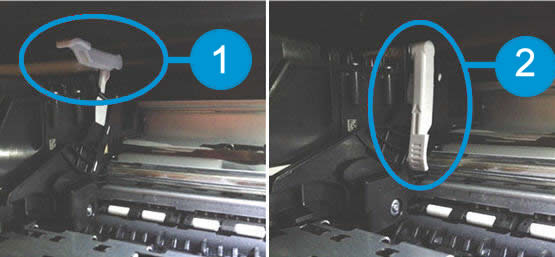
  4. Verify that the carriage latch is down.

    Figure : Carriage latch positions

    1.  

      Image: Carriage latch positions.

      Carriage latch is up
    2. Carriage latch is down

  5. Close the cartridge access door.

  6. Reconnect the power cord to the rear of the printer.

  7. If the printer does not turn on by itself, press the Power button to turn it on.

    NOTE: 

    The printer might go through a warm-up period. The printer lights might flash, and the carriage might move.

  8. Wait until the warm-up period finishes and your printer is idle and silent before you proceed.

You can refer this HP document for more assistance:- Click here


Let me know how it goes.

To thank me for my efforts to help you, please mark my post as an accepted solution so that it benefits several others.

Cheers.

Sandytechy20
I am an HP Employee

HP Recommended

Used your procedures several times without resolving the problem.

Unable to access the firmware from the touch screen.

Scanner has continued operating after clearing the original paper jam that started this...

Geek squad unable to add anything I didn't already know...

The printer goes through its normal wake-up dance and ends with the same error message: printer failure 

No codes displayed  


HP Recommended

Unable to use printer touch screen.

Locked up on error message: printer failure 

Problem with printer or ink. 

I've been using 3rd party ink for several cycles.

Could this be the issue?

The printer goes through its normal wake-up dance and ends with the same error message.

The scanner works fine  

HP Recommended

@DetailMan


This seems to be a hardware issue.

I request you to talk to HP support.

They might have multiple options to help you with this.

1) Click on this link - www.hp.com/contacthp/

2) Click on "Continue as guest".

3) Enter the serial of your device.

4) Select the country from the drop-down.

5) Click on "Show Options".

Fill the web-form. A case number and phone number will now populate for you.


Cheers.

Sandytechy20
I am an HP Employee

† The opinions expressed above are the personal opinions of the authors, not of HP. By using this site, you accept the <a href="https://www8.hp.com/us/en/terms-of-use.html" class="udrlinesmall">Terms of Use</a> and <a href="/t5/custom/page/page-id/hp.rulespage" class="udrlinesmall"> Rules of Participation</a>.