• ×
    Information
    Need Windows 11 help?
    Check documents on compatibility, FAQs, upgrade information and available fixes.
    Windows 11 Support Center.
  • post a message
  • ×
    Information
    Need Windows 11 help?
    Check documents on compatibility, FAQs, upgrade information and available fixes.
    Windows 11 Support Center.
  • post a message
Guidelines
Join the HP Community Solve‑a‑thon | Help Others & Share Your Solutions | Live on Zoom | 2:30 PM to 2:30 AM IST | Every Wednesday Click here to know more
Check some of the most frequent questions about Instant Ink: HP INSTANT INK, HP+ PLANS: INK AND TONER.


Check out our Black or Color Ink Not Printing, Other Print Quality Issues info about: Print quality and Cartridge Issues.
HP Recommended

HP officejet Pro 8600 received this message after installing brand new ink cartridges 950 xl and 951 

1 REPLY 1
HP Recommended

@1_Christ-is-all, Welcome to the HP Support Community!  


Thanks for reaching out about your query regarding Printer Failure Error for HP OfficeJet Pro 8600! 

We're thrilled to have the opportunity to assist you and provide a solution.  


If you receive a "Printer Failure" error message after installing brand new HP 950 XL and 951 ink cartridges in your HP OfficeJet Pro 8600, here are some steps to troubleshoot and fix the issue.

Inspect and Clean the Cartridges

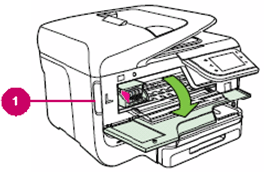
Slip your fingers into the slot on the left side of the printer and pull forward to open the cartridge access door. The carriage should move to the left side of the printer. Wait until the carriage is idle and silent before proceeding.

Open the cartridge access door to check for installation issues or glue residue.

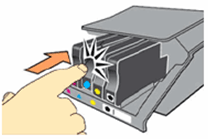
Push in on the front of the cartridge to release it, and then pull it toward you to remove it from its slot.

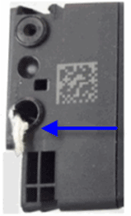
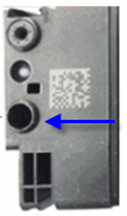
Inspect the cartridges to ensure there is no glue residue blocking the ink supply hole.

Glue residue on the cartridge obstructs ink flow, causing printing errors. Check before installation. Check for glue residue blocking the ink supply hole to resolve cartridge installation issues.

If no glue residue is blocking the ink supply, carefully reinsert the cartridge into its slot and push it forward until it clicks into place. Ensure proper cartridge installation by pushing it firmly until it clicks into place.

Close the cartridge access door.

Try printing again. 


Hope this helps! 

Take care, and have an amazing day!  


Did we resolve the issue? If yes, Please consider marking this post as "Accepted Solution" and click "Yes" to give us a helpful vote - your feedback keeps us going!  


Regards, 

ZOEY7886
I am an HP Employee

† The opinions expressed above are the personal opinions of the authors, not of HP. By using this site, you accept the <a href="https://www8.hp.com/us/en/terms-of-use.html" class="udrlinesmall">Terms of Use</a> and <a href="/t5/custom/page/page-id/hp.rulespage" class="udrlinesmall"> Rules of Participation</a>.