• ×
    Information
    Need Windows 11 help?
    Check documents on compatibility, FAQs, upgrade information and available fixes.
    Windows 11 Support Center.
  • post a message
  • ×
    Information
    Need Windows 11 help?
    Check documents on compatibility, FAQs, upgrade information and available fixes.
    Windows 11 Support Center.
  • post a message
Guidelines
Join the HP Community Solve‑a‑thon | Help Others & Share Your Solutions | Live on Zoom | 2:30 PM to 2:30 AM IST | Every Wednesday Click here to know more
Check some of the most frequent questions about Instant Ink: HP INSTANT INK, HP+ PLANS: INK AND TONER.


Check out our Black or Color Ink Not Printing, Other Print Quality Issues info about: Print quality and Cartridge Issues.
HP Recommended
HP Envy 4527 printer
Microsoft Windows 10 (64-bit)

I am trying to print an A5 profile document in 14 font.  The document comes up on the screen for printing in a square box, set to the LH side of the box.  When I hit 'Print', the A5 printer paper is delivered, but with my document much smaller and in about font size 8.  This has only just occurred, never having been a problem before.  What is going on, please, and how do I fix it?  Thank you, Robin

1 ACCEPTED SOLUTION

Accepted Solutions
HP Recommended

@robinamoore 


A couple of places to check / adjust the settings...


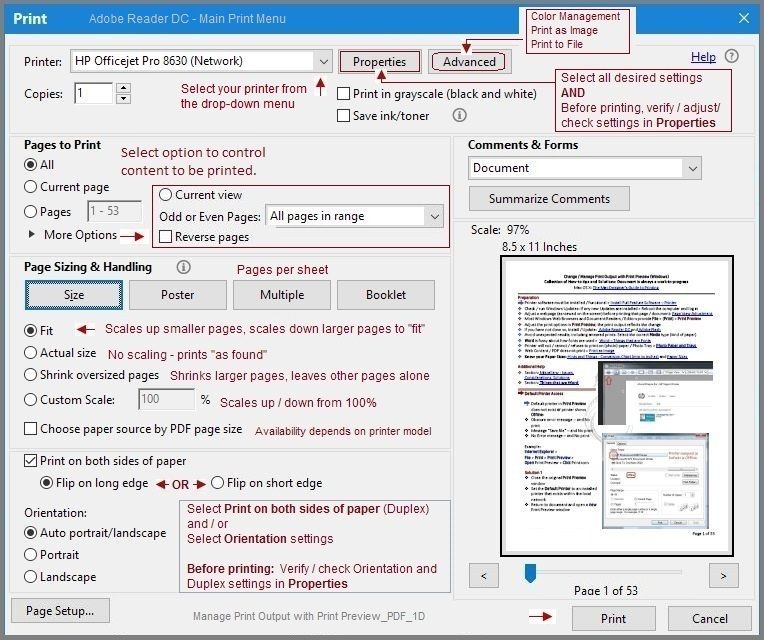
If you are printing a PDF file using Adobe Reader DC  (for example), check to make sure you have selected "Size" as opposed to "Multiple" sheets in section Page Size and Handling.


Manage Print Output with Print Preview_PDF_1DManage Print Output with Print Preview_PDF_1D


Note that Font size is controlled in the original format file (ie. Word).  Create the file in the format you want, including Fonts and Font size, then (in Word) use Save-As to save the file as a PDF format file.


If you are printing from Word, check File > Print > Under Settings

Make sure (bottom) option is set to "1 Page Per Sheet"  (OR Scale to Paper Size)


Thank you for participating in the HP Community Forum.

We are a world community of HP enthusiasts dedicated to supporting HP technology.

Click Thumbs Up on a post to say Thank You!

Answered? Click post "Accept as Solution" to help others find it.


Dragon-Fur

View solution in original post

1 REPLY 1
HP Recommended

@robinamoore 


A couple of places to check / adjust the settings...


If you are printing a PDF file using Adobe Reader DC  (for example), check to make sure you have selected "Size" as opposed to "Multiple" sheets in section Page Size and Handling.


Manage Print Output with Print Preview_PDF_1DManage Print Output with Print Preview_PDF_1D


Note that Font size is controlled in the original format file (ie. Word).  Create the file in the format you want, including Fonts and Font size, then (in Word) use Save-As to save the file as a PDF format file.


If you are printing from Word, check File > Print > Under Settings

Make sure (bottom) option is set to "1 Page Per Sheet"  (OR Scale to Paper Size)


Thank you for participating in the HP Community Forum.

We are a world community of HP enthusiasts dedicated to supporting HP technology.

Click Thumbs Up on a post to say Thank You!

Answered? Click post "Accept as Solution" to help others find it.


Dragon-Fur

† The opinions expressed above are the personal opinions of the authors, not of HP. By using this site, you accept the <a href="https://www8.hp.com/us/en/terms-of-use.html" class="udrlinesmall">Terms of Use</a> and <a href="/t5/custom/page/page-id/hp.rulespage" class="udrlinesmall"> Rules of Participation</a>.