• ×
    Information
    Need Windows 11 help?
    Check documents on compatibility, FAQs, upgrade information and available fixes.
    Windows 11 Support Center.
  • post a message
  • ×
    Information
    Need Windows 11 help?
    Check documents on compatibility, FAQs, upgrade information and available fixes.
    Windows 11 Support Center.
  • post a message
Guidelines
Seize the moment! nominate yourself or a tech enthusiast you admire & join the HP Community Experts!
Check some of the most frequent questions about Instant Ink: HP INSTANT INK, HP+ PLANS: INK AND TONER.


Check out our Black or Color Ink Not Printing, Other Print Quality Issues info about: Print quality and Cartridge Issues.
HP Recommended
HP Officejet 6812
Microsoft Windows 10 (32-bit)

Getting error message 0x6100004a. Printer failure.  Also getting indication of paper jam at start up, check all paper paths, can't find a paper jam.  I have powered down,  including unplugging for 60 seconds.  What is the suggested fix?

1 REPLY 1
HP Recommended
Hello,

Clean the rollers inside the cartridge access area to remove dust, paper fiber, and other debris that might accumulate on the rollers and cause paper jams and paper feed issues.
  1. Place your fingers into the slot on the left side of the printer, and then gently lift up to open the cartridge access door. The carriage moves to the cartridge access area. Wait several seconds until the carriage is idle and silent before you continue.
  2. Press the Power button to turn off the printer.
  3. Disconnect the power cord from the rear of the printer, and then unplug the power cord from the power source or electrical outlet.
       WARNING: 
    You must disconnect the power cord before reaching inside the HP printer to avoid risk of injuries or electric shock.
  4. Disconnect the USB or Ethernet cable from the rear of the printer, if you have a cable connection to the printer.
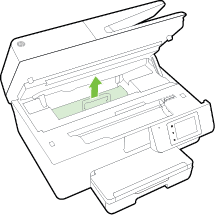
  5. Locate the paper path cover, grasp the handle, and then lift up to remove it.
  6. Lightly dampen the swab with the water, and then squeeze any excess liquid from the swab.
  7. Press the swab against the rollers inside the printer, and then rotate the rollers upwards with your fingers. Apply a moderate amount of pressure to remove any dust or dirt buildup.
  8. Allow the rollers to dry completely (approximately 10 minutes).
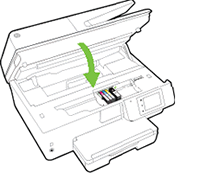
  9. Replace the paper path cover. Gently press the cover down until the cover clicks into place.
  10. Close the cartridge access door.

In case of need, please do not hesitate to contact us.

Best regards,🤠


I'm not an HP employee. Did this message answer your question? Include it below as an Accept As Solution! Did you find this message useful?  Click on the thumbs up set to give a Compliment! Follow us on Facebook Assistance customers HP.

† The opinions expressed above are the personal opinions of the authors, not of HP. By using this site, you accept the <a href="https://www8.hp.com/us/en/terms-of-use.html" class="udrlinesmall">Terms of Use</a> and <a href="/t5/custom/page/page-id/hp.rulespage" class="udrlinesmall"> Rules of Participation</a>.