• ×
    Information
    Need Windows 11 help?
    Check documents on compatibility, FAQs, upgrade information and available fixes.
    Windows 11 Support Center.
  • post a message
  • ×
    Information
    Need Windows 11 help?
    Check documents on compatibility, FAQs, upgrade information and available fixes.
    Windows 11 Support Center.
  • post a message
Guidelines
Seize the moment! nominate yourself or a tech enthusiast you admire & join the HP Community Experts!
Check some of the most frequent questions about Instant Ink: HP INSTANT INK, HP+ PLANS: INK AND TONER.


Check out our Black or Color Ink Not Printing, Other Print Quality Issues info about: Print quality and Cartridge Issues.
HP Recommended
HP office jet pro 8630

The printer will not auto print the required size.  I need to print large documents that are mixed sizes.  It should select letter or legal as needed but only prints from the default tray.  Also, as stated in other post, there is no "tray and paper management" option in the setup gear menu.  Only "tray setup".  Please advise.


Thanks!

1 REPLY 1
HP Recommended

@Kellizim 


@Kellizim wrote:

The printer will not auto print the required size.  I need to print large documents that are mixed sizes.  It should select letter or legal as needed but only prints from the default tray.  Also, as stated in other post, there is no "tray and paper management" option in the setup gear menu.  Only "tray setup".  Please advise.


Thanks!


According to what I can find, this printer does not include the sensor you describe that would switch paper according to paper size.


Some of the high-end Laser printers can switch paper on the fly - I am not aware this is something usually found on an OfficeJet Pro printer.


Automatic Paper SensorNo


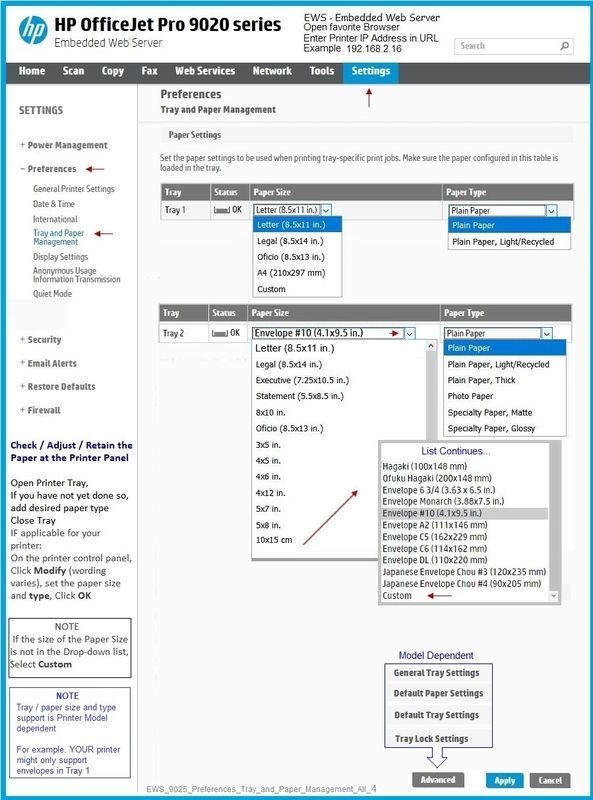
"Tray and Paper Management" can refer to the Embedded Web Server (EWS) setting(s).


Reminder

Options are model dependent - not every printer is going to display / show the same options / setup.


EWS – Browser – Tray and Paper Management

Open your favorite browser > type / enter Printer IP address into URL / Address bar

Tab Settings > Preferences > Tray and Paper Management

If applicable, check the Advanced section (at the bottom of the Tray and Paper Management menu)

Click Apply to save changes


EWS - HP Smart – Windows

Start HP Smart Application

Printer Settings

In section Settings > Advanced

Tab Settings > Preferences

Tray and Paper Management

As Available:  Check / Adjust settings in Advanced

Click Apply to save changes


EWS - HP Smart for Mobile - iOS

Open HP Smart (for mobile)

Open Settings

Open Add / Set Up a Printer 

Scroll down, Click, Tray and Paper

As Available:  Check / Adjust settings in Advanced

Click Apply to save changes


+++++++++++++++++++++++++++++++++++++++++++++++++++++

Example

Reminder:  Your printer options and setup are perhaps different from the example.

EWS_9025_Preferences_Tray_and_Paper_Management_All_4EWS_9025_Preferences_Tray_and_Paper_Management_All_4


What to do?

It depends on the document.

Depending on where the page breaks are located, it might be possible to just split the job.

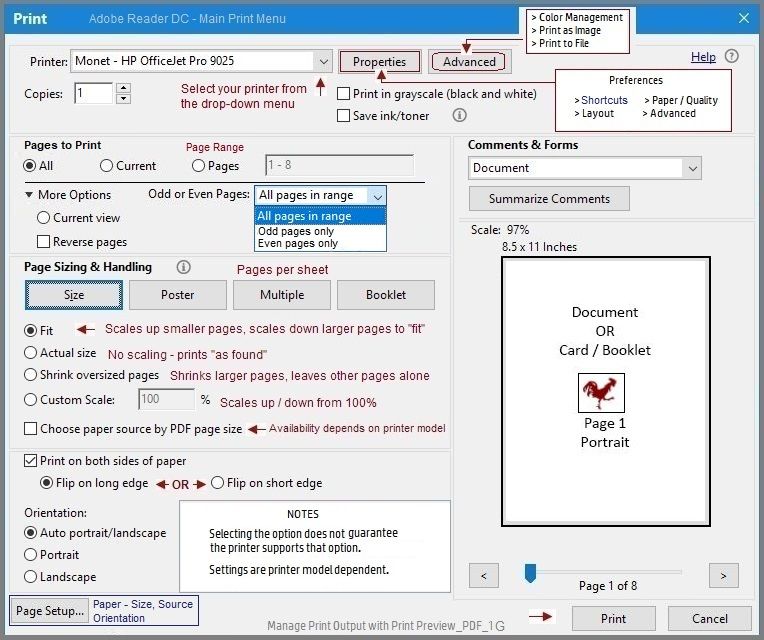
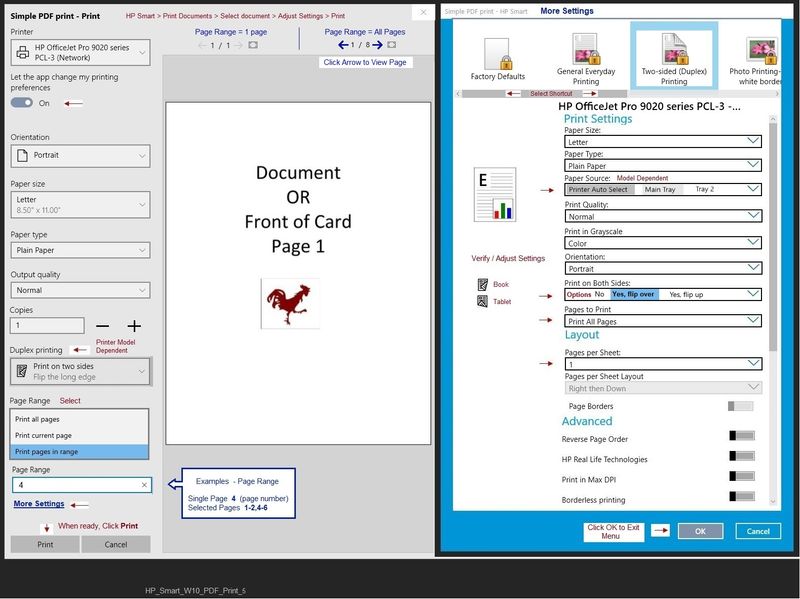
Print part of the document on one size paper using the Page Range to control which pages print.

Start a new print job on different paper using a different Page Range setup to "catch" the "other size" pages.


General example

PDF file print - Adobe Reader DC  - Main Menu

Manage Print Output with Print Preview_PDF_1GManage Print Output with Print Preview_PDF_1G


Example - HP Smart - Windows - PDF - Print Setup

HP_Smart_W10_PDF_Print_5HP_Smart_W10_PDF_Print_5


HP Printer Home Page - References and Resources – Learn about your Printer  - Solve Problems

 “Things that are your printer”

NOTE:  Content depends on device type and Operating System

Categories:  Alerts, Access to the Print and Scan Doctor (Windows), Warranty Check, HP Drivers / Software / Firmware Updates, How-to Videos, Bulletins/Notices, Lots of How-to Documents, Troubleshooting, Manuals > User Guides, Product Information (Specifications), more

When the website support page opens, Select (as available) a Category > Topic > Subtopic

HP Officejet Pro 8630 e-All-in-One Printer series 


Thank you for participating in the HP Community.

The Community is a separate wing of the HP website - We are not an HP business group.

Our Community is comprised of volunteers - people who own and use HP devices.

Click Thumbs Up to say Thank You.

Question Resolved / Answered, Click "Accept as Solution"

Dragon-Fur

† The opinions expressed above are the personal opinions of the authors, not of HP. By using this site, you accept the <a href="https://www8.hp.com/us/en/terms-of-use.html" class="udrlinesmall">Terms of Use</a> and <a href="/t5/custom/page/page-id/hp.rulespage" class="udrlinesmall"> Rules of Participation</a>.