• ×
    Information
    Need Windows 11 help?
    Check documents on compatibility, FAQs, upgrade information and available fixes.
    Windows 11 Support Center.
  • post a message
  • ×
    Information
    Need Windows 11 help?
    Check documents on compatibility, FAQs, upgrade information and available fixes.
    Windows 11 Support Center.
  • post a message
Guidelines
Seize the moment! nominate yourself or a tech enthusiast you admire & join the HP Community Experts!
Check some of the most frequent questions about Instant Ink: HP INSTANT INK, HP+ PLANS: INK AND TONER.


Check out our Black or Color Ink Not Printing, Other Print Quality Issues info about: Print quality and Cartridge Issues.
HP Recommended
Officejet 6600

I am getting repeated Paper Jam error when there is no Paper Jam that reads:  "Remove rear access panel or automatic two-sided printing accessory from the back of the printer, and then clear any paper.  If required, open the front cover or ink cartridge access door and clear any paper."


I've performed all instructions as well as power-off, back on and unplugged the electrical  power from the wall and printer to reset but nothing will clear the Paper Jam error message.  The machine will still Scan though.

HP 6600 OfficeJet - Paper Jam ErrorHP 6600 OfficeJet - Paper Jam Error

Any suggestions would be appreciated.

1 REPLY 1
HP Recommended

Hey there! @JeffS101


Have you tried checking with a different brand paper?


Please share the operating system you are running on the PC to assist you better.


Try updating the printer firmware to the latest version and check if it helps.


Update the printer firmware using this link. Click Here


Try the steps recommended below.


Make sure that the carriage moves freely


Remove and reinstall the cartridges


Clean the rollers

  1. Gather the following materials:

    • A clean, lint-free cloth, or any cloth that will not come apart or leave fibers

    • Distilled, filtered, or bottled water (tap water might damage the printer)

    • Clean, lint-free cotton swabs

  2. Press the Power button to turn off the printer.

  3. Disconnect the power cord from the rear of the printer.

  4. Slide the rear access door to the right, and then pull it toward you.

    Figure : Open the rear access door

    1. Slide the rear access door to the right

    2. Pull the rear access door toward you

  5. Lightly dampen a clean, lint-free cloth with bottled or distilled water, and then squeeze any excess liquid from the cloth.

  6. Press the cloth against the paper feed rollers, and then rotate them upward with your fingers. Apply a moderate amount of pressure to remove any dust or dirt buildup.

    Figure : Clean the paper feed rollers

    Image: Clean the paper feed rollers.
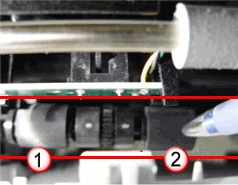
  7. Find the two pick rollers. They are near the center of the printer behind the paper feed rollers.

    NOTE: 

    You might need to use a flashlight to illuminate the pick rollers.

    Figure : The two pick rollers

    Image: The two pick rollers.
  8. Lightly dampen a clean, lint-free cotton swab with bottled or distilled water, and then squeeze any excess liquid from the swab.

  9. Press the cotton swab against the pick rollers, and then rotate the rollers upward with your fingers. Apply a moderate amount of pressure to remove any dust or dirt buildup.

  10. Allow the rollers to dry completely.

  11. Reinstall the rear access door. Position the right end in the printer, and then push the rear access door into the printer until it snaps into place.

    Figure : Reinstall the rear access door

    1. Position the rear access door in the printer

    2. Push the rear door into the printer

  12. Reconnect the power cord to the rear of the printer.

  13. Press the Power button to turn on the printer.

Refer this article to know more information about paper jam issues with the printer. Click Here


Let me know if this helps!

Have a great day ahead! 🙂


Please click “Accept as Solution” if you feel my post solved your issue, it will help others find the solution.

Click the “Kudos, Thumbs Up" on the bottom right to say “Thanks” for helping!

A4Apollo
I am an HP Employee

† The opinions expressed above are the personal opinions of the authors, not of HP. By using this site, you accept the <a href="https://www8.hp.com/us/en/terms-of-use.html" class="udrlinesmall">Terms of Use</a> and <a href="/t5/custom/page/page-id/hp.rulespage" class="udrlinesmall"> Rules of Participation</a>.