• ×
    Information
    Need Windows 11 help?
    Check documents on compatibility, FAQs, upgrade information and available fixes.
    Windows 11 Support Center.
  • post a message
  • ×
    Information
    Need Windows 11 help?
    Check documents on compatibility, FAQs, upgrade information and available fixes.
    Windows 11 Support Center.
  • post a message
Guidelines
Seize the moment! nominate yourself or a tech enthusiast you admire & join the HP Community Experts!
Check some of the most frequent questions about Instant Ink: HP INSTANT INK, HP+ PLANS: INK AND TONER.


Check out our Black or Color Ink Not Printing, Other Print Quality Issues info about: Print quality and Cartridge Issues.
HP Recommended
HP5525
macOS 10.13 High Sierra

I haven't used my printer for 2 months, than when I try to print out a document, it didn't go through. I realized that the IP adress had been changed, than I created the same IP adress on my Mac, yet now receiving message as "Printer In Use" and cannot have print outs. 

I have deleted the previous IP just to try as it is not in use, yet still didn't work. 

How can I reset the IP and operate my printer? 

Thanks so much

1 ACCEPTED SOLUTION

Accepted Solutions
HP Recommended

Hi! @Mehtap1, Thanks for stopping by the HP Support Forums!


I understand you have issues printing from your printer and you are getting an error printer in use.


Don't worry I'll try to help you out.


Did you make any changes to your printer?


Are you able to connect other devices to the same network?


Are you able to print using a wired connection?


Excellent description and a great diagnosis done. It is greatly appreciated.


Try updating the MAC and printer firmware to the latest version and check if it helps.


Update the printer firmware using this link. Click Here


Restart the computer, printer, and router

Restart the computer, printer, and router to resolve any network or communication error states.

   NOTE:

The following steps temporarily disconnect network and Internet connections, and require restarting your computer. Complete any tasks or downloads in progress before continuing.

  1. Disconnect the power cord from the router.

  2. Turn off the printer.

  3. Close all running programs on your computer, including the HP software installation window, then shut down the computer.

  4. Reconnect the power cord to the router, then wait for the Internet activity light to display a normal connected status.

  5. Turn on the printer.

  6. Turn on the computer.

Please try few steps recommended below.


Delete the existing print queue and add the printer

Remove the printer queue from the list of printers, and then add it again. Doing so creates a new printing session.

  1. Make sure your computer is connected to the Internet.

  2. In the Printers list, click your HP printer, and then click the Minus button () to delete it.

  3. Click the Add button ().

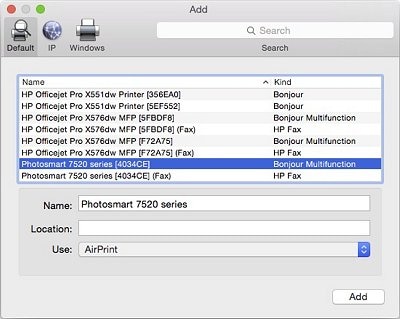
  4. Find, and then select the name of your printer from the Printer list, and then click Add to add your printer. Do not select an HP Fax driver.

       NOTE:

    If your printer does not display in the list, make sure the printer is connected, turned on, has power, and is ready to print.

    Figure : Example of the printer selection list

    Image: The Add window showing a selection of printers with one model selected.
  5. Click the Use or Print Using... menu.

  6. Select the name of your printer (if available) or AirPrint.

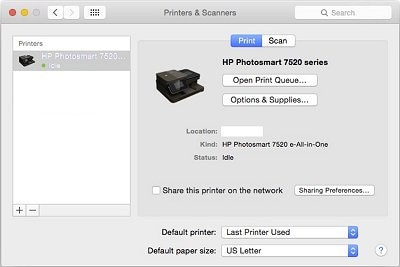
    Your new printer queue displays in the Printers list in an Idle status .

    Figure : Example of a newly added printer in the Printers & Scanners list

    Image: The printers and scanners windows with one printer in the printers list
  7. Try printing again.


Refer this article to further troubleshoot print job stuck in print queue. Click Here


Also, refer this article from apple to know more information about printing issues. Click Here


Let me know if this helps!

Have a great day ahead! 🙂


Please click “Accept as Solution” if you feel my post solved your issue, it will help others find the solution.

Click the “Kudos, Thumbs Up" on the bottom right to say “Thanks” for helping!

A4Apollo
I am an HP Employee

View solution in original post

2 REPLIES 2
HP Recommended

Hi! @Mehtap1, Thanks for stopping by the HP Support Forums!


I understand you have issues printing from your printer and you are getting an error printer in use.


Don't worry I'll try to help you out.


Did you make any changes to your printer?


Are you able to connect other devices to the same network?


Are you able to print using a wired connection?


Excellent description and a great diagnosis done. It is greatly appreciated.


Try updating the MAC and printer firmware to the latest version and check if it helps.


Update the printer firmware using this link. Click Here


Restart the computer, printer, and router

Restart the computer, printer, and router to resolve any network or communication error states.

   NOTE:

The following steps temporarily disconnect network and Internet connections, and require restarting your computer. Complete any tasks or downloads in progress before continuing.

  1. Disconnect the power cord from the router.

  2. Turn off the printer.

  3. Close all running programs on your computer, including the HP software installation window, then shut down the computer.

  4. Reconnect the power cord to the router, then wait for the Internet activity light to display a normal connected status.

  5. Turn on the printer.

  6. Turn on the computer.

Please try few steps recommended below.


Delete the existing print queue and add the printer

Remove the printer queue from the list of printers, and then add it again. Doing so creates a new printing session.

  1. Make sure your computer is connected to the Internet.

  2. In the Printers list, click your HP printer, and then click the Minus button () to delete it.

  3. Click the Add button ().

  4. Find, and then select the name of your printer from the Printer list, and then click Add to add your printer. Do not select an HP Fax driver.

       NOTE:

    If your printer does not display in the list, make sure the printer is connected, turned on, has power, and is ready to print.

    Figure : Example of the printer selection list

    Image: The Add window showing a selection of printers with one model selected.
  5. Click the Use or Print Using... menu.

  6. Select the name of your printer (if available) or AirPrint.

    Your new printer queue displays in the Printers list in an Idle status .

    Figure : Example of a newly added printer in the Printers & Scanners list

    Image: The printers and scanners windows with one printer in the printers list
  7. Try printing again.


Refer this article to further troubleshoot print job stuck in print queue. Click Here


Also, refer this article from apple to know more information about printing issues. Click Here


Let me know if this helps!

Have a great day ahead! 🙂


Please click “Accept as Solution” if you feel my post solved your issue, it will help others find the solution.

Click the “Kudos, Thumbs Up" on the bottom right to say “Thanks” for helping!

A4Apollo
I am an HP Employee

HP Recommended

Hello,

I agree with both the above solutions. However, if you found the steps involved above a little too much to handle, you could also try the following to keep things simpler:

1. Do the RPC power turn off. This is essentially in this sequence:

A. Turn Router (R) Off first.

B. Turn Printer off next.

C. Turn computer off last or next.

Note: You might not need to disconnect the power cable of this, just turning them off ought to do the trick.


2.  a) Turn the Router on. wait till the signals are all steady. If your smart phone uses the wi-fi and the printer is connected by wi-fi, please check if you are receiving the Wi-fi signals on your smart phone.

b) Next turn the printer on.

c) On the printer LED screen look for the Printer Settings Menu. in the Settings Menu Look for Network Set Up. In the Network set up look for the Wi-Fi wizard set up. From the wi-fi wizard Set Up choose your wi-fi. If the Wizard asks for your wi-fi Paraphrase (password0 enter it. remember this is case sensitive. Once the system recognises the wi-fi it ought to give a successful identification note.

d) Now turn the computer on and try a test print.

It ought to work.


Sometimes, when one does not use the printer for a while, external circumstances like ISP updates to the Router or minute changes to the signal patterns etc. might momentarily dislodge the bridge between the computer and the printer. Tweaking the Router and the printer set-ups could resolve the issue.


I hope this helps, in addition to what other experts have already said on this issue.

† The opinions expressed above are the personal opinions of the authors, not of HP. By using this site, you accept the <a href="https://www8.hp.com/us/en/terms-of-use.html" class="udrlinesmall">Terms of Use</a> and <a href="/t5/custom/page/page-id/hp.rulespage" class="udrlinesmall"> Rules of Participation</a>.