• ×
    Information
    Need Windows 11 help?
    Check documents on compatibility, FAQs, upgrade information and available fixes.
    Windows 11 Support Center.
  • post a message
  • ×
    Information
    Need Windows 11 help?
    Check documents on compatibility, FAQs, upgrade information and available fixes.
    Windows 11 Support Center.
  • post a message
Guidelines
Seize the moment! nominate yourself or a tech enthusiast you admire & join the HP Community Experts!
Check some of the most frequent questions about Instant Ink: HP INSTANT INK, HP+ PLANS: INK AND TONER.


Check out our Black or Color Ink Not Printing, Other Print Quality Issues info about: Print quality and Cartridge Issues.
HP Recommended
HP Ink Tank Wireless 415
Microsoft Windows 10 (64-bit)

I do not know how to explain the problems, perhaps with the image I scanned below would help.

There is some kind of stretchy or noise-like problem printed on color image and misalignment text on black and white text. It seem the problem repeated like a line.

I've tried to do all the cleaning, alignment etc from the hp 'Maintain Your Printer' menu, but the problem persisted. I've just bought this printer and this problem accur on my first time using it.

noise-like linenoise-like line

misalignment on textmisalignment on text

3 REPLIES 3
HP Recommended

Hi! @Nasir88


Does the issue persist when you make a copy from the printer?


Are you using HP original ink on your printer?


Have you tried printing from a different application?


Low ink levels can impact print quality.


Visually check the printer ink levels using the ink tank window.


Try the steps recommended below.


Print a Print Quality Diagnostic page

To resolve many print quality issues, print a Print Quality Diagnostic page, and then evaluate the results.

NOTE: 

To protect the printheads from drying out, always turn the printer off using the Power button, and wait until the Power button light goes out before unplugging the printer.

  1. Press and hold the Start Copy Color button  on the printer control panel for 3 seconds to print a Print Quality Diagnostic page.
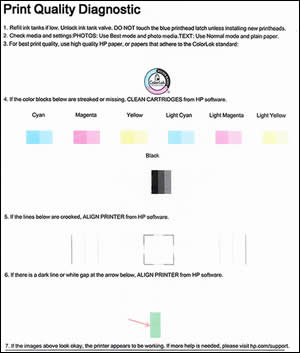
    Example of a Print Quality Diagnostic page

  2. Review the Cyan, Magenta, Yellow, and Black boxes, checking for missing colors, fading, and white lines.

    • If the color blocks do not show white lines, and are not faded or missing, the printer is working correctly. Check for image resolution problems, application errors, or other issues that might affect the printout.

Align the printer from the HP software.

  1. Open or search for the HP folder in your list of installed software applications, click the folder for your printer, and then click the name of your printer.

    HP Printer Assistant opens.

  2. On the HP Printer Assistant window, click Maintain Your Printer.

  3. Click the Device Services tab, and then click Align Cartridges.

    The printer prints an alignment page.

  4. Lift the scanner lid.

  5. Place the alignment page with the print side down on the right-front corner of the scanner glass, and then close the scanner lid. Position it according to the guides around the scanner glass.

    Printer alignment

  6. Close the scanner lid.

  7. On your computer, click Scan.

    The printer aligns the printheads.

  8. Recycle or discard the alignment page.


Refer this article to know more information about print quality issues with the printer. Click Here


Let me know if this helps!

Have a beautiful day ahead! 🙂


Please click “Accept as Solution” if you feel my post solved your issue, it will help others find the solution.

Click the “Kudos, Thumbs Up" on the bottom right to say “Thanks” for helping!

A4Apollo
I am an HP Employee

HP Recommended

Thank you for the response. This is a new printer. I am using the original ink and printhead that comes with the printer.


I've tried all the above mention steps a couple of time but the problem persisted.


I'll post the printed result later when I get to my office.

HP Recommended

Hi! @Nasir88,


Thanks for your response.


Did you try printing a print quality test page from the printer? Does the issue persist?


Please try the steps at your leisure and write back to us if you have any queries.


Hope to hear from you soon!

Take Care!

A4Apollo
I am an HP Employee

† The opinions expressed above are the personal opinions of the authors, not of HP. By using this site, you accept the <a href="https://www8.hp.com/us/en/terms-of-use.html" class="udrlinesmall">Terms of Use</a> and <a href="/t5/custom/page/page-id/hp.rulespage" class="udrlinesmall"> Rules of Participation</a>.