• ×
    Information
    Need Windows 11 help?
    Check documents on compatibility, FAQs, upgrade information and available fixes.
    Windows 11 Support Center.
  • post a message
  • ×
    Information
    Need Windows 11 help?
    Check documents on compatibility, FAQs, upgrade information and available fixes.
    Windows 11 Support Center.
  • post a message
Guidelines
Join the HP Community Solve‑a‑thon | Help Others & Share Your Solutions | Live on Zoom | 2:30 PM to 2:30 AM IST | Every Wednesday Click here to know more
Check some of the most frequent questions about Instant Ink: HP INSTANT INK, HP+ PLANS: INK AND TONER.


Check out our Black or Color Ink Not Printing, Other Print Quality Issues info about: Print quality and Cartridge Issues.
HP Recommended

I have a HPEnvy 5530 which is displlying the message "Improper shutdwon Swich off to avoid damage"  It will not print anything I have tried all on line solutions withoutsuccess


3 REPLIES 3
HP Recommended

@bl36,


Thanks for reaching out to the HP Support community!


Let's try to perform a Power Reset, this may fix the issue:

  • Make sure this printer is plugged into a direct wall, not a surge protector.
  • Turn the printer on.
  • Wait until the printer is idle and silent before you continue.
  • Remove all of your ink cartridges from the printer and close the door.
  • With the printer turned on, disconnect the power cord from the rear of the printer.
  • Unplug the power cord from the wall outlet.
  • Wait at least 60 seconds.
  • Plug the power cord back into the wall outlet.
  • Reconnect the power cord to the rear of the printer.
  • Turn on the printer, if it does not automatically turn on. The printer might go through a warm-up period. The printer lights might flash, and the carriage might move.
  • Wait until the warm-up period finishes and your printer is idle and silent before you proceed.
  • Reinsert the ink cartridges, and then close the ink cartridge access door.
  • Try to print/copy


Let me know if this helps. 


Please click “Accept as Solution” if you feel my post solved your issue, it will help others find the solution.

Click the “KudosThumbs Up" on the bottom right to say “Thanks” for helping.

ATHARVA_GP
I am an HP Employee

HP Recommended

l have tried several times using your solution without success  I am now getting an additionaL message i.e. cartridge carriage stuckSo if you have any further suggestions please let me know BL36


HP Recommended

@bl36,


Let's check if there are any jammed papers or obstructions inside the printer and clear them.


Follow these steps:


Step 1: Clear the jam from the rear roller and the duplexer


Clear the jam from the rear roller and the duplexer

  • With the printer turned on, disconnect the power cord from the rear of the printer.
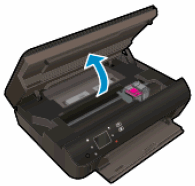
  • Open the cartridge access door.


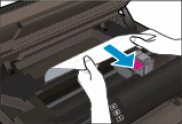
  • Remove any jammed paper from the cartridge access area, located toward the front of the printer. To avoid tearing any whole sheets of paper, pull the paper with both hands.


  • Use a flashlight to thoroughly check for torn pieces of paper that might remain inside the printer. If any torn pieces of paper remain inside the printer, more jams might occur.
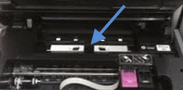
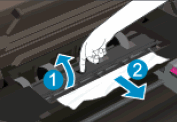
  • Locate the paper path cover in the area behind the cartridge access area.


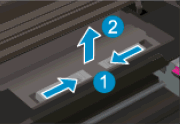
  • To remove the paper path cover, pinch the tabs together, and then lift up.


  1. Pinch the tabs together

  2. Lift up

  • Gently remove any jammed paper and bits of torn paper from the rear roller. To avoid tearing any whole sheets of paper, pull the paper with both hands.

  • Locate the duplexer path cover, directly underneath the paper path cover.

  • Insert your finger into the opening at the rear of the cover, and then lift up. Lift until you hear the duplexer path cover click into the upright position.

  • Gently remove any jammed paper and bits of torn paper. To avoid tearing any whole sheets of paper, pull the paper with both hands.


  • Gently push the duplexer path cover down until you hear it click into place.

  • Replace the paper path cover with the spring-loaded tabs facing toward the front of the printer. Gently press the cover down at the left and right edges. The cover clicks into place.

  • Close the cartridge access door.

Step 2: Clear any jammed paper from the input tray

  • Gently turn the printer onto its right side.
  • Check the surface directly under and around where the printer sits for the following:

    • Pieces of paper trapped in the input tray

    • Small, hard objects, such as cables, pens, pencils, and books

    • Soft or uneven surfaces, such as placemats or carpet-like material

  • Remove any obstructions that might remain.

  • Turn the printer to its normal position.

  • Reconnect the power cord to the rear of the printer, and then turn on the printer.

  • Touch OK to clear any messages on the printer control panel.

Step 3: Restart the Printer.


Let me know what happens.

Cheers!

ATHARVA_GP
I am an HP Employee

† The opinions expressed above are the personal opinions of the authors, not of HP. By using this site, you accept the <a href="https://www8.hp.com/us/en/terms-of-use.html" class="udrlinesmall">Terms of Use</a> and <a href="/t5/custom/page/page-id/hp.rulespage" class="udrlinesmall"> Rules of Participation</a>.