• ×
    Information
    Need Windows 11 help?
    Check documents on compatibility, FAQs, upgrade information and available fixes.
    Windows 11 Support Center.
  • post a message
  • ×
    Information
    Need Windows 11 help?
    Check documents on compatibility, FAQs, upgrade information and available fixes.
    Windows 11 Support Center.
  • post a message
Guidelines
Seize the moment! nominate yourself or a tech enthusiast you admire & join the HP Community Experts!
Check some of the most frequent questions about Instant Ink: HP INSTANT INK, HP+ PLANS: INK AND TONER.


Check out our Black or Color Ink Not Printing, Other Print Quality Issues info about: Print quality and Cartridge Issues.
HP Recommended

My OfficeJet 4652 will allow me to scan, fax, copy but has stopped printing from my computer.

3 REPLIES 3
HP Recommended

@hapapp 


Welcome to the HP Community --


There are several issues that can prevent printing - some of them require more effort to fix than do other measures.


What works depends on the source of the problem (of course).


"All of the sudden" won't print issues can be caused by all sorts of things, including

  • The printer falling off the network ("Offline"), perhaps due to setup errors or configuration changes
  • The printer software >> behaving as if hung, stuck, corrupted, or otherwise not working
  • Changes in the network that are not related to the printer's connection type (TCP/IP or SSID named network setup) but have disrupted the printer's connection (electrical changes, storms, disruptions)


Addressed here: 

Supported version of Windows and the Printer Software


================================

 Remove / Install the full driver printer software


If not done by this point...

Consider


Restart everything, including the router that controls you network.


Can't stand it?  At least restart the printer and the computer and any device you can stand to be without for a short time.


Next,

Run Windows Updates  --  If any updates are installed, Restart the computer and log in.


Next,


Printer - Full Feature Software - Install


If you have not done so, consider


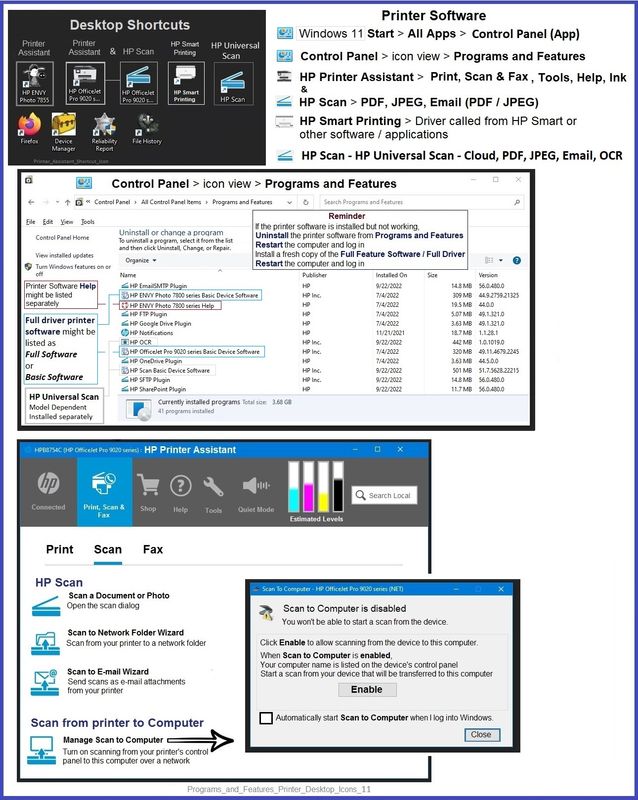
  • HP Full Feature Software / Full Driver printer software - supports printing and scanning from the web, printing in in other software and programs (for example, Word), and provides access to the full range of Printing Preferences / Shortcuts.  The full driver adds at least two shortcuts to the Desktop:  Printer Assistant and HP Scan.  If the printer model includes built-in Fax hardware, the software supports the setup and use of the Fax driver.  No Sign-in required.


If the full driver printer software is (already) installed but not working,

  • Uninstall any printer software from Control Panel > icon view > Programs and Features
  • Restart the computer and sign in.


What if?


NOTE: If software will not uninstall, appears to be removed and is “still hanging around” after you uninstall / Restart...

Microsoft: Fix problems that block programs from being installed or removed

OR

Revo Uninstaller (Free version)

then

Restart the computer and sign in


Next,

  • Check (for the Printer) in Devices and Printers  > If found, Right-Click Printer and Remove -- If any changes are made, that is, you remove anything, Restart the computer and sign in.


Next,

  • If using a printer USB cable between the printer and the computer, disconnect the cable before installing the printer software.
  • Download and Save the Full Feature Software installation package or the Easy Start Software


Details Page - Driver - For your Printer

>>> Full Feature Software - Web Pack Installation Package - Information - Download / Save / Install  <<<

HP OfficeJet 4650 series Print and Scan Driver and Accessories 


Installation

  • Open File Explorer
  • Navigate to the folder in which you saved the installation file  (likely Downloads)
  • Right-Click on the installation package and “Run as Administrator
  • If using a printer USB cable between the printer and the computer, connect the cable when instructed (near the end of the installation).
  • After the software is installed, Restart the computer and log in


====================================


The installation of the full driver adds at least two shortcuts to the Desktop:  

Printer Assistant 

HP Scan


>>> Open the Printer Assistant > tab Scan Manage Scan to Computer Enable


Example - Windows - Full Feature Software - Installed in Programs and Features

Programs_and_Features_Printer_Desktop_Icons_11Programs_and_Features_Printer_Desktop_Icons_11


+=+=+=+=+=+=+=+=+=+=+=+=+=+=+=+=+=+=+=+=+=

References / Resources


HP Printer Home Page - References and Resources

Learn about your Printer - Solve Problems

“Things that are your printer”

When the website support page opens, Select (as available) a Category > Topic > Subtopic

NOTE: Content depends on device type and Operating System

Categories: Alerts, Troubleshooting, Ink & Paper, HP Software / Drivers / Firmware Updates , Setup & User Guides, Product Specifications, Account & Registration, Warranty & Repair

Open

HP OfficeJet 4652 All-in-One Printer  


Thank you for participating in the HP Community --

People who own, use, and support HP devices.

Click Yes to say Thank You

Question / Concern Answered, Click my Post "Accept as Solution"


Dragon-Fur

HP Recommended

Seems simpler to buy a new printer.  Sorry but those suggestions are over my head.

HP Recommended

@hapapp 


OK - got it.


Sure, do that -- that is, replace the printer.

New tech is always nice.

There is certainly no need to apologize -- I do my best and so do you.

"All good."


If you do decide to reinstall the printer software,

Uninstall the existing software from Programs and Features.

Restart the computer.


You really only need the webpage where the software is located.

The installation is no different from every other time you have installed the printer software.

Ignore what you don't want, can't use, don't understand.


Details Page - Driver - For your Printer

>>> Full Feature Software - Web Pack Installation Package - Information - Download / Save / Install  <<<

HP OfficeJet 4650 series Print and Scan Driver and Accessories 

After the software is installed, Restart the computer and log in.


Or, yes - get a new printer -- purchase whatever brand and kind that meets your personal needs.

Be sure you read the specs so you get what you expect.

Lesser expensive printers cost less because they don't do what the more expensive models can do.


Stay safe, warm, and happy.


Thank you for participating in the HP Community --

People who own, use, and support HP devices.

Click Yes to say Thank You

Question / Concern Answered, Click my Post "Accept as Solution"


Dragon-Fur

† The opinions expressed above are the personal opinions of the authors, not of HP. By using this site, you accept the <a href="https://www8.hp.com/us/en/terms-of-use.html" class="udrlinesmall">Terms of Use</a> and <a href="/t5/custom/page/page-id/hp.rulespage" class="udrlinesmall"> Rules of Participation</a>.