• ×
    Information
    Need Windows 11 help?
    Check documents on compatibility, FAQs, upgrade information and available fixes.
    Windows 11 Support Center.
  • post a message
  • ×
    Information
    Need Windows 11 help?
    Check documents on compatibility, FAQs, upgrade information and available fixes.
    Windows 11 Support Center.
  • post a message
Guidelines
Seize the moment! nominate yourself or a tech enthusiast you admire & join the HP Community Experts!
Check some of the most frequent questions about Instant Ink: HP INSTANT INK, HP+ PLANS: INK AND TONER.


Check out our Black or Color Ink Not Printing, Other Print Quality Issues info about: Print quality and Cartridge Issues.
HP Recommended
HP officejet pro 6968 all in one

My printer keeps saying paper jam then when I clear that it says there is a problem with the printer or print system. Turn off printer then ack on. If you continue to get this message, contact HP. 0x6100004a. Any help please

1 REPLY 1
HP Recommended

@nowarrenty


Welcome to the HP support community.


I understand that you are getting 0x6100004a after clearing paper jam error, follow these steps to fix the issue.

Make sure the cartridge access door is closed

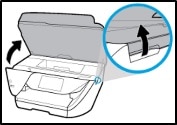
  1. Open the cartridge access door.

    Opening the cartridge access door

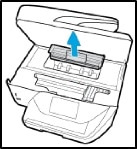
  2. Remove the paper path cover, and remove any torn paper, labels, or other obstruction that might be inside.

    Checking the cartridge door for obstructions

  3. Reinsert the paper path cover, making sure it is fully inserted into the printer so that it does not interfere with closing the access door.

  4. Close the door, ensuring it is fully seated.

Clear the error message

  1. Press the power button to turn off the printer.

  2. With the printer off, open the cartridge access door.

    Opening the cartridge access door

  3. Turn the power on and wait for the carriage to move.

  4. With the printer on, unplug the printer from power.

  5. Remove the ink cartridges and set them aside. It might be necessary to manually slide the carriage to access the cartridges.

  6. With the access door still open, turn the printer on, and then wait for the printer to complete the start-up sequence.

  7. Once the error has cleared and the carriage moves to the center of the opening, install the cartridges. If the error does not clear, repeat these steps until the error no longer displays.

Refer this HP document for more assistance:- Click here


Let me know how it goes.

To thank me for my efforts to help you, please mark my post as an accepted solution so that it benefits several others.

Cheers.

Sandytechy20
I am an HP Employee

† The opinions expressed above are the personal opinions of the authors, not of HP. By using this site, you accept the <a href="https://www8.hp.com/us/en/terms-of-use.html" class="udrlinesmall">Terms of Use</a> and <a href="/t5/custom/page/page-id/hp.rulespage" class="udrlinesmall"> Rules of Participation</a>.