• ×
    Information
    Need Windows 11 help?
    Check documents on compatibility, FAQs, upgrade information and available fixes.
    Windows 11 Support Center.
  • post a message
  • ×
    Information
    Need Windows 11 help?
    Check documents on compatibility, FAQs, upgrade information and available fixes.
    Windows 11 Support Center.
  • post a message
Guidelines
Seize the moment! nominate yourself or a tech enthusiast you admire & join the HP Community Experts!
Check some of the most frequent questions about Instant Ink: HP INSTANT INK, HP+ PLANS: INK AND TONER.


Check out our Black or Color Ink Not Printing, Other Print Quality Issues info about: Print quality and Cartridge Issues.
HP Recommended
HP OfficeJet 5255

I have a new HP OfficeJet 5255. I'm setting it up and an error message reads "Open the print zone access window and clear any paper jam or obstruction." There was no paper in the printer and it hadn't been used yet, however the ink bar won't move at all which I think is the problem. Any recommendations on how to fix this so that it slides or is it just defective and I need to return it?


1 REPLY 1
HP Recommended

@KLC1


Welcome to HP support community.


Check for obstructions in the carriage path

  1. With the printer on, disconnect the power cord from the rear of the printer.

  2. If your printer has a battery, remove the battery.

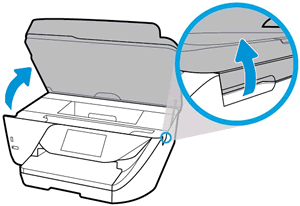
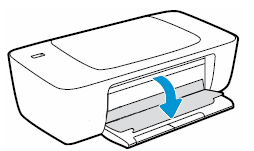
  3. Open the door to access the carriage inside of the printer.

    Examples of carriage access doors

    Opening an access door on top of the printerOpening an access door on the front of the printer

  4. Look in the carriage path for debris such as crumpled paper or dislodged labels, and then remove any that you find.

    Example of a printer with debris in the carriage path

    View inside a printer showing crumpled paper in the carriage path causing a carriage jam

  5. If the carriage on your printer has a latch, make sure it is closed.

       CAUTION: 

    Ink tank printers: If the latch is closed, do not press down on it.


    If the printhead latch is closed, do not press down on it

  6. Use your hand to move the carriage to each side, making sure it moves freely. If the carriage is stalled or docked to one side of the printer and you cannot move it, continue with these steps.

  7. Close the carriage access door.

  8. Reconnect the power cord to the rear of the printer, and then turn the printer on.

You can refer this HP document for more assistance:- Click here


Let me know how it goes.

To thank me for my efforts to help you, please mark my post as an accepted solution so that it benefits several others.

Cheers.

Sandytechy20
I am an HP Employee

† The opinions expressed above are the personal opinions of the authors, not of HP. By using this site, you accept the <a href="https://www8.hp.com/us/en/terms-of-use.html" class="udrlinesmall">Terms of Use</a> and <a href="/t5/custom/page/page-id/hp.rulespage" class="udrlinesmall"> Rules of Participation</a>.