• ×
    Information
    Need Windows 11 help?
    Check documents on compatibility, FAQs, upgrade information and available fixes.
    Windows 11 Support Center.
  • post a message
  • ×
    Information
    Need Windows 11 help?
    Check documents on compatibility, FAQs, upgrade information and available fixes.
    Windows 11 Support Center.
  • post a message
Guidelines
Seize the moment! nominate yourself or a tech enthusiast you admire & join the HP Community Experts!
Check some of the most frequent questions about Instant Ink: HP INSTANT INK, HP+ PLANS: INK AND TONER.


Check out our Black or Color Ink Not Printing, Other Print Quality Issues info about: Print quality and Cartridge Issues.
HP Recommended
OfficeJet 5230
macOS 10.13 High Sierra


I have an HP OfficeJet 5230 ink printer, a few months old, which was like a dream, WLAN conneted to both my Mac and my Raspberry Pi (with limited functionality), and net. And I took an HP Instant Ink subscription for her.

About the printer, her identity:
    Serial No. ... available, but not included, as instructed ...
    FPU No. M2U7S-64008


Then, the 5230 babe went saying "A paper tray is open. Please close the paper tray to continue." A failing sensor? Could not make that sensor of hers happy? I did try hard, you know.


Now, what should I do? There still is warranty period of the 5230 left, so should I take it back to the retail outlet, and learn how to switch my HP Instant Ink subscription to the new 5230? Or forget about the printer altogether, and somehow cancel the ink subscription; she cost me nothing more than 49 euros.


OK, I confess: I did use some force on her, once, at the time before the problem, when I was in a hurry. To add paper, it took a minute or two to pull the paper tray out enough to align the paper right. Then another minute or two to push the paper tray back in, and to close the lid. By patiently shaking the paper tray in every direction, again and again, to make the paper tray slide forwards and backwards. Not the kind of "as thin as possible plastic mechanics" I had expected of a product sold under the HP brand.

1 REPLY 1
HP Recommended

@PekkaIL, Welcome to the HP Support Community!


Do you see any broken/damaged parts in the tray?


This error may occur if the tray is not closed completely or if there are any obstructions in the tray path. Let us try these steps to resolve this issue:


Reset the printer

  1. With the printer turned on, disconnect the power cord from the rear of the printer.
  2. Wait at least 60 seconds.
  3. Reconnect the power cord to the rear of the printer.
  4. Turn ON the printer, if it does not automatically turn on.
  5. Wait until the printer is idle and silent before you proceed.

Note: HP recommends connecting the printer directly to a wall outlet rather than a surge protector or a power strip.


Update the printer firmware

Click here to know different methods of updating printer firmware.


 Make sure that the input tray is completely closed

Make sure that you have properly closed the main input tray by pushing the tray into the printer as far as possible.

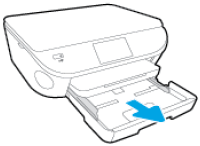
  1. Grasp the handle on the input tray, and then pull the tray toward you to open it.

    Figure : Pull out the input tray

    Image: Pull out the input tray
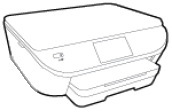
  2. Close the input tray by pushing it into the printer until it locks into place.

    Figure : Push in the input tray

    Image: Push in the input tray
    NOTE: The tray clicks into place when it is completely closed, and the printer makes noise.
  3. Check the control panel for the Have You Changed the Paper? message. If you see it and do not touch an option, the message fades after several seconds, and the printer returns to the Home screen. If you do not see the message, continue to the next solution.

Check for obstructions that prevent the input tray from closing

Refer to solution three from this document.


Reload the paper in the input tray

Refer to this document to know how to load papers.


Let me know how this goes.


If you feel my post solved your issue, please click “Accept as Solution”, it will help others find the solution. Click the “Kudos/Thumbs Up" on the bottom right to say “Thanks” for helping!

KUMAR0307
I am an HP Employee

† The opinions expressed above are the personal opinions of the authors, not of HP. By using this site, you accept the <a href="https://www8.hp.com/us/en/terms-of-use.html" class="udrlinesmall">Terms of Use</a> and <a href="/t5/custom/page/page-id/hp.rulespage" class="udrlinesmall"> Rules of Participation</a>.