• ×
    Information
    Need Windows 11 help?
    Check documents on compatibility, FAQs, upgrade information and available fixes.
    Windows 11 Support Center.
  • post a message
  • ×
    Information
    Need Windows 11 help?
    Check documents on compatibility, FAQs, upgrade information and available fixes.
    Windows 11 Support Center.
  • post a message
Guidelines
Join the HP Community Solve‑a‑thon | Help Others & Share Your Solutions | Live on Zoom | 2:30 PM to 2:30 AM IST | Every Wednesday Click here to know more
Check some of the most frequent questions about Instant Ink: HP INSTANT INK, HP+ PLANS: INK AND TONER.


Check out our Black or Color Ink Not Printing, Other Print Quality Issues info about: Print quality and Cartridge Issues.
HP Recommended
HP Envy 7855
Microsoft Windows 10 (32-bit)

I have a one year old HP Envy 7855 printer.  I can't print photos anymore, when I try (using HP printer paper and the printer's photo tray) the photo paper tries to load but does not and the printer screen says "Load photo paper in the tray". Since paper is loaded not sure what to do next.  BTW, the printer main tray works fine.

1 REPLY 1
HP Recommended

Hi @4EverGreen


Welcome to the HP Support Community. 


What are the paper type and paper size your using?


Try the below steps -


Take sure the photo tray is seated correctly

This error can occur if the printer trays are installed incorrectly. Make sure the printer is located on a flat surface, then make sure the photo tray moves smoothly within the paper tray guides.

  1. Make sure the printer is positioned on a flat surface.

  2. Push in the output tray extender.

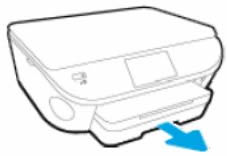
  3. Pull out the input tray, but do not remove it.

    Image: Pull out input tray

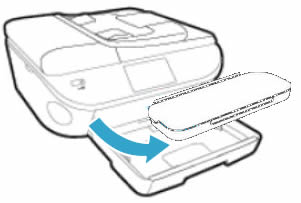
  4. Remove the output tray.

    Image: Remove the output tray

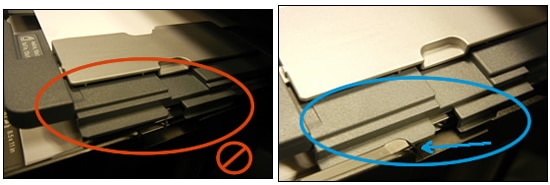
  5. Make sure the photo tray is seated correctly, and that the photo tray guide tabs (grey) are sliding beneath the main tray guides (black) on both the left and right side of the input tray.

    Image: Photo tray properly functioning

    Image: Tabs outside and inside guide rails

    If they are not in the correct position, gently move the photo tray to align the tab gaps, and then gently press the tabs back into position.

    The photo tray should move freely with no resistance.

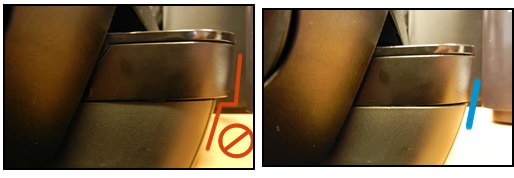
  6. Reinstall the output tray, and then make sure the edges line up with the input tray.

    Image: Line up the edges

  7. Try to print.

Also, refer to How to Print Photos (Windows)


Hope this helps! Keep me posted. 


Please click “Accept as Solution” if you feel my post solved your issue, it will help others find the solution.

Click the “Kudos, Thumbs Up" on the bottom right to say “Thanks” for helping

† The opinions expressed above are the personal opinions of the authors, not of HP. By using this site, you accept the <a href="https://www8.hp.com/us/en/terms-of-use.html" class="udrlinesmall">Terms of Use</a> and <a href="/t5/custom/page/page-id/hp.rulespage" class="udrlinesmall"> Rules of Participation</a>.