• ×
    Information
    Need Windows 11 help?
    Check documents on compatibility, FAQs, upgrade information and available fixes.
    Windows 11 Support Center.
  • post a message
  • ×
    Information
    Need Windows 11 help?
    Check documents on compatibility, FAQs, upgrade information and available fixes.
    Windows 11 Support Center.
  • post a message
Guidelines
Join the HP Community Solve‑a‑thon | Help Others & Share Your Solutions | Live on Zoom | 2:30 PM to 2:30 AM IST | Every Wednesday Click here to know more
Check some of the most frequent questions about Instant Ink: HP INSTANT INK, HP+ PLANS: INK AND TONER.


Check out our Black or Color Ink Not Printing, Other Print Quality Issues info about: Print quality and Cartridge Issues.
HP Recommended

I have an hp 7525 but my printer is different than the ones listed. My problem started several months ago [I purchased another printer in the mean time] and one day it began giving me an 'out of paper in the main tray' error and it wouldn't even print if I put photo paper in the photo tray.

I did go through the instructions on the fix but like I said, my printer is different. As you can see I initially requested help on 9/8/2018 which is more than a year ago, so I hope that I can get help sooner than that this time.


1 REPLY 1
HP Recommended

@Lewsnut


Welcome to HP support community.


Provide the product number of the printer?

Meanwhile:

Check the photo tray

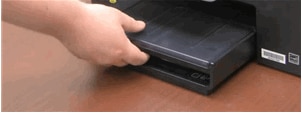
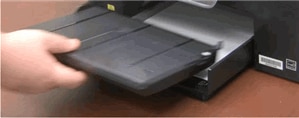
  1. Grasp the photo tray, tilt it upward, and then pull it away from the printer to remove it.

    Figure : Grasp the photo tray

    Image: Grasp the photo tray.

    Figure : Tilt the tray upward and pull it away from the printer

    Image: Tilt the tray upward and pull it away from the printer.

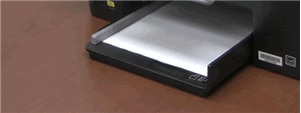
    Figure : The main tray with the photo tray removed

    Image: The main tray with the photo tray removed.
  2. Slide the photo tray back into place at a slight upward angle until it stops, and then press the photo tray down and in to seat it correctly.

    Figure : Reinsert the photo tray

    Image: Reinsert the photo tray.
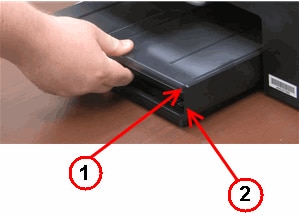
  3. Make sure that the front of the photo tray aligns with the end of the main tray. If the front of the photo tray does not line up with the end of the main tray, lift the photo tray at a slight upward angle, and then press the photo tray all the way into the printer.

    Figure : Align the front of the photo tray with the end of the main tray

    1.  

      Image: Align the front of the photo tray with the end of the main tray.

      Front of the photo tray
    2. End of the main tray

You can also refer this HP document for more assistance:- Click here


Let me know how it goes.

To thank me for my efforts to help you, please mark my post as an accepted solution so that it benefits several others.

Cheers.

Sandytechy20
I am an HP Employee

† The opinions expressed above are the personal opinions of the authors, not of HP. By using this site, you accept the <a href="https://www8.hp.com/us/en/terms-of-use.html" class="udrlinesmall">Terms of Use</a> and <a href="/t5/custom/page/page-id/hp.rulespage" class="udrlinesmall"> Rules of Participation</a>.