• ×
    Information
    Need Windows 11 help?
    Check documents on compatibility, FAQs, upgrade information and available fixes.
    Windows 11 Support Center.
  • post a message
  • ×
    Information
    Need Windows 11 help?
    Check documents on compatibility, FAQs, upgrade information and available fixes.
    Windows 11 Support Center.
  • post a message
Guidelines
Seize the moment! nominate yourself or a tech enthusiast you admire & join the HP Community Experts!
Check some of the most frequent questions about Instant Ink: HP INSTANT INK, HP+ PLANS: INK AND TONER.


Check out our Black or Color Ink Not Printing, Other Print Quality Issues info about: Print quality and Cartridge Issues.
HP Recommended
C310a
Microsoft Windows 7 (64-bit)

Need help fixing the ink system error 

'Ink System Failure' or '0x ...' Error Code Displays

I have turned off and on svseral times while unplugging


I have purchased replacement print heads to no avail.


I can get the printers to work on one remaining printhead, but will not recognize the other two replacements.  I am running one C310a and one B110 printer.  Same print head works in both.

1 REPLY 1
HP Recommended

Hi! @RATMAN_90, Thanks for stopping by the HP Support Forums!


Don't worry I'd like to help you out. Let me ask you a few questions in order to assist you better.


Did you make any changes to your printer?


Have you tried checking with a different ink cartridge?


Are you using HP genuine ink cartridges?


Please share the operating system you are running on your PC to assist you better.


Let's continue with the troubleshooting steps now.


Replace low, empty or faulty ink cartridges on the printer.


Try the steps recommended below.


Reset the printer

In some cases, a printer reset can clear the error message.

  1. Turn the printer on, if it is not already on.

  2. Wait until the printer is idle and silent before you continue.

  3. With the printer turned on, disconnect the power cord from the rear of the printer.

  4. Unplug the power cord from the wall outlet.

  5. Wait at least 60 seconds.

  6. Plug the power cord back into the wall outlet.

    NOTE: 

    HP recommends connecting the printer power cord directly to the wall outlet.

  7. Reconnect the power cord to the rear of the printer.

  8. Turn on the printer, if it does not automatically turn on.

  9. Wait until the printer is idle and silent before you proceed.

Clean the ink cartridge vents and contacts

Ink buildup or debris on the ink cartridge contacts and vents might cause an ink cartridge error.

  1. Gather the following materials:

    • A pin to clean any clogged vents

    • A clean, lint-free cloth

    • A clean, dry cotton swab

    • Distilled or bottled water

         CAUTION: 

      Do not use tap water because it might contain contaminants that can damage the printhead.

  2. Turn on the printer.

  3. Open the ink cartridge access door.

  4. To remove the ink cartridge, press the tab on the front of the ink cartridge to release it, and then remove it.

    Figure : Example of removing an ink cartridge from the printhead

    Example of removing an ink cartridge from the printhead
  5. Place the ink cartridges on a clean piece of paper with the ink opening pointing up.

       CAUTION: 

    Do not leave the ink cartridges outside the printer longer than 30 minutes. Doing so can result in damage to both the printer and the ink cartridges.

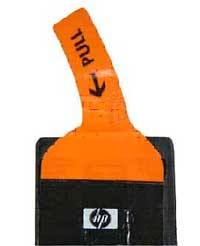
  6. If an orange tab is attached to any ink cartridge, remove it.

    Figure : Example of the orange tab

    Example of the orange tab
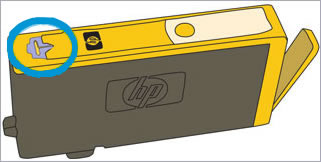
  7. Examine the vent area located on top of the ink cartridge, next to the HP logo.

    Figure : Example of the vent area

    Example of the vent area
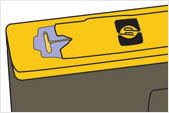
  8. If any of the ink cartridges have clogged vents, use a pin to clean the vents.

    Figure : Example of a clogged vent

    Example of a clogged vent

    Figure : Example of a clean vent

    Example of a clean vent
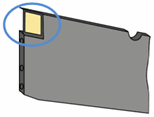
  9. Use a fresh, lightly dampened, lint-free cloth to wipe any accumulated ink and debris on the copper-colored contact on the ink cartridge.

    Figure : Example of the copper-colored contact on the ink cartridge

    Example of the copper-colored contact on the ink cartridge
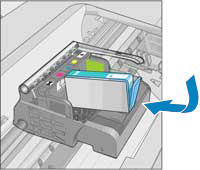
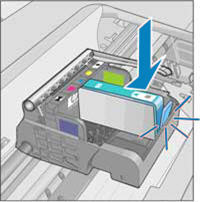
  10. Carefully reinsert one of the ink cartridges into its slot, and then push the ink cartridge down and forward until it snaps into place.

    Make sure each colored dot on the ink cartridge label matches the colored dot on the carriage.

    Figure : Reinserting the ink cartridge into the correct slot

    Example of sliding the ink cartridge into the correct slot

    Figure : Example of snapping the ink cartridge into place

     Example of snapping the ink cartridge into place
  11. Run your finger along the top of the ink cartridges to make sure none of them protrude.

    If any ink cartridges protrude, press down firmly until each ink cartridge snaps into place.

  12. Close the ink cartridge access door.

  13. Check the printer control panel display for the error message.

Refer this article to further troubleshoot 0xc or ink system failure errors on the printer. Click Here


Note: All the steps suggested in the article are crucial. Please try all the steps suggested in the document to isolate the issue.


If the issue still persists after trying out the steps it is a hardware issue with your printer.


Please contact HP support for service options. Click Here


Let me know if this helps!

Have a pleasant day ahead! 🙂


Please click “Accept as Solution” if you feel my post solved your issue, it will help others find the solution.

Click the “Kudos, Thumbs Up" on the bottom right to say “Thanks” for helping!

A4Apollo
I am an HP Employee

† The opinions expressed above are the personal opinions of the authors, not of HP. By using this site, you accept the <a href="https://www8.hp.com/us/en/terms-of-use.html" class="udrlinesmall">Terms of Use</a> and <a href="/t5/custom/page/page-id/hp.rulespage" class="udrlinesmall"> Rules of Participation</a>.