• ×
    Information
    Need Windows 11 help?
    Check documents on compatibility, FAQs, upgrade information and available fixes.
    Windows 11 Support Center.
  • post a message
  • ×
    Information
    Need Windows 11 help?
    Check documents on compatibility, FAQs, upgrade information and available fixes.
    Windows 11 Support Center.
  • post a message
Guidelines
Seize the moment! nominate yourself or a tech enthusiast you admire & join the HP Community Experts!
Check some of the most frequent questions about Instant Ink: HP INSTANT INK, HP+ PLANS: INK AND TONER.


Check out our Black or Color Ink Not Printing, Other Print Quality Issues info about: Print quality and Cartridge Issues.
HP Recommended
PRINTER 5820
Microsoft Windows 10 (64-bit)

WHEN I AM SENDING SOMETHING TO PRINT, I HAVE A MESSAGE IN MY COMPUTER SAYING THAT THE CARTRIDGE COLOR IS NOT WORKING, BUT THE CARTRIDGE IS BRAD NEW AND I WAS PRINTING WITHOUT PROBLEM UNTIL RIGHT NOW, I TRIED TO RESERT THE PRINTER BUT NOTHING CHANGE,,,,,

3 REPLIES 3
HP Recommended

@james19811


Welcome to the HP Support Community.


Do you have any other old or new colour cartridge that you can try inserting to check if the cartridge inside the Printer is defective?


Also, help us with the entire Printer name.


Thanks!


I am an HP Employee

HP Recommended

Hello,


I do not have an other cartridge  available,  that  is the one that it came with the printer ..


The name of the printer is:

* HP DESKJET GT 5820

HP Recommended

Do let us know the exact error message you see. Let's perform the below step:


Only remove the printhead indicated by the printhead icon  on the printer control panel.

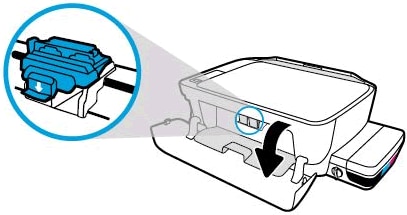
  1. Open the exterior door, and then open the printhead access door.

    Access the print carriage
  2. Gently push down on the blue carriage latch.

    The blue carriage latch opens.

    Open the carriage latch

  3. Lightly press down on the printhead to release it, and then pull the printhead out of its slot.

    Removing the printheads

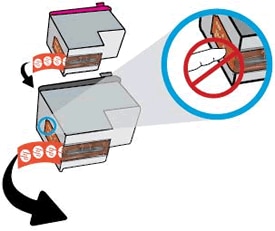
  4. Make sure the plugs on top of the printhead have been removed.

    Pull the orange plugs

  5. Make sure the tape from the printhead contacts has been removed.

       CAUTION: 

    Do not touch the copper-colored contacts or the ink nozzles. Do not replace the protective tape on the contacts. Handling these parts can result in clogs, ink failure, and bad electrical connections.

    Remove the tape

  6. Slide the printhead at a slight upward angle into the empty slot, and then gently push up on the printhead until it snaps into place.

    Insert the printheads

    • Insert the tri-color printhead into the left slot.

    • Insert the black printhead into the right slot.

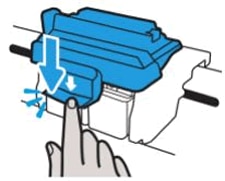
  7. Close the blue carriage latch by pushing down firmly until the latch snaps into place.

    Close the latch

  8. Close the printhead access door.

  9. Close the exterior door.

    The priming process should continue.

Let me know if this helps.


If the information I've provided was helpful, give us some reinforcement by clicking the Accepted Solution button, that'll help us and others see that we've got the answers!


Thanks!


I am an HP Employee

† The opinions expressed above are the personal opinions of the authors, not of HP. By using this site, you accept the <a href="https://www8.hp.com/us/en/terms-of-use.html" class="udrlinesmall">Terms of Use</a> and <a href="/t5/custom/page/page-id/hp.rulespage" class="udrlinesmall"> Rules of Participation</a>.