• ×
    Information
    Need Windows 11 help?
    Check documents on compatibility, FAQs, upgrade information and available fixes.
    Windows 11 Support Center.
  • post a message
  • ×
    Information
    Need Windows 11 help?
    Check documents on compatibility, FAQs, upgrade information and available fixes.
    Windows 11 Support Center.
  • post a message
Guidelines
Seize the moment! nominate yourself or a tech enthusiast you admire & join the HP Community Experts!
Check some of the most frequent questions about Instant Ink: HP INSTANT INK, HP+ PLANS: INK AND TONER.


Check out our Black or Color Ink Not Printing, Other Print Quality Issues info about: Print quality and Cartridge Issues.
HP Recommended
Photosmart 7525 Printer
Microsoft Windows 10 (64-bit)

I was unable to print using the black ink.  I cleaned all of the catridges, but this didn't help.  All installed catridges are brand new. I then removed the ink catridges and cleaned the printhead.  The printer was unable to align and now I'm receiving an error message that there is a problem with the Printer or Ink System.  Contact HP.  This printer was purchased in August 2014.  Is there anything I can do at this point?  Or should I just buy a new printer due to age?

1 REPLY 1
HP Recommended

@Holly131

Thank you for joining the HP Support Community


Let's follow the below steps that could resolve the issue.


Step 1: Use genuine HP ink cartridges


If your ink cartridges are not compatible with your printer, it might cause an error message.

HP recommends that you use genuine HP ink or toner supplies. HP cannot guarantee the quality or reliability of non-HP or refilled cartridges. If you do not use genuine HP cartridges, the steps in this document might not resolve the issue. To check the authenticity of your cartridges, go to the HP anti-counterfeit webpage (in English).

Purchase replacement cartridges and other supplies from the HP Store or local retailers.

If installing genuine HP ink cartridges resolved the issue, you do not need to continue troubleshooting.


Step 2: Reset the printer


In some cases, a printer reset can clear the error message.

  1. Turn the printer on, if it is not already on.

  2. Wait until the printer is idle and silent before you continue.

  3. With the printer turned on, disconnect the power cord from the rear of the printer.

  4. Unplug the power cord from the wall outlet.

  5. Wait at least 60 seconds.

  6. Plug the power cord back into the wall outlet.

    NOTE: 

    HP recommends connecting the printer power cord directly to the wall outlet.

  7. Reconnect the power cord to the rear of the printer.

  8. Turn on the printer, if it does not automatically turn on.

  9. Wait until the printer is idle and silent before you proceed.

If the error message persists, continue to the next step.


Step 3: Remove the ink cartridges


Removing the ink cartridges and checking for an error message can help diagnose the printer issue. Take the ink cartridges out of the print carriage, and then check the printer control panel or computer for an error message.

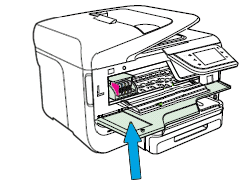
  1. Slip your fingers into the slot on the left side of the printer, and then pull forward to open the ink cartridge access door.

    The carriage moves to the left side of the access area.

    Figure : Opening the ink cartridge access door

    Opening the ink cartridge access door
  2. Wait until the printer is idle and silent before you continue.

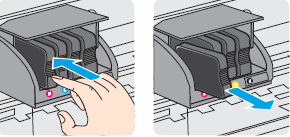
  3. Push in on the front of one of the ink cartridges to release it, and then pull the ink cartridge toward you to remove it.

    Figure : Removing the ink cartridge

    Removing the ink cartridge
  4. Repeat these steps for the other ink cartridges.

  5. Close the ink cartridge access door.

    Figure : Closing the ink cartridge access door

    Image: Close the ink cartridge access door
  6. Check the control panel display.

    • If the printer displays an Ink System Failure message on the control panel, skip to the step to Update the printer firmware.

    • If the message has changed to Replace the, or Ink Cartridge, continue to the next step.
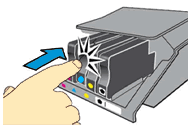
 

Step 4: Clean the ink cartridges, and then check the error message


Cleaning the ink cartridge contacts, and then reinstalling the ink cartridges one at a time can help determine if a specific ink cartridge is causing the error message.

  1. Gather the following materials:

    • A clean, lint-free cloth or a clean, dry cotton swab

    • Distilled or bottled water

         CAUTION: 

      Do not use tap water because it might contain contaminants that can damage the printhead.

  2. Lightly dampen a clean, lint-free cloth with bottled or distilled water.

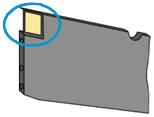
  3. Gently wipe the copper-colored contact on one of the ink cartridges.

    Figure : Example of copper-colored contact

    Example of copper-colored contact
  4. Wipe the contact with a dry, lint-free cloth before proceeding to the next step.

  5. Repeat these steps for the three remaining ink cartridges.

  6. Carefully reinsert each of the ink cartridges into its slot, and then push the ink cartridge down and forward until it clicks into place.

    Figure : Reinserting the ink cartridge

    Reinserting the ink cartridge
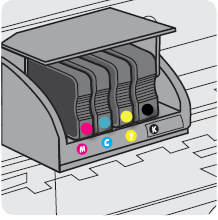
  7. Make sure each colored dot on the ink cartridge label matches the colored dot on the print carriage.

    Figure : Matching the colored dot on the print carriage

    Matching the colored dot on the print carriage
  8. Close the ink cartridge access door.

  9. Check the printer control panel to see if the error message persists.

Further assistance, click on this link: https://support.hp.com/us-en/product/hp-photosmart-7520-e-all-in-one-printer-series/5199461/model/52... and follow the steps from Step5.


Try to print.


Keep me posted, how it goes!

If the information I've provided was helpful, give us some reinforcement by clicking the Accepted Solution and Kudos buttons, that'll help us and others see that we've got the answers!

Have a great day!

Cheers:)

Raj1788
I am an HP Employee 

† The opinions expressed above are the personal opinions of the authors, not of HP. By using this site, you accept the <a href="https://www8.hp.com/us/en/terms-of-use.html" class="udrlinesmall">Terms of Use</a> and <a href="/t5/custom/page/page-id/hp.rulespage" class="udrlinesmall"> Rules of Participation</a>.