• ×
    Information
    Need Windows 11 help?
    Check documents on compatibility, FAQs, upgrade information and available fixes.
    Windows 11 Support Center.
  • post a message
  • ×
    Information
    Need Windows 11 help?
    Check documents on compatibility, FAQs, upgrade information and available fixes.
    Windows 11 Support Center.
  • post a message
Guidelines
Join the HP Community Solve‑a‑thon | Help Others & Share Your Solutions | Live on Zoom | 2:30 PM to 2:30 AM IST | Every Wednesday Click here to know more
Check some of the most frequent questions about Instant Ink: HP INSTANT INK, HP+ PLANS: INK AND TONER.


Check out our Black or Color Ink Not Printing, Other Print Quality Issues info about: Print quality and Cartridge Issues.
HP Recommended
Office jet 6830

Print head reported

2 REPLIES 2
HP Recommended

Driver for office jet 6830


HP Recommended

Hi @rnnfmn,


I'd like to help!


Reset the product

  • With the printer turned on, disconnect the power cord from the rear of the printer.
  • Unplug the power cord from the wall outlet.
  • Wait at least 60 seconds.
  • Plug the power cord back into the wall outlet.
  • Reconnect the power cord to the printer.
  • Turn the printer on. HP recommends plugging the printer directly into a wall outlet.

Update the printer firmware

Updating the printer firmware might resolve printhead problems. Go to Updating or Upgrading Printer Firmware for more information.


Check the carriage for a printhead latch


Look at the carriage to see if it has a latch. The carriage is the part inside the printer that holds the printhead and cartridges. If the carriage does not have a latch (fixed printhead), then the only option is to service the printer.

  1. Open the door to access the cartridges.

  2. Wait until the carriage stops moving before you continue.

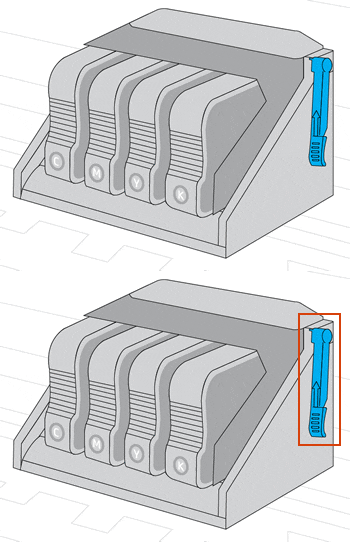
  3. Look at the right side of the carriage to see if the carriage has a printhead latch (a handle that can be raised, which allows the printhead to be removed).

    • If your carriage has a printhead latch, continue to the next step.

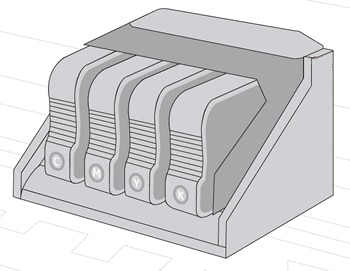
    • If your carriage does not have a printhead latch (fixed printhead), skip to Service the printer. If the printhead is fixed, then there are no additional troubleshooting steps available.

Example of a carriage with a printhead latch

Example of a carriage without a printhead latch

Animations of carriage with a printhead latch

Carriage without a printhead latch


To download full-featured drivers, click here


Hope this helps! Keep me posted. 


And, Welcome to the HP Support Community. 


Please click “Accept as Solution” if you feel my post solved your issue, it will help others find the solution.

Click the “Kudos, Thumbs Up" on the bottom right to say “Thanks” for helping

† The opinions expressed above are the personal opinions of the authors, not of HP. By using this site, you accept the <a href="https://www8.hp.com/us/en/terms-of-use.html" class="udrlinesmall">Terms of Use</a> and <a href="/t5/custom/page/page-id/hp.rulespage" class="udrlinesmall"> Rules of Participation</a>.