-
×InformationNeed Windows 11 help?Check documents on compatibility, FAQs, upgrade information and available fixes.
Windows 11 Support Center. -

-
×InformationNeed Windows 11 help?Check documents on compatibility, FAQs, upgrade information and available fixes.
Windows 11 Support Center. -
- HP Community
- Printers
- Printing Errors or Lights & Stuck Print Jobs
- Printer problem

Create an account on the HP Community to personalize your profile and ask a question
12-08-2018 03:01 PM
Thank you for joining HP Forums.
It's a pleasure assisting you in finding answers to your technical queries.
To provide you with an accurate solution, I'll need a few more details:
Could you please help me with the exact model name or the operating system of your computer?
Is the copy working fine? (If available)
Are you using genuine HP Ink cartridge?
DId you try with a different cartridge?
Have a great day!
Cheers:)
Raj1788
I am an HP Employee
12-10-2018 11:33 AM
I see that you were interacting with @Raj1788. I'd like to help.
Thanks for the reply.
I appreciate your time and effort.
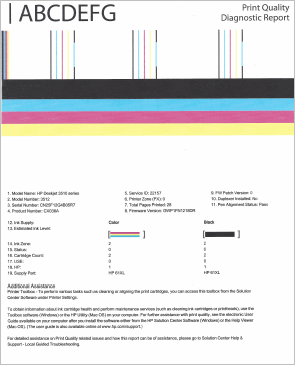
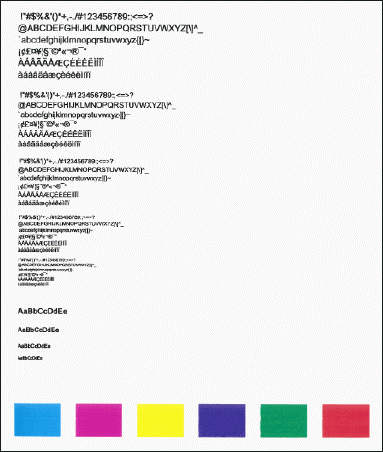
Print a Print Quality Diagnostic Report.
-
On the printer control panel, press the Down Arrow
to scroll to Tools, and then press OK. -
Press the Down Arrow
to scroll to Print Quality Report, and then press OK. The printer prints the test page.
If it is not printing in black, follow the below steps to fix this issue.
Clean the area around the ink nozzles
-
Gather the following materials:
-
Dry foam-rubber swabs, lint-free cloth, or any soft material that does not come apart or leave fibers (coffee filters work well)
-
Clean sheets of paper
-
Distilled, filtered, or bottled water (tap water might contain contaminants that can damage the print cartridges)
CAUTION:
Do not use platen cleaners or alcohol to clean the area. These can damage the cartridge or the printer.
-
-
Press the Power button to turn on the printer, if it is not already on.
-
Open the cartridge access door. The carriage moves to the center of the printer. Wait until the carriage is idle and silent before continuing.
Figure : Open the cartridge access door

-
Lightly press down on the cartridge to release it, and then pull the cartridge out to remove it from its slot.
Figure : Remove the cartridge
CAUTION:
Do not touch the copper-colored contacts or the ink nozzles. Touching these parts can result in clogs, ink failure, and bad electrical connections.
Figure : Do not touch the contacts or nozzles

-
Place the cartridge on a piece of paper with the ink nozzles facing up.
-
Lightly moisten a clean, foam-rubber swab with distilled water.
-
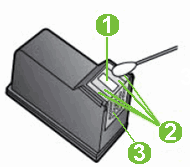
Clean the face and edges around the ink nozzle with the swab.
CAUTION:
Do not clean the ink nozzle plate.
Figure : Clean the area around the ink nozzle
-
-
Nozzle plate - DO NOT CLEAN
-
Area surrounding ink nozzle - Do clean
-
Cartridge contacts - DO NOT CLEAN
-
-
Either let the cartridge sit for 10 minutes to allow the cleaned area to dry, or use a new swab to dry it.
-
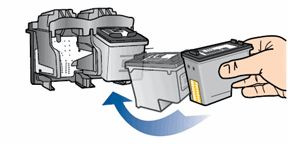
Hold the cartridge by its sides with the nozzles toward the printer, and then insert the cartridge into its slot. Make sure that the icon on the cartridge matches the icon on the slot.
-
The tri-color cartridge (
) goes in the slot on the left. -
The black cartridge (
) goes in the slot on the right.
Figure : Insert the cartridge into the slot

-
-
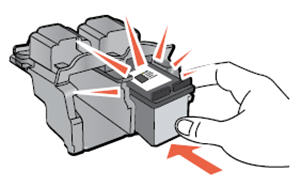
Push the cartridge forward into its slot until it snaps into place.
Figure : Push the cartridge into the slot

-
Repeat these steps to clean the area surrounding the ink nozzle on the other cartridge.
-
Close the cartridge access door.
Clean the printhead using an automated tool
-
Load letter or A4, unused, plain white paper into the paper tray.
-
On the printer control panel, press the Down Arrow
to select Tools, and then press OK. -
Press the Down Arrow
to select Clean Printhead, and then press OK. The printer cleans the printhead, and then prints a printhead test page.
-
Review the print quality on the printhead test page.
You can refer to this HP document for more assistance:- Click here
Let me know how it goes.
To thank me for my efforts to help you, please mark my post as an accepted solution so that it benefits several others.
Cheers.
Sandytechy20
I am an HP Employee