• ×
    Information
    Need Windows 11 help?
    Check documents on compatibility, FAQs, upgrade information and available fixes.
    Windows 11 Support Center.
  • post a message
  • ×
    Information
    Need Windows 11 help?
    Check documents on compatibility, FAQs, upgrade information and available fixes.
    Windows 11 Support Center.
  • post a message
Guidelines
Join the HP Community Solve‑a‑thon | Help Others & Share Your Solutions | Live on Zoom | 2:30 PM to 2:30 AM IST | Every Wednesday Click here to know more
Check some of the most frequent questions about Instant Ink: HP INSTANT INK, HP+ PLANS: INK AND TONER.


Check out our Black or Color Ink Not Printing, Other Print Quality Issues info about: Print quality and Cartridge Issues.
HP Recommended
HP Deskjet 5275
Microsoft Windows 10 (64-bit)

I need an application for printing photos. It appears that HP do not supply a printing application on the software disk.

2 REPLIES 2
HP Recommended

@Clapper1 


The basics here:

 How to > topic Print > subject list Instructions & Settings

 How to Print Photos (Windows)


and

Print Driver Settings Guide (Windows)


If supported on your printer:

HP Printers - Creating Custom Paper Sizes


Photo Printing 


Download, Save, and install:

HP Photo Creations


Photo Creations works alongside your installed printer software to help you print your photos, images, and other projects.


Windows 8.x and Windows 10 - After the software is installed:

Click Start (windows key) > all apps > scroll the list 

Open Category HP

Find the HP Photo Creations application

Right-Click on the application and PIN to Start


HP Photo Creations Support & Tips


Example:

General Example - 4x6 inch single photo on 4x6 in photo paper


NOTE Borderless may -- or may not -- be available on your printer model


Open the Photo Creations software


Quick Prints > 4 X 6 inch Quick Prints > Print my own > Add Photos > Browse 


Click / Select Photo from folder > Open 

In Section Edit > Click once or twice on the opened photo 

White box opens listing Edit Options:

Select / Edit if / as desired


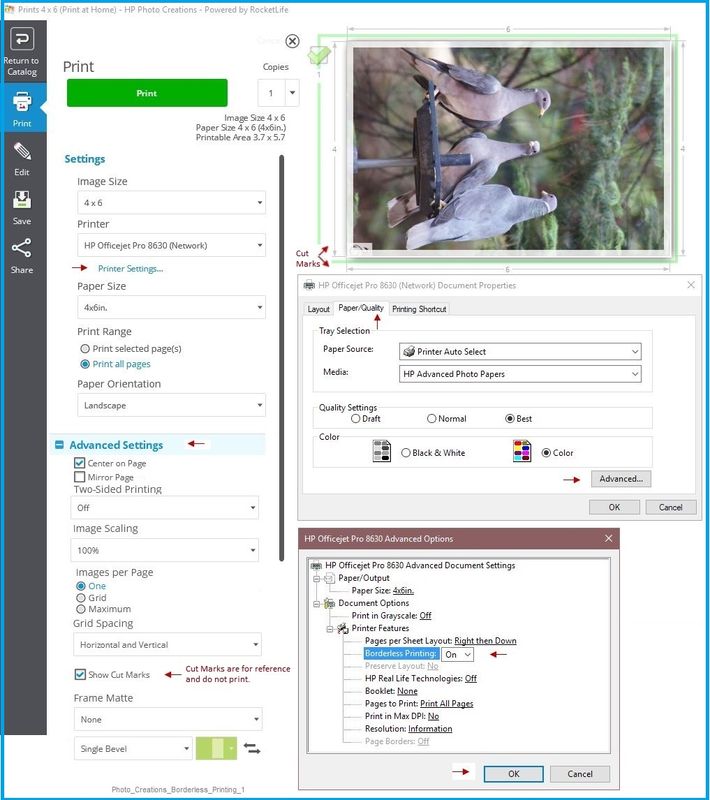
Section Print 


Adjust Settings 


  • Verify / Select the Name of your printer
  • Select the number of Copies (Located next to the "Print" box)
  • Verify / Select Image Size
  • Verify / Select Print Range (for multiple pages)
  • Verify / Select Paper Orientation


Open Printer Settings  (Located under the name of your printer)


Verify / Adjust setups   (Reminder: Selections in Printer Settings and Settings must match)


  1. Printing Shortcut Photo Printing (with or without borders depending on your printer model)
  2. tab Paper / Quality Media Type = HP Advanced Photo Paper (or other)
  3. Box Advanced > Size of Paper > 4 x 6 inch  (10x15 cm)
  4. Click / Select Borderless Printing ON
  5. Click OK to close Printer Settings

Click Print


Photo_Creations_Borderless_Printing_1.JPGPhoto_Creations_Borderless_Printing_1


Reference and Resources – Places to find (more) help and learn about your Printer

Printer Homepage – “Things that are your printer”

Drivers / Software / Firmware Updates, Videos, Bulletins/Notices, How-to, Troubleshooting, User Guides, Product Information, more

HP DeskJet Ink Advantage 5275 All-in-One Printer


Thank you for participating in the HP Community Forum.

We are a world community of HP enthusiasts dedicated to supporting HP technology.

Click Thumbs Up on a post to say Thank You!

Answered? Click post "Accept as Solution" to help others find it.


Dragon-Fur

HP Recommended

@ Dragon-Fur

Thanks for your help. The problem with HP Photo Creations is that you have to be on Internet. It is not a software which can be installed.

† The opinions expressed above are the personal opinions of the authors, not of HP. By using this site, you accept the <a href="https://www8.hp.com/us/en/terms-of-use.html" class="udrlinesmall">Terms of Use</a> and <a href="/t5/custom/page/page-id/hp.rulespage" class="udrlinesmall"> Rules of Participation</a>.