
-
×InformationNeed Windows 11 help?Check documents on compatibility, FAQs, upgrade information and available fixes.
Windows 11 Support Center. -
-
×InformationNeed Windows 11 help?Check documents on compatibility, FAQs, upgrade information and available fixes.
Windows 11 Support Center. -
- HP Community
- Printers
- Printing Errors or Lights & Stuck Print Jobs
- Problem with the printer

Create an account on the HP Community to personalize your profile and ask a question
Your account also allows you to connect with HP support faster, access a personal dashboard to manage all of your devices in one place, view warranty information, case status and more.
Check some of the most frequent questions about Instant Ink: HP INSTANT INK, HP+ PLANS: INK AND TONER.
Check out our Black or Color Ink Not Printing, Other Print Quality Issues info about: Print quality and Cartridge Issues.

It has been a while since anyone has replied. Simply ask a new question if you would like to start the discussion again.

03-11-2018 07:41 AM
 HP Recommended
Product: HP officejet6950
Operating System: Microsoft Windows 10 (32-bit)
I was copying some documents when the printer started to put out white papers.
The printer indicates that printing heads are at half and test printing, in color, comes out just fine.
Still, sending a document for printing yields an empty sheet???
I tried going back to manufacturer definitions, nothing help.
Do you have any idea what could be the problem?
Thank you in advance.
Solved! Go to Solution.
1 ACCEPTED SOLUTION
Accepted Solutions


03-12-2018 10:23 AM
HP Recommended
Thanks for taking an interest in the HP Support Forums After reading your post I see that you HP Officejet 6950 Printer prints blank pages when you make a copy. I will be a delight to assist you here.
Superb analysis and brilliant diagnosis of the issue before posting. 🙂 Kudos to you on that score.:)
For better clarity and to assist you better I would require more information regarding this:
- When did this issue start?
- Did you do any changes in the printer?
Meanwhile
Make sure the ink cartridges are properly vented and seated correctly
-
Press the Power button to turn on the printer, if it is not already turned on.
-
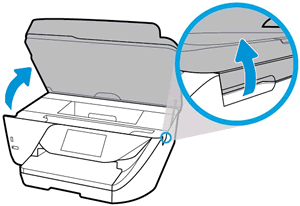
Open the ink cartridge access door.
The carriage moves to the center of the printer.
Figure : Opening the ink cartridge access door
-
Wait until the carriage is idle and silent before you continue.
-
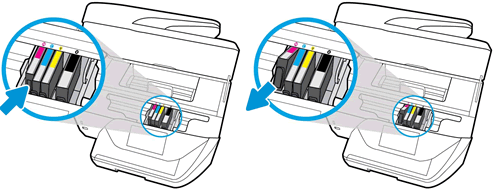
Press the tab inward on the front of the old ink cartridge to release it, and then pull up on the ink cartridge to remove it from the slot.
Figure : Removing the ink cartridge
-
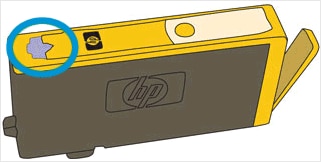
Examine the vent area above the HP logo on the top of the ink cartridge.
Figure : Examine the vent area on the cartridge
-
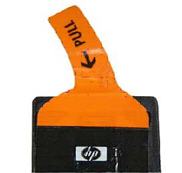
If the ink cartridge still has the orange pull-tab attached, pull to remove it.
Figure : Remove the orange pull-tab
-
If the vent is clogged, use a straight pin to gently remove excess adhesive from the vent.
Figure : Cleaning the clogged vent with a pin
-
Clogged vent
-
With a straight pin, gently remove excess adhesive from the vent
-
Unclogged vent
-
-
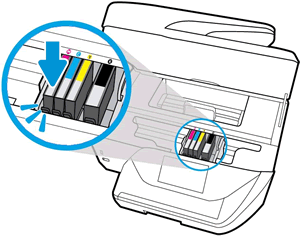
Turn the ink cartridge so that the cartridge contacts face downward, and then match the label color with the color dot on the carriage.
-
Slide the ink cartridge into its slot, and then gently press the ink cartridge down until it snaps into place.
Figure : Installing the ink cartridge
-
Repeat these steps to inspect the vents on each of the ink cartridges.
-
Make sure each ink cartridge is firmly installed in its slot. Run your finger along the top of the ink cartridges to feel for any that are protruding, and if any are, press down firmly until each ink cartridge snaps into place.
-
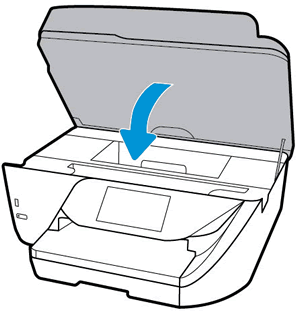
Close the ink cartridge access door.
Figure : Closing the ink cartridge access door
Try to print.
Clean the printhead
-
From the home screen on the printer control panel, swipe left, and then touch the Setup icon
 .
. -
Swipe up on the display, and then touch Printer Maintenance.
-
Touch Tools, and then touch Clean Printhead.
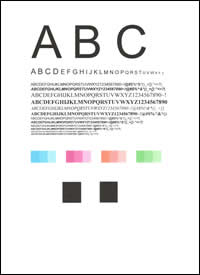
A test page prints.
Figure : Example of the printhead cleaning test page
-
Examine the test page.
-
If the print quality is unacceptable, touch Clean Again to continue the next level of cleaning. Repeat these steps for the third cleaning stage, if necessary.
-
If the print quality is acceptable, touch Done.
-
Let me know how it goes.
Cheers.
Sandytechy20
I am an HP Employee
3 REPLIES 3
03-12-2018 10:23 AM
HP Recommended
Thanks for taking an interest in the HP Support Forums After reading your post I see that you HP Officejet 6950 Printer prints blank pages when you make a copy. I will be a delight to assist you here.
Superb analysis and brilliant diagnosis of the issue before posting. 🙂 Kudos to you on that score.:)
For better clarity and to assist you better I would require more information regarding this:
- When did this issue start?
- Did you do any changes in the printer?
Meanwhile
Make sure the ink cartridges are properly vented and seated correctly
-
Press the Power button to turn on the printer, if it is not already turned on.
-
Open the ink cartridge access door.
The carriage moves to the center of the printer.
Figure : Opening the ink cartridge access door
-
Wait until the carriage is idle and silent before you continue.
-
Press the tab inward on the front of the old ink cartridge to release it, and then pull up on the ink cartridge to remove it from the slot.
Figure : Removing the ink cartridge
-
Examine the vent area above the HP logo on the top of the ink cartridge.
Figure : Examine the vent area on the cartridge
-
If the ink cartridge still has the orange pull-tab attached, pull to remove it.
Figure : Remove the orange pull-tab
-
If the vent is clogged, use a straight pin to gently remove excess adhesive from the vent.
Figure : Cleaning the clogged vent with a pin
-
Clogged vent
-
With a straight pin, gently remove excess adhesive from the vent
-
Unclogged vent
-
-
Turn the ink cartridge so that the cartridge contacts face downward, and then match the label color with the color dot on the carriage.
-
Slide the ink cartridge into its slot, and then gently press the ink cartridge down until it snaps into place.
Figure : Installing the ink cartridge
-
Repeat these steps to inspect the vents on each of the ink cartridges.
-
Make sure each ink cartridge is firmly installed in its slot. Run your finger along the top of the ink cartridges to feel for any that are protruding, and if any are, press down firmly until each ink cartridge snaps into place.
-
Close the ink cartridge access door.
Figure : Closing the ink cartridge access door
Try to print.
Clean the printhead
-
From the home screen on the printer control panel, swipe left, and then touch the Setup icon
. -
Swipe up on the display, and then touch Printer Maintenance.
-
Touch Tools, and then touch Clean Printhead.
A test page prints.
Figure : Example of the printhead cleaning test page
-
Examine the test page.
-
If the print quality is unacceptable, touch Clean Again to continue the next level of cleaning. Repeat these steps for the third cleaning stage, if necessary.
-
If the print quality is acceptable, touch Done.
-
Let me know how it goes.
Cheers.
Sandytechy20
I am an HP Employee

Be alert for scammers posting fake support phone numbers and/or email addresses on the community.
If you think you have received a fake HP Support message, please report it to us by clicking on "Flag Post".
† The opinions expressed above are the personal opinions of the authors, not of HP. By using this site, you accept the Terms of Use and Rules of Participation.


Didn't find what you were looking for?
Ask the community
† The opinions expressed above are the personal opinions of the authors, not of HP. By using this site, you accept the <a href="https://www8.hp.com/us/en/terms-of-use.html" class="udrlinesmall">Terms of Use</a> and <a href="/t5/custom/page/page-id/hp.rulespage" class="udrlinesmall"> Rules of Participation</a>.