• ×
    Information
    Need Windows 11 help?
    Check documents on compatibility, FAQs, upgrade information and available fixes.
    Windows 11 Support Center.
  • post a message
  • ×
    Information
    Need Windows 11 help?
    Check documents on compatibility, FAQs, upgrade information and available fixes.
    Windows 11 Support Center.
  • post a message
Guidelines
Here is the solution for Blue screen error 83C0000B on HP OfficeJet Pro 8010e, 9020e Printer Series: Click here to view.
Check some of the most frequent questions about Instant Ink: HP INSTANT INK, HP+ PLANS: INK AND TONER.


Check out our Black or Color Ink Not Printing, Other Print Quality Issues info about: Print quality and Cartridge Issues.
HP Recommended
HP F4480
macOS 10.12 Sierra

Hi.  I have a HP F4480 printer that uses Inkjet cartridges and is out of warranty. It has been  solid printer with few issues; however, even though I changed both the black and tri-color cartridges, I can't get it to print properly.  If I do fast draft black and white or fast draft best, all I get is grayed out ink that looks like this. (see attached photo).  I have re-inserted the two ink cartridges and it says they are full on my printer screen, but it stil won't print properly.  Any solutions out there?? Thank you!IMG_4843.JPG

1 REPLY 1
HP Recommended

@Caligirl3

Thank you for joining HP Forums.

It's a pleasure assisting you in finding answers to your technical queries.


To provide you with an accurate solution, I'll need a few more details:

Are you facing the same issue while making a copy?

Did you try to print from a different application?

Are you using genuine HP Ink cartridge?


If the copy is working fine this could be a driver issue.


If the copy has the same issue, follow the below steps.


I suggest you do a Hard Reset


(1) Turn the printer on, if it is not already on.

(2) Wait until the printer is idle and silent before you continue.

(3) With the printer turned on, disconnect the power cord from the rear of the printer.

(4) Unplug the power cord from the wall outlet.

(5) Wait at least 60 seconds.

(6) Plug the power cord back into the wall outlet.

NOTE: HP recommends connecting the printer power cord directly to the wall outlet.

(7) Reconnect the power cord to the rear of the printer.

(8) Turn on the printer, if it does not automatically turn on.


The printer might go through a warm-up period. The printer lights might flash, and the carriage might move.

Wait until the warm-up period finishes and your printer is idle and silent before you proceed.


 Clean the area around the ink nozzles


  1. Gather the following materials:

    • Dry foam-rubber swabs, lint-free cloth, or any soft material that will not come apart or leave fibers (coffee filters work well)

    • Clean sheets of paper

         CAUTION: 

      Do not use platen cleaners or alcohol to clean the area. These can damage the cartridge or the product.

  2. Press the Power button () to turn on the product, if it is not already on.
  3. Open the front access door.

    Figure : Open the front access door

    Illustration of opening the front access door
  4. Wait for the carriage to move to the center of the product.

  5. Press down on one of the cartridges to release it, and then pull it out from its slot.

    Figure : Remove the cartridge

    Illustration of removing the cartridge
       CAUTION: 

    Do not remove both cartridges at the same time. Do not leave a cartridge outside the product for more than 30 minutes.

       CAUTION: 

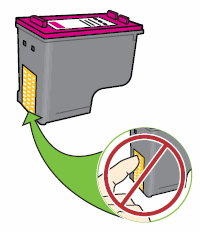
    Do not touch the cartridge contacts or nozzles.

    Figure : Do not touch the contacts

    Illustration: Do not touch the cartridge contacts
  6. Set the cartridge on a piece of paper with the ink nozzles facing up.

  7. Lightly moisten a clean, foam-rubber swab with distilled water.

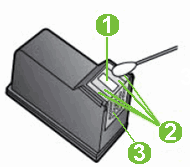
  8. Clean the face and edges around the ink nozzle with the swab.

       CAUTION: 

    Do not clean the ink nozzle plate.

    Figure : Clean the area around the ink nozzle
    Illustration of the ink nozzle and cartridge contacts

    1. Nozzle plate - DO NOT CLEAN

    2. Area surrounding ink nozzle - Do clean

    3. Cartridge contacts - Do not clean

  9. Either let the cartridge sit for 10 minutes to allow the cleaned area to dry, or use a new swab to dry it.

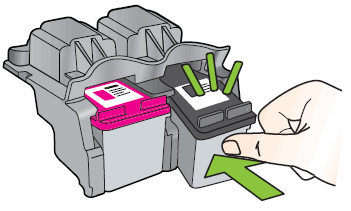
  10. Insert the cartridge into its designated slot. The black parallelogram icon () designates the slot for the black cartridge, and the magenta half circle icon () designates the slot for the color cartridge.

    Figure : Insert cartridge

    Illustrating of inserting the cartridge

    The cartridge rests in its slot at a slight upward angle.

    Figure : Cartridge rests at upward angle

    Illustration of cartridge resting at upward angle
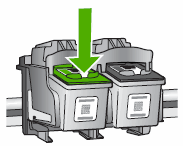
  11. Press the cartridge in to snap it into place.

    Figure : Snap cartridge into place

    Illustration of snapping the cartridge into place
  12. Repeat these steps to clean the area surrounding the ink nozzle on the other cartridge.

  13. Close the front access door.

    Figure : Close the front access door

    Illustration of closing the front access door.
  14. Try printing again.

Keep me posted, how it goes!

If the information I've provided was helpful, give us some reinforcement by clicking the Accepted Solution and Kudos buttons, that'll help us and others see that we've got the answers!

Have a great day!

Cheers:)

Raj1788
I am an HP Employee 

† The opinions expressed above are the personal opinions of the authors, not of HP. By using this site, you accept the <a href="https://www8.hp.com/us/en/terms-of-use.html" class="udrlinesmall">Terms of Use</a> and <a href="/t5/custom/page/page-id/hp.rulespage" class="udrlinesmall"> Rules of Participation</a>.