• ×
    Information
    Need Windows 11 help?
    Check documents on compatibility, FAQs, upgrade information and available fixes.
    Windows 11 Support Center.
  • post a message
  • ×
    Information
    Need Windows 11 help?
    Check documents on compatibility, FAQs, upgrade information and available fixes.
    Windows 11 Support Center.
  • post a message
Guidelines
Here is the solution for Blue screen error 83C0000B on HP OfficeJet Pro 8010e, 9020e Printer Series: Click here to view.
Check some of the most frequent questions about Instant Ink: HP INSTANT INK, HP+ PLANS: INK AND TONER.


Check out our Black or Color Ink Not Printing, Other Print Quality Issues info about: Print quality and Cartridge Issues.
HP Recommended
HP DeskJet 2600
Android 8.0 Oreo and older

Screenshot_20200406-150910_HP Print Service Plugin.jpg

1 REPLY 1
HP Recommended

@ElenaElena Welcome to HP Community!


I understand that the HP PlugIn app says that the printer does not support double-sided printing.


Do not worry. I will try to fix the issue.


Clearing the app data and reinstalling it may resolve this issue. Let us try these steps:


1.   On your Android device, tap the Settings icon, and then select Apps or Applications.

2.   Select Show System Apps.

3.   Scroll down the list, and then select HP print service plugin. Select Clear Cache and Clear Data.

Depending on your Android device, tap Storage, and then select Print Spooler.

4.   Select Clear Cache and Clear Data.


Update printer firmware:

Click here to know different methods of updating printer firmware.


Step 1:  Re-install the HP Print Service Plugin

  1. Confirm your Android device is connected to the same network as your printer, or that Wi-Fi Direct on your printer and Android device is enabled.

  2. On your Android device, install or update the HP Print Service Plugin (in English) from the Google Play Store.

  3. Once the installation or update is complete, choose your Android device to turn on the plugin:

    • Android 7 (Nougat) and later devices: The HP Print Service Plugin turns on automatically after installation. Continue with these steps.

  4. Turn off any other print service plugins, if necessary.

Your Android device is now ready to print using the HP Print Service Plugin.


Step 2: Print with the HP Print Service Plugin

  1. Open the item you want to print, tap the menu icon , and then tap Print.

    A print preview screen displays.

  2. Tap the down arrow to view the printer list, and then select HP [your printer model name] to print over the network, or DIRECT-xx-HP [your printer model name] to print with Wi-Fi Direct.
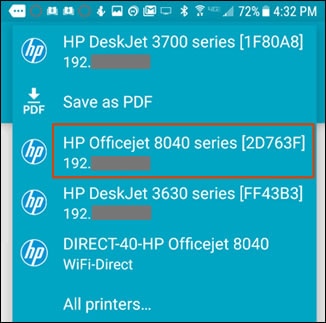
    Selecting a network-connected printer

  3. Tap the down arrow  to change any print settings, and then tap the Print  icon.

For more info on the HP Print Service Plugin, refer to this document.


Keep us posted,

If you would like to thank us for our efforts to help you, 


Give us a virtual high-five by clicking the 'Thumbs Up' icon below, followed by clicking on the "Accept as solution" on this post, 


Have a great day!

† The opinions expressed above are the personal opinions of the authors, not of HP. By using this site, you accept the <a href="https://www8.hp.com/us/en/terms-of-use.html" class="udrlinesmall">Terms of Use</a> and <a href="/t5/custom/page/page-id/hp.rulespage" class="udrlinesmall"> Rules of Participation</a>.


