• ×
    Information
    Need Windows 11 help?
    Check documents on compatibility, FAQs, upgrade information and available fixes.
    Windows 11 Support Center.
  • post a message
  • ×
    Information
    Need Windows 11 help?
    Check documents on compatibility, FAQs, upgrade information and available fixes.
    Windows 11 Support Center.
  • post a message
Guidelines
Seize the moment! nominate yourself or a tech enthusiast you admire & join the HP Community Experts!
Check some of the most frequent questions about Instant Ink: HP INSTANT INK, HP+ PLANS: INK AND TONER.


Check out our Black or Color Ink Not Printing, Other Print Quality Issues info about: Print quality and Cartridge Issues.
HP Recommended
HP LaserJet P1102w
Microsoft Windows 10 (32-bit)

I have two HP printers: an HP Color LaserJet Pro MFP M281cdw, which is my default printer because it is the one I most often use.  I also have an HP LaserJet P1102w, which is wireless, hooked up to the same network and was working fine.  Now, if I choose it to print a job, it won't print and the "fix" when I run the Problem Solver is to make it my default printer, which I don't want to do.  Any thoughts about how to deal with this issue?  Thanks

1 REPLY 1
HP Recommended

Hi @Linda612


Welcome to the HP Support Community. I'd be happy to assist you


Use HP Print and Scan Doctor to check connectivity


Download a special version of HP Print and Scan Doctor specifically created to help with printer offline conditions.

  1. Download HP Print and Scan Doctor.

  2. Run HPPSdr.exe from the download location on your computer.

  3. Once HP Print and Scan Doctor opens, click Start, and then select your printer.

    • If your printer in not in the list, turn it off and on, and then click Retry.

    • If there is a connection problem, follow the instructions in HP Print and Scan Doctor.

  4. If a screen prompts you to turn on printer updates, click Yes.

  5. If a screen prompts you to make your printer the default printer, click Yes.

  6. Try to print. If the printer remains offline, continue to the next step.

If issue persists, try the next step


Check the printer port and Windows services status


If your printer uses a WSD port, check the status of Windows Function Discovery services, and then add a TCP/IP port if necessary.

  1. Search Windows for 'control panel' to open Control Panel, and then click View devices and printers to open the Devices and Printers window.

  2. Right-click your printer, select Printer Properties, and then click the Ports tab.

  3. Check if your printer uses a WSD port.

    Printer that uses a WSD port

    • If your printer does not use a WSD port, skip to the next step in this document.

    • If your printer uses a WSD port, continue with these steps.

  4. Search Windows for 'services' to open the Services list.

  5. Scroll down the list to locate Function Discovery Provider Host and Function Discovery Resource Publication, and then check the Status and Startup Type columns.

    NOTE: 

    Some antivirus or firewall software turns these services off due to IT policy. Check with your IT support or antivirus software vendor for help.

    • If the status of both services is 'Running' and the Startup Type is 'Automatic', continue to the next step.

    • If the status of the services is blank and the Startup Type is 'Manual', right click the name, select Properties, set the Startup Type to Automatic, and then click Start under Service status. Click OK, and then continue to the next step.

  6. Return to the Devices and Printers window, press the F5 key, and then click your printer name to view the status.

    • If your printer is no longer offline, the issue is resolved.

    • If your printer is still offline, continue with these steps.

  7. Print a Network Configuration Report from the printer Settings or Wireless menu.

  8. Right-click your printer, select Printer Properties, click the Ports tab, and then click Add Port.

  9. Select Standard TCP/IP Port, and then click New Port.

  10. Follow the instructions to add a new port using the information listed on the Network Configuration Report.

    NOTE: 

    A Host Name is preferred when creating the port because the printer IP address may change in a DHCP network.

  11. Return to the Devices and Printers window, press the F5 key, and then click your printer name to view the printer status.

  12. If issue persists, try the next step

Create a manual IP connection 

  1. Open Internet Explorer (or any browser you may use).
  2. In the address bar, type the printer's current IP address from the information page.
  3. Click on the tab Networking.
  4. Click Network Settings under Configuration on the left side.
  5. Select the IP Configuration to MANUAL.
  6. Type the printer's current IP address in the IP Address box.
  7. Click Apply in the bottom of the page.

If issue persists, try the next step


Connect the PC to a TCP/IP Port (Windows only, network only)

After setting a manual IP address for the printer, add a printer port to Windows that matches this new IP address.

  1. In Windows, search for and open Printers & scanners.

  2. Click the name of your printer, and then select Manage.

  3. Click Printer Properties.

  4. Click the Ports tab, and then click Add Port.

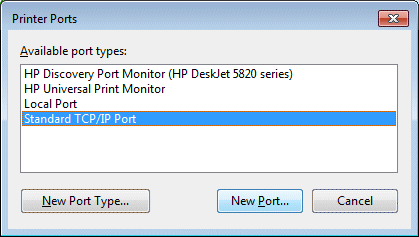
  5. Select Standard TCP/IP Port, and then click New Port.

    Figure : Creating a new TCP/IP Port

     Printer Ports window with Standard TCP/IP Port selected and the New Port button highlighted
  6. Type the printer’s IP address that you wrote down earlier, and then click Next.

  7. Select the new Standard TCP/IP Port from the list, and then click OK.

Try and print.


Hope this helps! Keep me posted. 


Please click “Accept as Solution” if you feel my post solved your issue, it will help others find the solution.

Click the “Kudos, Thumbs Up" on the bottom right to say “Thanks” for helping!


Have a great day!

† The opinions expressed above are the personal opinions of the authors, not of HP. By using this site, you accept the <a href="https://www8.hp.com/us/en/terms-of-use.html" class="udrlinesmall">Terms of Use</a> and <a href="/t5/custom/page/page-id/hp.rulespage" class="udrlinesmall"> Rules of Participation</a>.