• ×
    Information
    Need Windows 11 help?
    Check documents on compatibility, FAQs, upgrade information and available fixes.
    Windows 11 Support Center.
  • post a message
  • ×
    Information
    Need Windows 11 help?
    Check documents on compatibility, FAQs, upgrade information and available fixes.
    Windows 11 Support Center.
  • post a message
Guidelines
Seize the moment! nominate yourself or a tech enthusiast you admire & join the HP Community Experts!
Check some of the most frequent questions about Instant Ink: HP INSTANT INK, HP+ PLANS: INK AND TONER.


Check out our Black or Color Ink Not Printing, Other Print Quality Issues info about: Print quality and Cartridge Issues.
HP Recommended
C410a printer
Microsoft Windows 10 (64-bit)

Need fairly detailed instructions on how to clean the paper track as the smuge appears even if i "print" a blank document


4 REPLIES 4
HP Recommended

@Douglas73

Welcome to the HP Community


Clean the rubber paper feed and pick rollers

  1. Gather the following materials:

    • A clean, lint-free cloth, or any cloth that will not come apart or leave fibers

    • Distilled, filtered, or bottled water (tap water might damage the product)

    • A clean, lint-free cotton swab

  2. Press the Power button () to turn off the product.

  3. Turn the product so that you can access the rear side.

  4. Disconnect the power cord from the rear of the product.

  5. Push the right side of the duplexer to the left, and then pull out the duplexer. Set the duplexer aside.

  6. Lightly dampen a clean, lint-free cloth with bottled or distilled water, and then squeeze any excess liquid from the cloth.

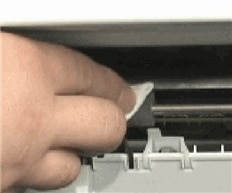
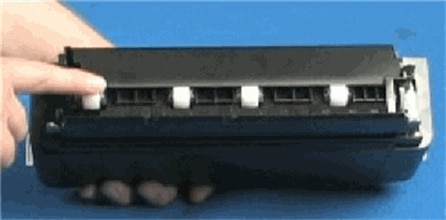
  7. Press the cloth against the rollers in the product, and then rotate them upwards with your fingers. Apply a moderate amount of pressure to remove any dust or dirt buildup.

    Figure : Clean the rollers in the product

    Photograph: Clean the rollers in the product
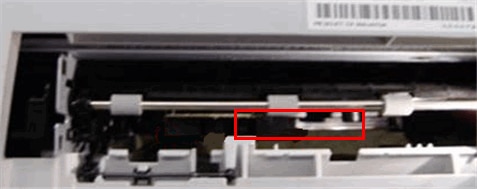
  8. Look inside the rear access area of the product to find the pick rollers. They are near the center of the product behind the paper feed rollers.

    Figure : Location of the pick rollers

    Photograph of the location of the pick rollers
    NOTE: 

    You might need to use a flashlight to illuminate the pick rollers.

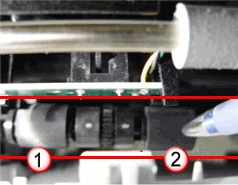
  9. Lightly dampen a clean, lint-free cotton swab, and then use it to clean the pick rollers.

    Figure : The pick rollers

    Photograph of the pick rollers inside the product
  10. Allow the rollers to dry for 10 or 15 minutes.

Step two: Clean the rollers in the duplexer

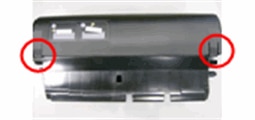
  1. Hold the duplexer in front of you, and then press both tabs on both sides of the duplexer to open it.

    Figure : Location of the tabs on the duplexer

    Illustration: Location of the tabs on the duplexer
  2. Check the paper feed rollers in the duplexer to make sure that they are clean, free of paper bits, and rotate freely.

    Figure : Check the rollers in the duplexer

    Photograph: Check the rollers in the duplexer
  3. Clean the rollers of the duplexer the same way you cleaned the rollers inside the product.

  4. Allow the rollers of the duplexer to dry for 10 or 15 minutes.

  5. Insert the two pegs on the left side of the duplexer into the left side of the product, and then gently push the duplexer in. Make sure that the duplexer is firmly in place

  6. Reconnect the power cord to the rear of the product.

  7. Press the Power button () to turn on the product.

Then, click on this document: https://support.hp.com/in-en/product/hp-photosmart-premium-fax-e-all-in-one-printer-series-c410/4059... for Fixing Print Quality Problems.


Keep me posted, how it goes!

If the information I've provided was helpful, give us some reinforcement by clicking the Accepted Solution and Kudos buttons, that'll help us and others see that we've got the answers!

Have a great day!

Cheers:)

Raj1788
I am an HP Employee 

HP Recommended

Thanks for your help!  I have not yet attempted the cleaning, but I am optimistic as this shows how to access an area I had not even thought about.  May be a day or two before I can give it a try, but I will let yu know how it goes.

HP Recommended

OK - I could not wait and cleaned the rollers as instructed.  I could not rotate the rollers upward amnually, but I "fooled" the printer into "thinking" it was starting and during the startup process it powered the rollers for me.  The rollers came clean, but there really was not much /ink removed.

I tried the printer with the same smudge.  I tried to clean the printer head (again) and removed a LOT of ink - but the situation remains.  It looks as if the smear is caused by the print head/carriage as it is about 1/4" down the leading edge. I'll try cleaning the print head again, but I noticed that there is a "compatible" cartridge in the black slot - and the smudge is black.  If the nest cleaning does not solve the problem, I'll try a genuine HP cartridge (the color cartridges are HP).

May be a while before I get to that point, but will update when replacement is made.


Thanks

HP Recommended

@Douglas73


Appreciate your efforts!


Keep me posted, how it goes!

Cheers:)

Raj1788
I am an HP Employee 

† The opinions expressed above are the personal opinions of the authors, not of HP. By using this site, you accept the <a href="https://www8.hp.com/us/en/terms-of-use.html" class="udrlinesmall">Terms of Use</a> and <a href="/t5/custom/page/page-id/hp.rulespage" class="udrlinesmall"> Rules of Participation</a>.