• ×
    Information
    Need Windows 11 help?
    Check documents on compatibility, FAQs, upgrade information and available fixes.
    Windows 11 Support Center.
  • post a message
  • ×
    Information
    Need Windows 11 help?
    Check documents on compatibility, FAQs, upgrade information and available fixes.
    Windows 11 Support Center.
  • post a message
Guidelines
Seize the moment! nominate yourself or a tech enthusiast you admire & join the HP Community Experts!
Common problems HP Solution Center not working : Adobe Flash Player Error and Unable to scan
We would like to share some of the most frequently asked questions about HP Solution Center not working : Adobe Flash Player Error and Unable to Scan.
HP Recommended
HP Photosmart 7520 e-All-in-One
macOS 10.14 Mojave

I've been using HP Easy Scan with my Photosmart 7520 for years. All of a sudden, instead of scanning whole pages, it takes a single line on a page to be scanned, and reproduces it as a thin scanned strip on its own. Re-trying gives the same result. It's possible the problem has to do with my installing Mojave a few weeks back, as it's the first time I've tried to use Easy Scan since. Whatever it is, I would be grateful for advice on what to do.

1 ACCEPTED SOLUTION

Accepted Solutions
HP Recommended

@Hewpal


Open the Applications folder in the Finder (if it doesn’t appear in the sidebar, go to the Menu Bar, open the “Go” menu, and select Applications in the list), search for HP Easy Scan application by typing its name in the search field, and then drag it to the Trash (in the dock). And then empty the trash.


Now, download and install the HP Easy Scan from here


Alternatively, try using the HP Smart App to scan. Refer to this document HP Printers - Using the HP Smart App (Mac) for help.


Keep me posted.


Please click “Accept as Solution” if you feel my post solved your issue, it will help others find the solution. Click the “Kudos/Thumbs Up" on the bottom right to say “Thanks” for helping!

TEJ1602
I am an HP Employee

View solution in original post

9 REPLIES 9
HP Recommended

Hi Jennifer- I'm puzzled by your response, as it has come without any message relating to my question.

HP Recommended

@Hewpal, Welcome to HP Support Community!


To isolate the issue further, I would like to know if you face the same issue when you make a photocopy?

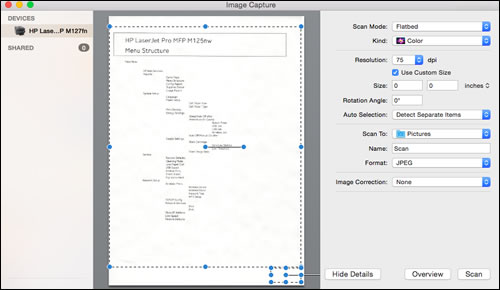
Have you tried using Apple Image Capture?


If no, here is how you do it-


Apple Image Capture comes with macOS and OS X and provides a quick and simple way to scan.

 Apple Image Capture

  1. Place the document or photo print side down on the scanner glass, and then close the scanner lid.

    If your printer has an automatic document feeder (ADF), use it to scan multiple page documents at one time.

  2. Open Finder , and then click Go in the top menu bar.

  3. Click Applications, and then double-click Image Capture.

  4. Click your printer name in the Devices or Shared list.

    NOTE: 

    If a Software for this device is not installed message displays after you select your printer, clickInstall, and then follow the instructions to complete the installation.

  5. Click Show Details at the bottom of the screen.

  6. Click Scan.

Refer to this document HP Printers - How to Scan (Mac) for help.


Keep me posted for further assistance.


Please click “Accept as Solution” if you feel my post solved your issue, it will help others find the solution. Click the “Kudos/Thumbs Up" on the bottom right to say “Thanks” for helping!

TEJ1602
I am an HP Employee

HP Recommended

Thanks for the advice.


There's no problem making a photocopy. In fact, when I try to scan a page using the old HP Scan - which I abandoned when it became disfunctional as a result of an OS upgrade some years ago, and switched to HP Scan Easy instead - I find that even though, having done the scan, it immediately quits, when I then click Restore, I find the the scanned copy of the page there on the screen. 

Image Capture, which I've tried for the first time, and re which I'm grateful to have had your prompt, also works.


In other words, it's clear that there's no problem about the 7520's hardware, and clear that the problem about which I got in touch had arisen as a result of some disruption in the working of Easy Scan with the 7520, or with my iMac.

HP Recommended

Hi

 
Further to our exchange- I’ve looked and seen that other HP scanner users have had problems scanning after they’d upgraded to osmac Mojave, so I wonder if HP is planning to bring out an update of HP Easy Scan that does work with Mojave.
 
While using Image Capture to scan on my 7520 works, it’s a lot more awkward that using HP Easy Scan. Unlike Easy Scan, Image Capture produces not a PDF but a jpeg file which then has to be converted to (saved in) PDF. Also the PDF thus produced is almost twice as heavy a file as the PDF produced directly by Easy Scan, which can create problems in emailing the scan of a multi-page document.
HP Recommended

@Hewpal


Open the Applications folder in the Finder (if it doesn’t appear in the sidebar, go to the Menu Bar, open the “Go” menu, and select Applications in the list), search for HP Easy Scan application by typing its name in the search field, and then drag it to the Trash (in the dock). And then empty the trash.


Now, download and install the HP Easy Scan from here


Alternatively, try using the HP Smart App to scan. Refer to this document HP Printers - Using the HP Smart App (Mac) for help.


Keep me posted.


Please click “Accept as Solution” if you feel my post solved your issue, it will help others find the solution. Click the “Kudos/Thumbs Up" on the bottom right to say “Thanks” for helping!

TEJ1602
I am an HP Employee

HP Recommended

As I mentioned in a previous message, I had trashed the Easy Scan app on my iMac, and then downloaded it again (from the Apple site to which you've directed me) and installed it, but using this just-downloaded version to try to scan, i got the same result as with the old one.


When I follow the instructions to download the HP Smart App for Mac, where I get to is a page that says


"Set up your HP Printer

Download HP printer software here to set up your HP printer."
 
On putting in the model number and clicking I'm offered the software for my 7520 to download and install. As I already have the software for the 7520 installed on my iMac, what do I gain from downloading and installing it again?
 
There's no separate option on the page to download something else called HP Smart app for Mac. 
 
HP Recommended

Despite wondering about its use, as per my previous message, I did go on to install Smart app, and found that the version of Easy Scan it had was further on from what I had had on my iMac, even though I'd installed that version from the Apple site only last week.


And this version. 1.9.2.1, which came with the Smart app, does work. 


Thanks for your help. 

HP Recommended

@Hewpal


That's great! Happy to hear that.  


If you need further assistance feel free to reach out to us.  


Have a great day ahead! 

TEJ1602
I am an HP Employee

HP Recommended

I'd only add that if HP had replaced the version of Easy Scan on the Apple site, which i downloaded last week and found not to work any better than the one I'd had. with the 1.9.2.1 version that came with the Smart App I downloaded yesterday, iy would have saved me a lot of time, and saved you the time you put into sorting out my problem, and would save time for others who may run into it from now on.  

† The opinions expressed above are the personal opinions of the authors, not of HP. By using this site, you accept the <a href="https://www8.hp.com/us/en/terms-of-use.html" class="udrlinesmall">Terms of Use</a> and <a href="/t5/custom/page/page-id/hp.rulespage" class="udrlinesmall"> Rules of Participation</a>.