• ×
    Information
    Need Windows 11 help?
    Check documents on compatibility, FAQs, upgrade information and available fixes.
    Windows 11 Support Center.
  • post a message
  • ×
    Information
    Need Windows 11 help?
    Check documents on compatibility, FAQs, upgrade information and available fixes.
    Windows 11 Support Center.
  • post a message
Guidelines
Join the HP Community Solve‑a‑thon | Help Others & Share Your Solutions | Live on Zoom | 2:30 PM to 2:30 AM IST | Every Wednesday Click here to know more
Common problems HP Solution Center not working : Adobe Flash Player Error and Unable to scan
We would like to share some of the most frequently asked questions about HP Solution Center not working : Adobe Flash Player Error and Unable to Scan.
HP Recommended
Officejet 6835
Microsoft Windows 10 (64-bit)

Hi!  When I scan from ADF using EWS, I only see blank pages.  Scan from the glass works well.  Would you let me know the solution, please?


1 ACCEPTED SOLUTION

Accepted Solutions
HP Recommended

@ai0212


Welcome to HP support community.


Did you make a copy and check if that copies fine?

If not, follow the below steps.

  1. Turn the printer off, then disconnect the power cord.

  2. Lift the scanner lid.

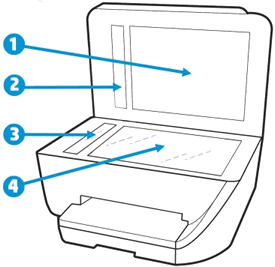
  3. Spray a soft, lint-free cloth with glass cleaner, then wipe the scanner glass, glass strip (if present), the white backing under the scanner lid, and the white strip under the lid (if present) until clean, dry, and streak-free.

       CAUTION: 

    To protect the interior printer parts, do not spray the cleaner directly on the glass or on the underside of the lid.

    Figure : Clean the scanner glass and under the lid, and any glass or white strips (if present)

    1.  

      Clean the scanner glass and  under the lid, and any glass or white strips

      White scanner lid backing


    2. White ADF scanner lid strip (if present)

    3. Glass ADF scanner strip (if present)

    4. Main scanner glass

  4. Reconnect the power cord, turn on the printer, then close the scanner lid completely.

  5. Load the original document or photo, then try to scan. Make sure the original document or photo is in good condition and free of tears, creases, folds, staples, or tape.

I hope that helps.

To thank me for my efforts to help you, please mark my post as an accepted solution so that it benefits several others.

Cheers.

Sandytechy20
I am an HP Employee

View solution in original post

3 REPLIES 3
HP Recommended

@ai0212


Welcome to HP support community.


Did you make a copy and check if that copies fine?

If not, follow the below steps.

  1. Turn the printer off, then disconnect the power cord.

  2. Lift the scanner lid.

  3. Spray a soft, lint-free cloth with glass cleaner, then wipe the scanner glass, glass strip (if present), the white backing under the scanner lid, and the white strip under the lid (if present) until clean, dry, and streak-free.

       CAUTION: 

    To protect the interior printer parts, do not spray the cleaner directly on the glass or on the underside of the lid.

    Figure : Clean the scanner glass and under the lid, and any glass or white strips (if present)

    1.  

      Clean the scanner glass and  under the lid, and any glass or white strips

      White scanner lid backing


    2. White ADF scanner lid strip (if present)

    3. Glass ADF scanner strip (if present)

    4. Main scanner glass

  4. Reconnect the power cord, turn on the printer, then close the scanner lid completely.

  5. Load the original document or photo, then try to scan. Make sure the original document or photo is in good condition and free of tears, creases, folds, staples, or tape.

I hope that helps.

To thank me for my efforts to help you, please mark my post as an accepted solution so that it benefits several others.

Cheers.

Sandytechy20
I am an HP Employee

HP Recommended

It's fixed!! Thank you very much!!

HP Recommended

@ai0212


Good to know that issue is resolved.

Feel free to contact us in the future if you need any assistance.


Cheers.

Sandytechy20
I am an HP Employee

† The opinions expressed above are the personal opinions of the authors, not of HP. By using this site, you accept the <a href="https://www8.hp.com/us/en/terms-of-use.html" class="udrlinesmall">Terms of Use</a> and <a href="/t5/custom/page/page-id/hp.rulespage" class="udrlinesmall"> Rules of Participation</a>.