-
×InformationNeed Windows 11 help?Check documents on compatibility, FAQs, upgrade information and available fixes.
Windows 11 Support Center. -

-
×InformationNeed Windows 11 help?Check documents on compatibility, FAQs, upgrade information and available fixes.
Windows 11 Support Center. -
- HP Community
- Printers
- Scanning, Faxing, and Copying
- Re: ADF scan returns blank pages

Create an account on the HP Community to personalize your profile and ask a question
05-02-2020 12:17 PM
Hi! When I scan from ADF using EWS, I only see blank pages. Scan from the glass works well. Would you let me know the solution, please?
Solved! Go to Solution.
Accepted Solutions
05-10-2020 08:53 AM
Welcome to HP support community.
Did you make a copy and check if that copies fine?
If not, follow the below steps.
-
Turn the printer off, then disconnect the power cord.
-
Lift the scanner lid.
-
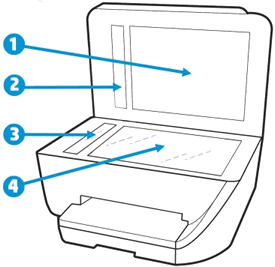
Spray a soft, lint-free cloth with glass cleaner, then wipe the scanner glass, glass strip (if present), the white backing under the scanner lid, and the white strip under the lid (if present) until clean, dry, and streak-free.
CAUTION:
To protect the interior printer parts, do not spray the cleaner directly on the glass or on the underside of the lid.
Figure : Clean the scanner glass and under the lid, and any glass or white strips (if present)
-
-
White scanner lid backing
-
White ADF scanner lid strip (if present)
-
Glass ADF scanner strip (if present)
-
Main scanner glass
-
-
Reconnect the power cord, turn on the printer, then close the scanner lid completely.
-
Load the original document or photo, then try to scan. Make sure the original document or photo is in good condition and free of tears, creases, folds, staples, or tape.
I hope that helps.
To thank me for my efforts to help you, please mark my post as an accepted solution so that it benefits several others.
Cheers.
Sandytechy20
I am an HP Employee
05-10-2020 08:53 AM
Welcome to HP support community.
Did you make a copy and check if that copies fine?
If not, follow the below steps.
-
Turn the printer off, then disconnect the power cord.
-
Lift the scanner lid.
-
Spray a soft, lint-free cloth with glass cleaner, then wipe the scanner glass, glass strip (if present), the white backing under the scanner lid, and the white strip under the lid (if present) until clean, dry, and streak-free.
CAUTION:
To protect the interior printer parts, do not spray the cleaner directly on the glass or on the underside of the lid.
Figure : Clean the scanner glass and under the lid, and any glass or white strips (if present)
-
-
White scanner lid backing
-
White ADF scanner lid strip (if present)
-
Glass ADF scanner strip (if present)
-
Main scanner glass
-
-
Reconnect the power cord, turn on the printer, then close the scanner lid completely.
-
Load the original document or photo, then try to scan. Make sure the original document or photo is in good condition and free of tears, creases, folds, staples, or tape.
I hope that helps.
To thank me for my efforts to help you, please mark my post as an accepted solution so that it benefits several others.
Cheers.
Sandytechy20
I am an HP Employee