• ×
    Information
    Need Windows 11 help?
    Check documents on compatibility, FAQs, upgrade information and available fixes.
    Windows 11 Support Center.
  • post a message
  • ×
    Information
    Need Windows 11 help?
    Check documents on compatibility, FAQs, upgrade information and available fixes.
    Windows 11 Support Center.
  • post a message
Guidelines
Is your HP DeskJet 3830 series scanner not working? Here is the solution Click here to view the instructions!
Common problems HP Solution Center not working : Adobe Flash Player Error and Unable to scan
We would like to share some of the most frequently asked questions about HP Solution Center not working : Adobe Flash Player Error and Unable to Scan.
HP Recommended
Envy 6010
iOS

Trying to work out after scanning a document on my iPad ..where is it saved to using the HP smart app and how do I attach the saved scan to an aol email ? When I open aol and try to add an attachment the only option is using a photograph or taking a photograph ? How do I search for the saved scan  please? 

1 ACCEPTED SOLUTION

Accepted Solutions
HP Recommended

@Quovadis2895 


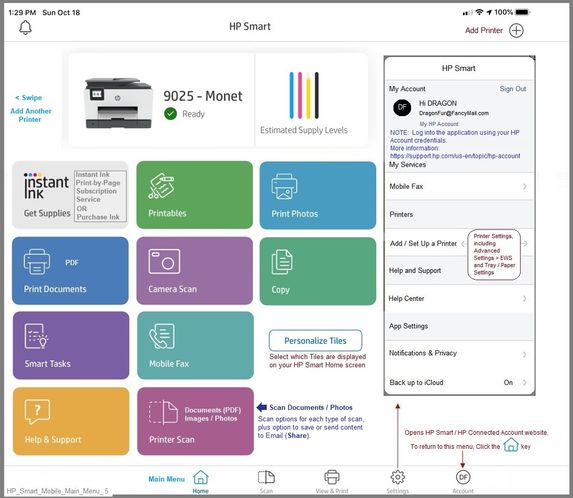
Open the HP Smart application

Select to Scan

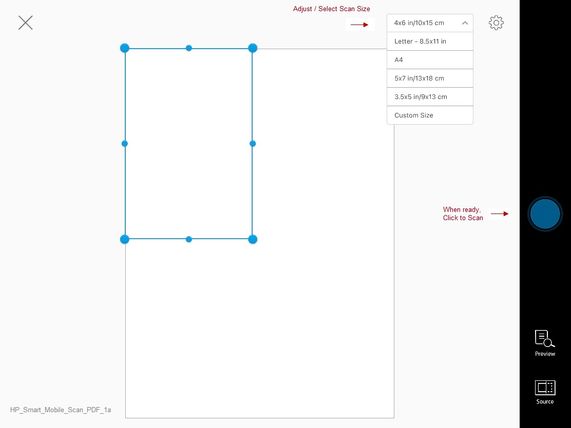
Set the Scan Size

Click (blue) button to Scan

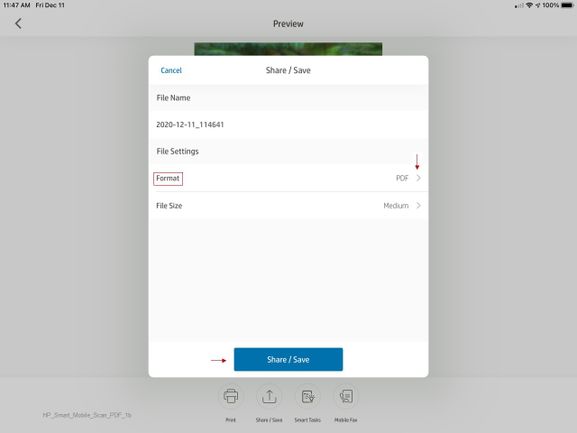
Click "Share / Save"

Below File Settings:

Click to open "Format"

Select PDF

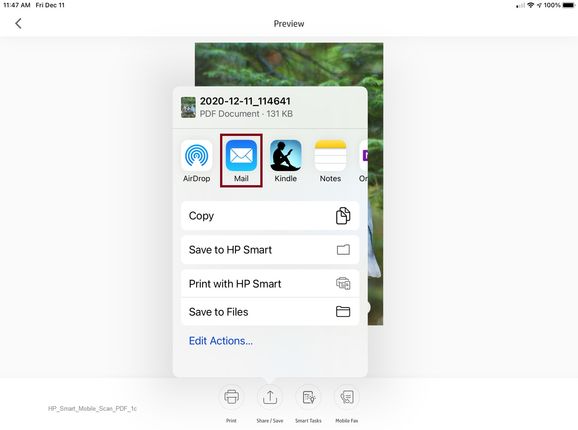
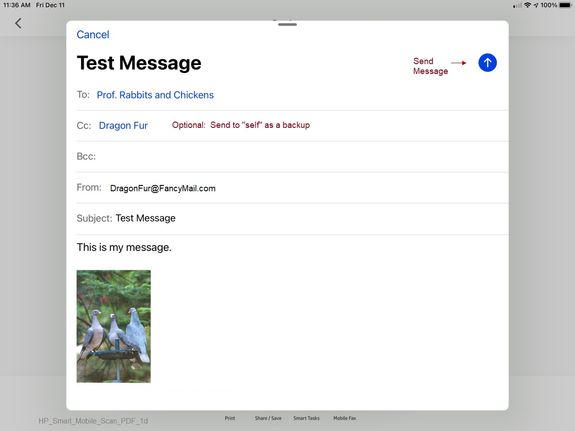
Click / Select Mail (white envelope in blue background)

Enter the Recipient Address (CC yourself as a "backup")

Enter a Subject (title for the email)

Click down into the message area and enter any text you want to include

Click the Blue Up-Arrow to Send the message


Examples

HP_Smart_Mobile_Main_Menu_5HP_Smart_Mobile_Main_Menu_5

HP_Smart_Mobile_Scan_PDF_1aHP_Smart_Mobile_Scan_PDF_1a


HP_Smart_Mobile_Scan_PDF_1bHP_Smart_Mobile_Scan_PDF_1b


HP_Smart_Mobile_Scan_PDF_1cHP_Smart_Mobile_Scan_PDF_1c


HP_Smart_Mobile_Scan_PDF_1dHP_Smart_Mobile_Scan_PDF_1d


Thank you for participating in the HP Community.

Our Community is comprised of volunteers - people who own and use HP devices.

Click Thumbs Up to say Thank You.

Question Resolved / Answered, Click "Accept as Solution" .


Dragon-Fur

View solution in original post

1 REPLY 1
HP Recommended

@Quovadis2895 


Open the HP Smart application

Select to Scan

Set the Scan Size

Click (blue) button to Scan

Click "Share / Save"

Below File Settings:

Click to open "Format"

Select PDF

Click / Select Mail (white envelope in blue background)

Enter the Recipient Address (CC yourself as a "backup")

Enter a Subject (title for the email)

Click down into the message area and enter any text you want to include

Click the Blue Up-Arrow to Send the message


Examples

HP_Smart_Mobile_Main_Menu_5HP_Smart_Mobile_Main_Menu_5

HP_Smart_Mobile_Scan_PDF_1aHP_Smart_Mobile_Scan_PDF_1a


HP_Smart_Mobile_Scan_PDF_1bHP_Smart_Mobile_Scan_PDF_1b


HP_Smart_Mobile_Scan_PDF_1cHP_Smart_Mobile_Scan_PDF_1c


HP_Smart_Mobile_Scan_PDF_1dHP_Smart_Mobile_Scan_PDF_1d


Thank you for participating in the HP Community.

Our Community is comprised of volunteers - people who own and use HP devices.

Click Thumbs Up to say Thank You.

Question Resolved / Answered, Click "Accept as Solution" .


Dragon-Fur

† The opinions expressed above are the personal opinions of the authors, not of HP. By using this site, you accept the <a href="https://www8.hp.com/us/en/terms-of-use.html" class="udrlinesmall">Terms of Use</a> and <a href="/t5/custom/page/page-id/hp.rulespage" class="udrlinesmall"> Rules of Participation</a>.