• ×
    Information
    Need Windows 11 help?
    Check documents on compatibility, FAQs, upgrade information and available fixes.
    Windows 11 Support Center.
  • post a message
  • ×
    Information
    Need Windows 11 help?
    Check documents on compatibility, FAQs, upgrade information and available fixes.
    Windows 11 Support Center.
  • post a message
Guidelines
Join the HP Community Solve‑a‑thon | Help Others & Share Your Solutions | Live on Zoom | 2:30 PM to 2:30 AM IST | Every Wednesday Click here to know more
Common problems HP Solution Center not working : Adobe Flash Player Error and Unable to scan
We would like to share some of the most frequently asked questions about HP Solution Center not working : Adobe Flash Player Error and Unable to Scan.
HP Recommended
HP desktop
Microsoft Windows 10 (64-bit)

Recently, the Scan to Email feature on my HP Officejet Pro 8620 printer has stopped working. On the printer, the error message displayed is "Cannot Connect to Server". On the HP site for the printer, when I test the outgoing email settings, the test fails with the message "Unable to connect to the printer. Check your configurations and try again."


According to the both HP site and printer display, the printer is connected to the Internet. And, I'm able to connect to the printer from my computer.


I've already tried this solution that was posted on the forum.

"Please try the following and check if that may help:

  • From the Control Panel select Uninstall a Program.
  • Click 'Turn Windows features on or off'.
  • Ensure the 'SMB 1.0/SIFS File Sharing Support' is checked with all its 3 sub-options checked as well.
  • Restart the computer as prompt if you enable any option as prompt, then check for any difference."
3 REPLIES 3
HP Recommended

@sabotta


Welcome to the HP support community.


Turn on the web services on the printer

  1. On your control panel, press the HP ePrint icon.

    If your control panel does not have an HP ePrint icon, navigate to Web Services Setup, Network Setup, or Wireless Settings to open the Web Services menu.

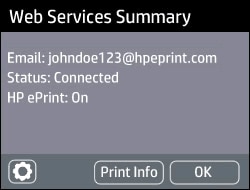
    • If a summary screen displays, Web Services is already on.

      Example of Web Services Summary screen

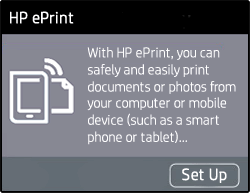
    • If a prompt to turn on Web Services or set up HP ePrint displays, follow the prompts to turn it on or set it up.

      Example of the HP ePrint set up screen

  2. If you are prompted to update the firmware, press OK.

If the issue persists, try the steps mentioned in this HP document to fix the issue:- Click here


Let me know how it goes.

To thank me for my efforts to help you, please mark my post as an accepted solution so that it benefits several others.

Cheers.

Sandytechy20
I am an HP Employee

HP Recommended

Thank you for responding to my question. The Web services is working (connected); I followed your steps to confirm this.


I think that this is a hardware problem, specifically the ethernet port on the printer. I tried replacing the ethernet cable connected to the port on the printer, and switching to a different ethernet hub port, and the problem persisted. 

HP Recommended

@sabotta


This might require one on one interaction to fix the issue.

I request you to talk to HP support.

They might have multiple options to help you with this.

  1. Click on this link - https://support.hp.com/us-en/contact-hp?openCLC=true
  2. Select the country.
  3. Enter the serial of your device.
  4. Select the country from the drop-down.
  5. Click on "Show Options".
  6. Fill the web-form. A case number and phone number will now populate for you.

Let me know how it goes.

Cheers.

Sandytechy20
I am an HP Employee

† The opinions expressed above are the personal opinions of the authors, not of HP. By using this site, you accept the <a href="https://www8.hp.com/us/en/terms-of-use.html" class="udrlinesmall">Terms of Use</a> and <a href="/t5/custom/page/page-id/hp.rulespage" class="udrlinesmall"> Rules of Participation</a>.