
-
×InformationNeed Windows 11 help?Check documents on compatibility, FAQs, upgrade information and available fixes.
Windows 11 Support Center. -
-
×InformationNeed Windows 11 help?Check documents on compatibility, FAQs, upgrade information and available fixes.
Windows 11 Support Center. -
- HP Community
- Printers
- Scanning, Faxing, and Copying
- Re: Copy function will not work without cold booting the pri...

Create an account on the HP Community to personalize your profile and ask a question
Your account also allows you to connect with HP support faster, access a personal dashboard to manage all of your devices in one place, view warranty information, case status and more.
Common problems HP Solution Center not working : Adobe Flash Player Error and Unable to scan
We would like to share some of the most frequently asked questions about HP Solution Center not working : Adobe Flash Player Error and Unable to Scan.

09-20-2026 05:36 PM - edited 09-20-2026 05:38 PM
 HP Recommended
Product: HP Smart Tank 7001 All-in-One
My printer copy function has never worked without a compete cold boot. So, every time I need to copy something, I need to unplug and reconnect the printer first before it will copy.
Solved! Go to Solution.
1 ACCEPTED SOLUTION
Accepted Solutions
09-23-2026 03:59 PM
HP Recommended
I have found the problem. When I used the copy function button, I was inserting a page from a magazine and closing the lid, but the other part of the magazine was still sticking out from the scan window, so it was not closed completely. If I put a single sheet on the scan widow and close the lid completely, the copy function works every time. So, make sure the scan window lid closes completely before using the copy button. If there is any gap, the copy button will not function. Thank you for kind assistance.
7 REPLIES 7


09-22-2026 12:40 PM
HP Recommended
Hello @Audloe, Welcome to the HP Support Community.
Thank you for posting your query.
We understand that your HP Smart Tank 7001 can only perform copy operations after a complete power cycle, and once the printer remains on for some time, the copy function stops working until the printer is unplugged and restarted. Since copying is a standalone printer function, this points us toward the scanner subsystem, firmware, or printer initialization process rather than a driver or computer-related issue.
Let's try the following troubleshooting steps:
Test Scanner Functionality
- When the copy function stops working, attempt to scan using HP App.
- If both scanning and copying fail at the same time, this may indicate a scanner initialization or hardware communication issue.
Disable Auto-Off and Adjust Sleep Settings
- From the printer settings, disable Auto-Off and set Sleep Mode to the longest available interval.
- Monitor whether the issue occurs after the printer wakes from sleep.
Restore Factory Defaults
- Restore the printer to factory settings from the control panel.
- Reconnect the printer and test the copy function before making any custom configuration changes.

User Guide - page number 80 onwards.
Check for Scanner Lockup Symptoms
- When pressing Copy, observe whether:
- The scanner light turns on.
- The scanner bar begins moving.
- Any error messages appear on the display or in HP App.
- Note the exact behavior when the issue occurs.
Run Internal Hardware Diagnostics
- Print an Information Report and verify the printer remains responsive.
- Compare printer responsiveness before and after the copy function stops working.
Isolate Environmental Factors
- Ensure the printer is connected directly to a wall outlet.
- Temporarily disconnect USB devices, external drives, or network-intensive devices that could interfere with printer services.
To help us determine the root cause, please provide:
- Whether the copy button is unresponsive or whether the scanner starts and then stops.
- Whether scanning from HP Smart works when copying fails.
- The firmware version currently installed on the printer.
- Any error messages displayed on the printer screen when the issue occurs.
Have a great day!
I'm an HP Employee.
If this reply helped resolve your issue, please select the Accept as Solution as it helps others in the community quickly find the answer they’re looking for.
And if you found this reply helpful, clicking Yes below is a great way to let us know we’re providing the support you need, as it encourages us to keep improving and sharing helpful guidance.
09-23-2026 10:39 AM - edited 09-23-2026 10:48 AM
HP Recommended
If the printer is asleep, then placing a document to copy in the scan window does NOT wake the printer up and the copy button is disabled. I must unplug the printer and then reconnect it in order for the copy button to function. I don't think I should have to do that for the copy button to function.
The SCAN function works using HP Smart.
The Firmware version is SAYAWLPP1N001.2215A.00
09-23-2026 12:05 PM
HP Recommended
Thank you so much for your response @Audloe
The Copy button should not require unplugging the printer every time the printer wakes from sleep. Thank you for clarifying that the Copy button itself becomes disabled after the printer goes to sleep.
Since a complete power cycle immediately restores copying, this points more toward a sleep/wake or scanner initialization issue rather than a problem with the document or the copy settings.
Please try this one test:
- From the printer's control panel, temporarily disable Auto-Off and set the Sleep Mode timeout to the longest available setting.
- Leave the printer idle until it enters sleep mode.
- Without unplugging it, place a document on the scanner glass and try to start a copy.
- If the Copy button is still disabled, check whether the printer responds normally to other control-panel functions.
- If the Copy function works normally when Auto-Off/Sleep is changed, that would help confirm that the problem is occurring specifically during the sleep-to-ready transition.
- Also, please let me know whether scanning from the HP app works while the Copy button is disabled. That comparison will help determine whether the issue affects the scanner itself or only the printer's front-panel copy function.
- If the Copy button remains disabled after waking and only a complete power cycle restores it, please let me know that result. At that point, I would not recommend repeatedly unplugging the printer or performing additional resets; we can treat the persistent sleep/wake behavior as the main issue and determine the appropriate next step.
Have a great day!
I'm an HP Employee.
If this reply helped resolve your issue, please select the Accept as Solution as it helps others in the community quickly find the answer they’re looking for.
And if you found this reply helpful, clicking Yes below is a great way to let us know we’re providing the support you need, as it encourages us to keep improving and sharing helpful guidance.
09-23-2026 01:25 PM
HP Recommended
Thank you so much for your response. @Audloe
Please check the image attached on auto - off and the link regarding the steps to disable it.
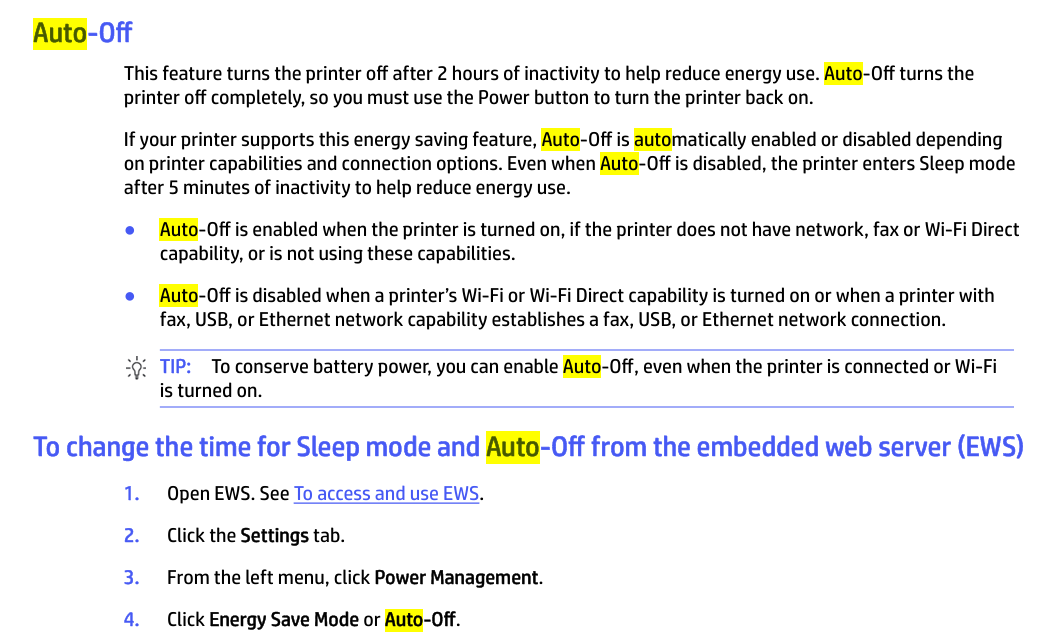
Please check the user guide page number 87 onwards - User Guide
Have a great day!
I'm an HP Employee.
If this reply helped resolve your issue, please select the Accept as Solution as it helps others in the community quickly find the answer they’re looking for.
And if you found this reply helpful, clicking Yes below is a great way to let us know we’re providing the support you need, as it encourages us to keep improving and sharing helpful guidance.
09-23-2026 03:59 PM
HP Recommended
I have found the problem. When I used the copy function button, I was inserting a page from a magazine and closing the lid, but the other part of the magazine was still sticking out from the scan window, so it was not closed completely. If I put a single sheet on the scan widow and close the lid completely, the copy function works every time. So, make sure the scan window lid closes completely before using the copy button. If there is any gap, the copy button will not function. Thank you for kind assistance.
09-24-2026 02:05 PM
HP Recommended
Thank you so much for your response. I am glad that the issue is resolved. @Audloe
Is there anything else that I can help you with today?
Have a great day!
I'm an HP Employee.
If this reply helped resolve your issue, please select the Accept as Solution as it helps others in the community quickly find the answer they’re looking for.
And if you found this reply helpful, clicking Yes below is a great way to let us know we’re providing the support you need, as it encourages us to keep improving and sharing helpful guidance.

Be alert for scammers posting fake support phone numbers and/or email addresses on the community.
If you think you have received a fake HP Support message, please report it to us by clicking on "Flag Post".
† The opinions expressed above are the personal opinions of the authors, not of HP. By using this site, you accept the Terms of Use and Rules of Participation.


Didn't find what you were looking for?
Ask the community
† The opinions expressed above are the personal opinions of the authors, not of HP. By using this site, you accept the <a href="https://www8.hp.com/us/en/terms-of-use.html" class="udrlinesmall">Terms of Use</a> and <a href="/t5/custom/page/page-id/hp.rulespage" class="udrlinesmall"> Rules of Participation</a>.