
-
×InformationNeed Windows 11 help?Check documents on compatibility, FAQs, upgrade information and available fixes.
Windows 11 Support Center. -
-
×InformationNeed Windows 11 help?Check documents on compatibility, FAQs, upgrade information and available fixes.
Windows 11 Support Center. -
- HP Community
- Printers
- Scanning, Faxing, and Copying
- Re: HP Smart Scanning - no default setting A4 size???

Create an account on the HP Community to personalize your profile and ask a question
Your account also allows you to connect with HP support faster, access a personal dashboard to manage all of your devices in one place, view warranty information, case status and more.
Common problems HP Solution Center not working : Adobe Flash Player Error and Unable to scan
We would like to share some of the most frequently asked questions about HP Solution Center not working : Adobe Flash Player Error and Unable to Scan.

It has been a while since anyone has replied. Simply ask a new question if you would like to start the discussion again.

04-20-2021 05:03 AM
 HP Recommended
Product: Example: Pavilion 6530Pagewide MFP 772dw
Operating System: Microsoft Windows 10 (64-bit)
in HP Smart, I used to be able to set a default setting on paper size to "A4".
With the latest update it is now defaulting to "Letter" , when I reset it to "A4" and restart HP Smart it defaults again to "Letter"
Like to see a solution
Regards Arie
Solved! Go to Solution.
1 ACCEPTED SOLUTION
Accepted Solutions


06-09-2021
10:35 AM
- last edited on
10-08-2025
01:56 PM
by
 Raj_05
HP Recommended
Yes, HP Scan and Capture is a nice alternative.
Good idea.
For those reading, there are indeed "other ways to scan".
For now, use alternative software to scan documents.
NOTE for Windows S mode users:
- Windows in S mode only allows installation of applications from the Microsoft Store. Windows "S" mode scan options are therefore limited to those applications you can install from the Store (marked in Green).
- Windows 10 (full Windows) can make use of any of the "blue" or the "green" options.
Example list...
NOTE: Alternatives do not necessarily provide the same settings / features as HP App.
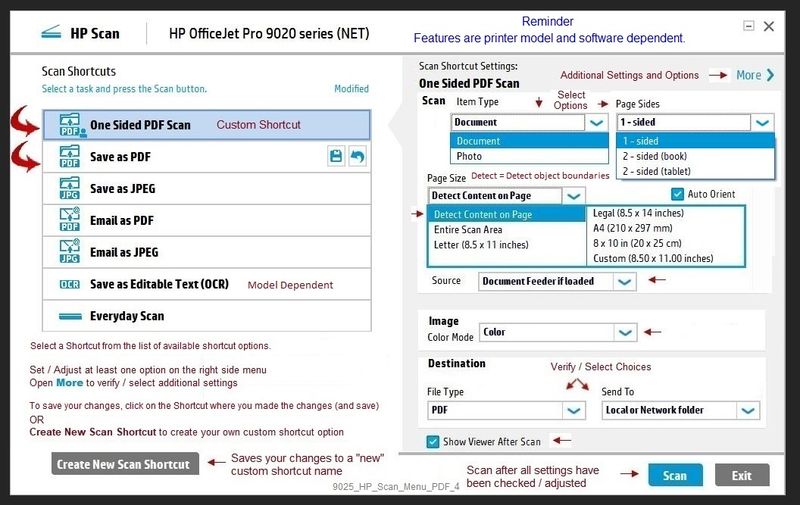
HP Scan - part of the Full Feature Software / full driver printer software.
Example - HP Scan Main Menu
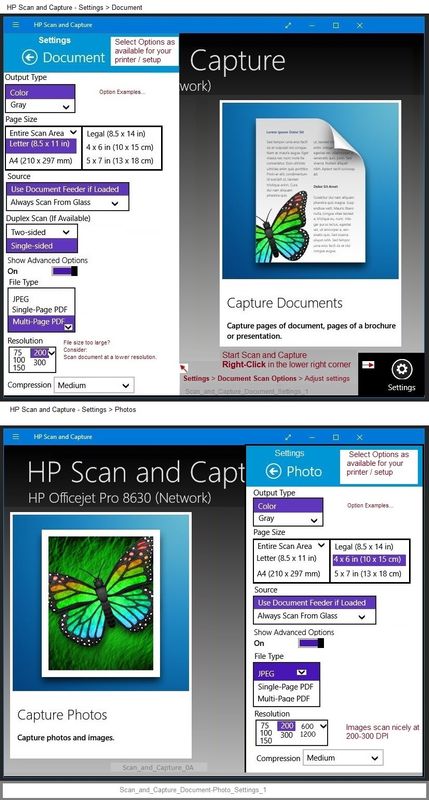
HP Scan and Capture
Microsoft Store (formally Windows Store) - Requires Windows 8 or higher
Download-Save-Install HP Scan and Capture
Description
HP Scan and Capture is a simple and fun application that captures photos or documents from any* HP scanning device or your computer's built-in camera. These images can be previewed, edited, saved, and shared to other applications.
* NOTE: The correct HP drivers for your scanner must be installed from HP's Support Website.
NAPS2 – “Not Another PDF Scanner”
- Download-Save-Install > NAPS2
- Not another PDF Scanner – free program scans PDF files and image(s) as .jpeg or PDF file(s).
- Includes an OCR feature – may need Ghostscript add-on (See NAPS2 forum entry)
- Read the Support pages for information
- Download, save, and install the NAPS2 software to use.
Windows Scan – Microsoft Store (formally Windows Store) - Requires Windows 8 or higher
- “Get” the application from the Store > Windows Scan
Paint (mspaint)
Older software - not fancy - does scan images without undue difficulty.
Does not save defaults.
- Open Paint
- Expand the “white background” area to a size to accommodate your data. If unknown, try 1300x1300
- File > Select “From Scanner or Camera”
- Select your printer > Follow the prompts to scan and then save your item
Possibly
Webscan – located in the Embedded Web Server (EWS) – No additional software
Webscan - assuming the printer is on the network - likely works in Windows "S" mode
NOTE: Webscan feature is not available on Laser printers
If the printer is on the network,
If the EWS feature is available on your printer,
First Time Use Only: Enable Webscan
- Open your favorite browser > type / enter Printer IP address into URL / Address bar
- Tab Settings > Security > Administrator Settings > Enable >> Check box next to Webscan
- Click Apply to save any changes
Next
- Tab Scan > Webscan
- Set up Webscan the way you want it - for example, set the Source to ADF
- Click Start Scan to scan your document / image using Webscan
- After the scan is complete, Save the scan to your computer.
Thank you for participating in the HP Community.
The Community is a separate wing of the HP website - We are not an HP business group.
Our Community is comprised of volunteers - people who own and use HP devices.
Click Thumbs Up to say Thank You.
Question / Concern Answered, Click "Accept as Solution"
Dragon-Fur

18 REPLIES 18
04-20-2021
11:15 AM
- last edited on
10-08-2025
01:54 PM
by
Raj_05
HP Recommended
====================================================================
Welcome to the HP Community.
Be Aware:
Do not respond to individuals who include phone numbers or email addresses in public posts.
Do not respond to individuals who ask you to provide private information in a public Post.
These people might be scammers trying to steal your information / money.
====================================================================
Try / Consider
In HP App, Update the setting that can impact the default paper size:
HP App> Printer Settings > Printer Information > Preferences > Country
Open HP App
Click the Printer Settings box
In Section Printer Information
In subsection Preferences Drop-down menu
Select your Country (and Language)
Thank you for participating in the HP Community.
The Community is a separate wing of the HP website - We are not an HP business group.
Our Community is comprised of volunteers - people who own and use HP devices.
Click Thumbs Up to say Thank You.
Question Resolved / Answered, Click "Accept as Solution"
Dragon-Fur

04-25-2021 12:00 PM
HP Recommended
Yeah - disappointing - and after looking into this a bit more, it is not entirely surprising. 😐
Since I posted the first message in this thread, I've asked the question internally.
I have yet to receive a response / solution.
For the moment, all I can say is that sometimes when we do report issues of this general type, we do later see a version update to address the root cause of the reported problem. Relevant here? Unknown. We wait.
Thank you for participating in the HP Community.
The Community is a separate wing of the HP website - We are not an HP business group.
Our Community is comprised of volunteers - people who own and use HP devices.
Click Thumbs Up to say Thank You.
Question Resolved / Answered, Click "Accept as Solution"
Dragon-Fur
05-05-2021 04:32 AM
HP Recommended
I have the same issue EVERY sheet I have to reset the size of scanning from Letter to A4 - it takes a age and it you miss a sheet on a multi sheet document it wastes more time than ever.
The changing of the setting is easy - I an set up as UK and English UK but still scanner defaults of Letter really disappointing it seems that there should be such a simple fix.
05-18-2021 07:58 AM
HP Recommended
I HAVE THE ENVY 7855 ALL OF A SUDDEN I CANNOT PRINT ENVELOPES. WHY? I USE TO BE ABLE TO GO TO MAILINGS -ENVELOPES AND MY ENVELOPE WOUDL PRINT THE ADDRESS NOW IT READS IT DETECTS A LARGER SIZE PRINT THAN I AM ASKING FOR. WHAT CHANGED? HOW DO I PRINT ENVELOPES PLEASE?
05-21-2021
06:31 AM
- last edited on
10-08-2025
01:55 PM
by
Raj_05
HP Recommended
Hello,
We are having the same issue on a HP MFP M280 using the HP App scanning app version: 127.1.115.0
This is affecting multiple customers using the HP app.
All windows 10 printer defaults are set to a4, as are any setting we can find via the Advanced printer settings.
Our region is defaulted to UK , English in the HP App Prefernces, but it will not allow me to change this, what region settings will default to A4 ?
Is there an alterantive fix for this issue, lots of unhappy people being slowed down by this bug.


05-24-2021
12:17 PM
- last edited on
10-10-2025
01:00 PM
by
Raj_05
HP Recommended
Welcome to the HP Support Community.
Uninstall and reinstall the HP App.
Also, try a firmware update: https://support.hp.com/in-en/document/ish_1776648-1643972-16
Let me know if this helps.
If the information I've provided was helpful, give us some reinforcement by clicking the "Accept as solution" button, that'll help us and others see that we've got the answers!
Thanks!
Have a great day!
I am an HP Employee
05-25-2021 10:23 AM
HP Recommended
Upgraded to the latest firmware but still the same problem: default setting for scanner remains Letter. For printing and copying paper size default is A4. No way to change setting for scanner.
When scanning multiple pages manually, need to change size for every page.
On my old Officejet 6500A Plus I had to set it only once.

Be alert for scammers posting fake support phone numbers and/or email addresses on the community.
If you think you have received a fake HP Support message, please report it to us by clicking on "Flag Post".
† The opinions expressed above are the personal opinions of the authors, not of HP. By using this site, you accept the Terms of Use and Rules of Participation.


Didn't find what you were looking for?
Ask the community
† The opinions expressed above are the personal opinions of the authors, not of HP. By using this site, you accept the <a href="https://www8.hp.com/us/en/terms-of-use.html" class="udrlinesmall">Terms of Use</a> and <a href="/t5/custom/page/page-id/hp.rulespage" class="udrlinesmall"> Rules of Participation</a>.