-
×InformationNeed Windows 11 help?Check documents on compatibility, FAQs, upgrade information and available fixes.
Windows 11 Support Center. -

-
×InformationNeed Windows 11 help?Check documents on compatibility, FAQs, upgrade information and available fixes.
Windows 11 Support Center. -
- HP Community
- Printers
- Scanning, Faxing, and Copying
- Re: HP4632 printer scanner

Create an account on the HP Community to personalize your profile and ask a question
06-17-2019 06:46 AM
How do I scan multiple pages to my Mac Book Pro, from my Hp4632 all in one printer/scanner?
Solved! Go to Solution.
Accepted Solutions
06-19-2019 04:25 PM
@greenmagpies, Welcome to HP Support Community!
Scan documents from the automatic document feeder (ADF)
-
Load all pages into the ADF. Look for a graphic with arrows on the document feeder to help you load your pages correctly.
NOTE:
Do not overfill the document feeder. If necessary, you can add pages to your scan job later.

-
Click Scan.
The printer scans all documents in the ADF, and then a preview displays.
-
Follow any prompts to flip and re-load the pages for duplex scanning.
-
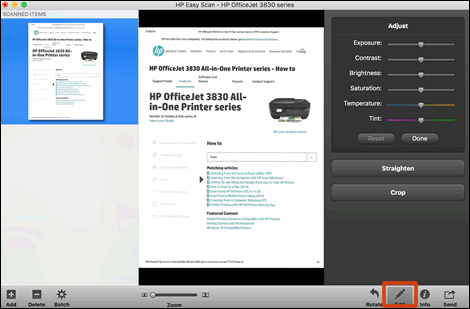
Click the thumbnail of a scanned item in the left panel, and then click Edit to adjust colors, straighten, or crop that item.

-
To add pages to your scan, click Add
on the bottom bar, load more documents into the ADF, and then click Scan. -
To remove pages from a multi-page scan, click the thumbnail on the left panel, and then click Delete on the bottom bar.
-
To reorder pages in a multi-page scan, click and drag pages on the left panel.
-
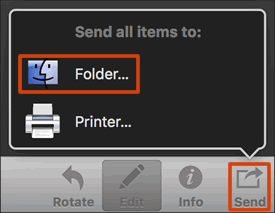
Click Send in the bottom right corner of the window, and then click Folder.

-
Select a name, destination, file format, and quality for your scan.
-
If you want your scan saved as a single file, make sure you select the Save all items to a single file check box.
NOTE:
Not all file types can be saved as a single file. If the check box does not display, select a different file type.
-
Click Save.
Refer to the document HP Printers - How to Scan (Mac) for more help.
Keep me posted for further assistance.
Please click “Accept as Solution” if you feel my post solved your issue, it will help others find the solution. Click the “Kudos/Thumbs Up" on the bottom right to say “Thanks” for helping!
TEJ1602
I am an HP Employee
06-19-2019 04:25 PM
@greenmagpies, Welcome to HP Support Community!
Scan documents from the automatic document feeder (ADF)
-
Load all pages into the ADF. Look for a graphic with arrows on the document feeder to help you load your pages correctly.
NOTE:
Do not overfill the document feeder. If necessary, you can add pages to your scan job later.

-
Click Scan.
The printer scans all documents in the ADF, and then a preview displays.
-
Follow any prompts to flip and re-load the pages for duplex scanning.
-
Click the thumbnail of a scanned item in the left panel, and then click Edit to adjust colors, straighten, or crop that item.

-
To add pages to your scan, click Add
on the bottom bar, load more documents into the ADF, and then click Scan. -
To remove pages from a multi-page scan, click the thumbnail on the left panel, and then click Delete on the bottom bar.
-
To reorder pages in a multi-page scan, click and drag pages on the left panel.
-
Click Send in the bottom right corner of the window, and then click Folder.

-
Select a name, destination, file format, and quality for your scan.
-
If you want your scan saved as a single file, make sure you select the Save all items to a single file check box.
NOTE:
Not all file types can be saved as a single file. If the check box does not display, select a different file type.
-
Click Save.
Refer to the document HP Printers - How to Scan (Mac) for more help.
Keep me posted for further assistance.
Please click “Accept as Solution” if you feel my post solved your issue, it will help others find the solution. Click the “Kudos/Thumbs Up" on the bottom right to say “Thanks” for helping!
TEJ1602
I am an HP Employee