• ×
    Information
    Need Windows 11 help?
    Check documents on compatibility, FAQs, upgrade information and available fixes.
    Windows 11 Support Center.
  • post a message
  • ×
    Information
    Need Windows 11 help?
    Check documents on compatibility, FAQs, upgrade information and available fixes.
    Windows 11 Support Center.
  • post a message
Guidelines
Is your HP DeskJet 3830 series scanner not working? Here is the solution Click here to view the instructions!
Common problems HP Solution Center not working : Adobe Flash Player Error and Unable to scan
We would like to share some of the most frequently asked questions about HP Solution Center not working : Adobe Flash Player Error and Unable to Scan.
HP Recommended
HP Scan
Microsoft Windows 10 (64-bit)

HP Scan froze my system on saving a file after scanning.  It created a file called hpscan.dmp.  How do I read it and interpret the results.

1 REPLY 1
HP Recommended

Hi! @paulie05,


Please share the complete printer model name to assist you better.


It sounds like the scan has not saved correctly on the PC, they contain the only record of the sequence of events leading up to the crash, what drivers were loaded, and what was responsible. Due to which there was a dump file created.


To open the file you need to right click on the file and select open with and select notepad from the list.


Try the steps recommended below to Save scan To Folder on the PC.


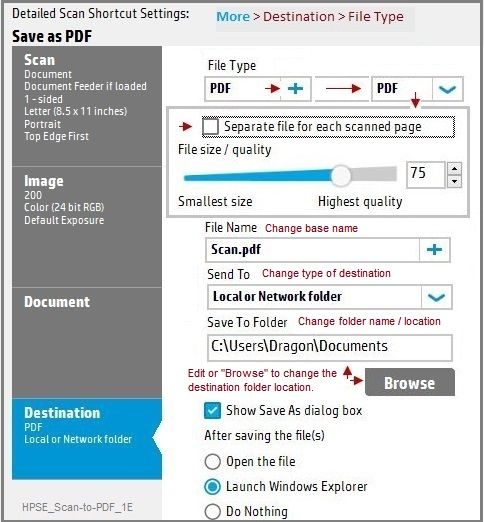
Use the Destination setting in HP Scan to set the Save To Folder location on your computer.

  1. Search Windows for HP, and then select your printer.

    HP Printer Assistant opens.

  2. Click Scan, and then click Scan a Document or Photo.

    HP Scan opens.

  3. Select a shortcut, and then click Advanced Settings or More.

  4. Click Destination, and then click Browse.

  5. Select the folder in the Browse for Folder window, and then click OK.

  6. Click OK or the Save icon  in the shortcut.

  7. Repeat these steps for each scan shortcut.

Local folder basics:

  • Local folders are part of the computer's hierarchy -- the destination disk can be "C" or any other drive letter that designates an internal (or USB connected) drive.  Unlike "network" folders, local disks do not have to be "mapped" since they are already recognised by the File System.
  • Change the "Scan to Folder" destination to match the drive letter and folder to be used to store the scanned data.

HPSE_Scan-to-PDF_1E.jpg


Also, if you still have issues after trying out the steps, try uninstalling the printer software from the root level on the PC and install the full feature printer software.


In Windows, search for and open Programs and Features. 
Select your HP printer. 
Select Uninstall. 
In Windows, search for and open Devices and Printers. 
In the Devices and Printers window look for your HP Printer. If you see it listed, right-click on it and choose "Delete" or "Remove Device.” 
Open up the run command with the "Windows Key + R" key combo. 
Type printui.exe /s and click OK. 
Click on Drivers tab. 
Look for HP Printer driver. If you see it click on it and click remove at the bottom. 
Select OK. 
Select Apply and OK on the Print Server Properties windows. 
Close Devices and Printers. 
 

Update the full feature printer software using this link. Click Here


Refer this article to know more information about scanning to PC. Click Here


Lastly, try scanning using HP smart app on the PC.


Refer this article to know more information about using HP Smart app. Click Here


Hope this helps!

Have a wonderful day ahead! 🙂


Please click “Accept as Solution” if you feel my post solved your issue, it will help others find the solution.

Click the “Kudos, Thumbs Up" on the bottom right to say “Thanks” for helping!

A4Apollo
I am an HP Employee

† The opinions expressed above are the personal opinions of the authors, not of HP. By using this site, you accept the <a href="https://www8.hp.com/us/en/terms-of-use.html" class="udrlinesmall">Terms of Use</a> and <a href="/t5/custom/page/page-id/hp.rulespage" class="udrlinesmall"> Rules of Participation</a>.