-
×InformationNeed Windows 11 help?Check documents on compatibility, FAQs, upgrade information and available fixes.
Windows 11 Support Center. -

-
×InformationNeed Windows 11 help?Check documents on compatibility, FAQs, upgrade information and available fixes.
Windows 11 Support Center. -
- HP Community
- Printers
- Scanning, Faxing, and Copying
- How do I change the scanner default values for smart task?

Create an account on the HP Community to personalize your profile and ask a question
01-11-2020 10:09 AM
Hi, how do I change the scanner default values for smart task? It starts every time with the parameter "scan", one side and color. I like to change them to "Document" and 2 sides and grayscale.
01-11-2020 03:33 PM
For those reading - not all printers support the Smart Tasks feature.
How to document:
HP Printers - HP Smart: Using Smart Tasks
Edit a Smart Task
Edit your Smart Task in HP Smart for Windows (or in HP Smart for Mobile where supported).
General Example
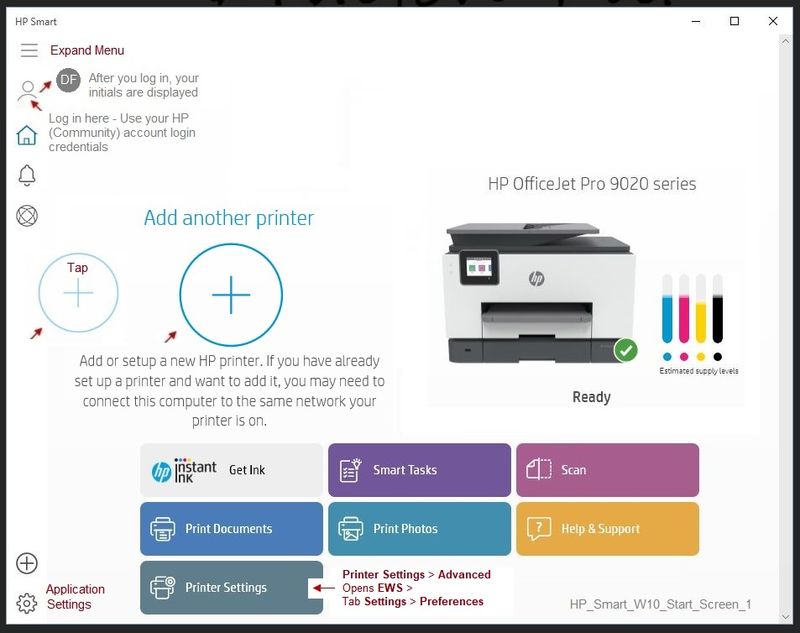
Open HP Smart software for Windows
Select Smart Tasks
Select a previously created Smart Task and Edit
HP_Smart_W10_Start_Screen_1
HP_Smart_W10_Smart_Tasks_1
Reference and Resources – Places to find help and learn how to use your Printer
Clarification of terms and "what the printer can do" (Specifications)
Printer Homepage – “Things that are your printer”
NOTE: Content depends on device type and Operating System
HP Drivers / Software / Firmware Updates, How-to Videos, Bulletins/Notices, Lots of How-to Documents, Troubleshooting, Access to the Print and Scan Doctor (Windows), User Guides, Product Information, more
When the website support page opens, Select (as available) a Category > Topic > Subtopic
HP OfficeJet Pro 9010 All-in-One Printer series
Thank you for participating in the HP Community Forum.
We are a world community of HP enthusiasts dedicated to supporting HP technology.
2020 year of the Rat
01-13-2020 12:55 AM
Thank you, for your post. I have already found this posibilities to set various preferences, but unfortunately for example there is no way to set the default name of a scanned document. Its Always "scan". And the Default Setting for Color and Grayscale is Always Color. This is what I like to Change and use it in my smart task. Is there any way to do it?
Regards
Sven
01-13-2020 10:36 AM - edited 01-13-2020 12:11 PM
My Personal Opinion is that a different name might have been more appropriate than "Smart Tasks", though I understand how it came about ("HP Smart").
In general: If you cannot find it, the setting does not exist.
The following seems to work for editing Print Tasks/
Caveat:
At the moment, I do not find any Smart Tasks setup for Scanning - might have missed it, of course.
Setup:
iOS (13.x at this writing), HP Smart 7.x, and Officejet Pro 9025
Change color print to grayscale print in Smart Task
Open the mobile HP Smart App
Select Smart Tasks
Click on Edit (upper left, to the right of text "Smart Tasks")
Click / Select (check circle) the Task to be edited
Click Edit (left column, bottom, to the right of "Select All")
Task is now selected and ready for edit...
Click Print > to open settings
Click Color >
Down on the bottom, middle, tap on the word "Grayscale"
Optional: Edit other / additional Settings
Click Done
HP_Smart_Mobile_Smart_Tasks_Edit_1
HP_Smart_Mobile_Smart_Tasks_Edit_1a
HP_Smart_Mobile_Smart_Tasks_Edit_1b
HP_Smart_Mobile_Smart_Tasks_Edit_1c
Assuming there is a Smart Task for "scan" (I've not check this), similar settings might be possible.
Based on the "Save to OneDrive" Smart Task I created, the controls are limited.
Thank you for participating in the HP Community Forum.
We are a world community of HP enthusiasts dedicated to supporting HP technology.
2020 Year of the Rat