• ×
    Information
    Need Windows 11 help?
    Check documents on compatibility, FAQs, upgrade information and available fixes.
    Windows 11 Support Center.
  • post a message
  • ×
    Information
    Need Windows 11 help?
    Check documents on compatibility, FAQs, upgrade information and available fixes.
    Windows 11 Support Center.
  • post a message
Guidelines
Seize the moment! nominate yourself or a tech enthusiast you admire & join the HP Community Experts!
Common problems HP Solution Center not working : Adobe Flash Player Error and Unable to scan
We would like to share some of the most frequently asked questions about HP Solution Center not working : Adobe Flash Player Error and Unable to Scan.
HP Recommended
HP Office Jet 9010
Microsoft Windows 10 (64-bit)

Hi, how do I change the scanner default values for smart task? It starts every time with the parameter "scan", one side and color. I like to change them to "Document" and 2 sides and grayscale.

3 REPLIES 3
HP Recommended

@Sven6 


For those reading - not all printers support the Smart Tasks feature.


How to document:

HP Printers - HP Smart: Using Smart Tasks


Edit a Smart Task

Edit your Smart Task in HP Smart for Windows (or in HP Smart for Mobile where supported).

General Example

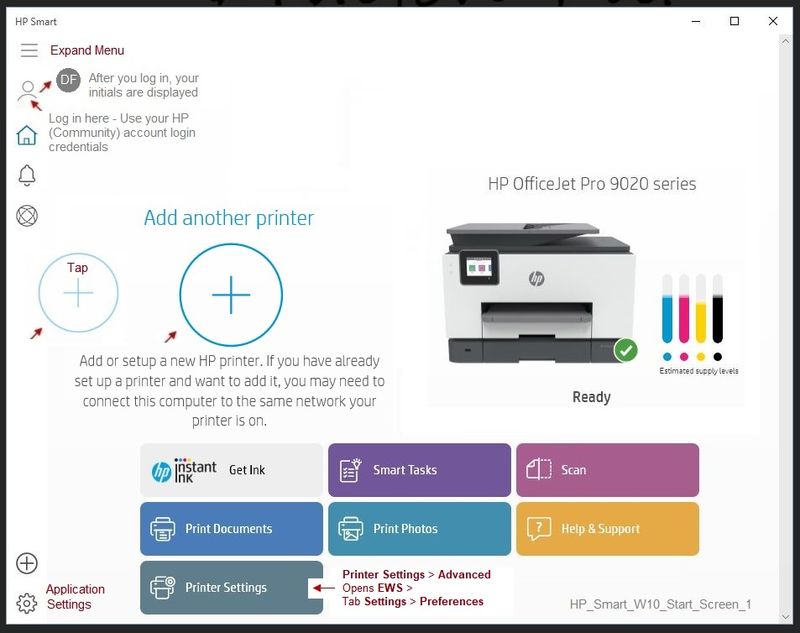
Open HP Smart software for Windows 

Select Smart Tasks

Select a previously created Smart Task and Edit 

HP_Smart_W10_Start_Screen_1HP_Smart_W10_Start_Screen_1


HP_Smart_W10_Smart_Tasks_1HP_Smart_W10_Smart_Tasks_1


Reference and Resources – Places to find help and learn how to use your Printer

Clarification of terms and "what the printer can do" (Specifications)

Printer Homepage – “Things that are your printer”

NOTE:  Content depends on device type and Operating System

HP Drivers / Software / Firmware Updates, How-to Videos, Bulletins/Notices, Lots of How-to Documents, Troubleshooting, Access to the Print and Scan Doctor (Windows), User Guides, Product Information, more

When the website support page opens, Select (as available) a Category > Topic > Subtopic

HP OfficeJet Pro 9010 All-in-One Printer series


Thank you for participating in the HP Community Forum.

We are a world community of HP enthusiasts dedicated to supporting HP technology.

2020 year of the Rat


Dragon-Fur

HP Recommended

Thank you, for your post. I have already found this posibilities to set various preferences, but unfortunately for example there is no way to set the default name of a scanned document. Its Always "scan". And the Default Setting for Color and Grayscale is Always Color. This is what I like to Change and use it in my smart task. Is there any way to do it?


Regards


Sven 

HP Recommended

@Sven6 


My Personal Opinion is that a different name might have been more appropriate than "Smart Tasks", though I understand how it came about ("HP Smart").


In general:  If you cannot find it, the setting does not exist. 


The following seems to work for editing Print Tasks/


Caveat:

At the moment, I do not find any Smart Tasks setup for Scanning - might have missed it, of course.


Setup: 

iOS (13.x at this writing), HP Smart 7.x, and Officejet Pro 9025


Change color print to grayscale print in Smart Task 


Open the mobile HP Smart App

Select Smart Tasks

Click on Edit (upper left, to the right of text "Smart Tasks")

Click / Select (check circle) the Task to be edited

Click Edit (left column, bottom, to the right of "Select All")

Task is now selected and ready for edit...

Click Print > to open settings

Click Color >

Down on the bottom, middle, tap on the word "Grayscale"

Optional:  Edit other / additional Settings

Click Done


HP_Smart_Mobile_Smart_Tasks_Edit_1HP_Smart_Mobile_Smart_Tasks_Edit_1


HP_Smart_Mobile_Smart_Tasks_Edit_1aHP_Smart_Mobile_Smart_Tasks_Edit_1a


HP_Smart_Mobile_Smart_Tasks_Edit_1bHP_Smart_Mobile_Smart_Tasks_Edit_1b


HP_Smart_Mobile_Smart_Tasks_Edit_1cHP_Smart_Mobile_Smart_Tasks_Edit_1c


Assuming there is a Smart Task for "scan" (I've not check this), similar settings might be possible.

Based on the "Save to OneDrive" Smart Task I created, the controls are limited. 


Thank you for participating in the HP Community Forum.

We are a world community of HP enthusiasts dedicated to supporting HP technology.

2020 Year of the Rat


Dragon-Fur

† The opinions expressed above are the personal opinions of the authors, not of HP. By using this site, you accept the <a href="https://www8.hp.com/us/en/terms-of-use.html" class="udrlinesmall">Terms of Use</a> and <a href="/t5/custom/page/page-id/hp.rulespage" class="udrlinesmall"> Rules of Participation</a>.