
-
×InformationNeed Windows 11 help?Check documents on compatibility, FAQs, upgrade information and available fixes.
Windows 11 Support Center. -
-
×InformationNeed Windows 11 help?Check documents on compatibility, FAQs, upgrade information and available fixes.
Windows 11 Support Center. -
- HP Community
- Printers
- Scanning, Faxing, and Copying
- I cannot scan a photo to my email

Create an account on the HP Community to personalize your profile and ask a question
Your account also allows you to connect with HP support faster, access a personal dashboard to manage all of your devices in one place, view warranty information, case status and more.
Common problems HP Solution Center not working : Adobe Flash Player Error and Unable to scan
We would like to share some of the most frequently asked questions about HP Solution Center not working : Adobe Flash Player Error and Unable to Scan.

It has been a while since anyone has replied. Simply ask a new question if you would like to start the discussion again.

4 REPLIES 4


08-15-2019 05:12 PM
 HP Recommended
Reminder:
Scan to email requires that your email software be installed on the computer. "Web based" email does not count as "installed on the computer".
Document:
Open the first section "Scan using the scanner glass" > Step 1: Set up Scan to Email
Assuming you have the Full Feature Software installed for your printer,
Open the Printer Assistant shortcut icon on your desktop
General Example
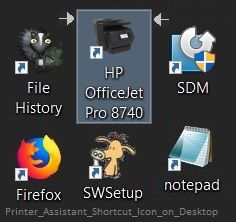

Select tab Print, Scan & Fax (wording may vary)
Scan a document or photo
Set the options in the menu and scan the item to be emailed.
Remember to "Copy"(or blind copy) yourself so you have a copy of the email you are sending.
General Example of the Scan menu as seen in HP Scan Extended Software
NOTE: This example includes previously created custom shortcuts

Reference
Depending on the age and version of your Full Feature Software, HP Scan Extended may provide the same features (and so is not necessary). If you would like to do so, try (download-save-install) the software to check the various features it provides.
Link / Download: HP Scan Extended
Download, save, and install to use. Exceptional free HP scan program: HP Scan Extended features include (and are not limited to): Single, Multiple scans, Image and PDF scans, Email as PDF / JPEG, Source selection, Page Size choices include Auto-Detect (extracts image / document boundary). May include OCR (Save as Editable Text).
NOTES
- HPSE is an older subset of the printer software; features are very similar to scan software included in 2015 or newer Full Feature Software packages.
- If you have the newer version of the scan software inside your Full Feature Software, use that: Printer Assistant shortcut icon on Desktop (named for printer) > Scan a document or image (wording varies).
- Although the HPSE program works as a separate program, HPSE is dependent on the infrastructure provided by the printer software. The Full Feature Software for your printer should be installed before installing HPSE.
- OPTIONAL: Add HP Scan Extended shortcut to Taskbar / Send to Desktop / Pin to Start
- Open File Explorer > Navigate to C:\Program Files (x86)\HP\HP Scan Extended\bin
- Right-Click exe > Select Pin to Taskbar / Send to Desktop / Pin to Start
For later...
Link and Download NAPS2
NOTES
- Not another PDF Scanner – free program scans PDF files and image(s) as .jpeg or PDF file(s).
- Includes an OCR feature – may need Ghostscript add-on (See NAPS2 forum entry)
- Read the Support pages for information
- Download, save, and install the NAPS2 software to use.
Still need help? Want more information? Search for solutions...
Reference and Resources – Places to find (more) help and learn about your Printer
Printer Homepage – “Things that are your printer”
NOTE: Content depends on device type
Drivers / Software / Firmware Updates, How-to Videos, Bulletins/Notices, Lots of How-to Documents, Troubleshooting, User Guides, Product Information, more
HP OfficeJet 3830 All-in-One Printer series
Thank you for participating in the HP Community Forum.
We are a world community of HP enthusiasts dedicated to supporting HP technology.
Click Thumbs Up on a post to say Thank You!
Answered? Click post "Accept as Solution" to help others find it.
Dragon-Fur


08-16-2019 08:50 AM
HP Recommended
I cannot send a photo by scanning from the printer to my PC email account which is a yahoo account.
On my other computer I was able to place a photo or document on the glass then press scan and then select my email and then send. I cannot do that with this printer.
I can scan using my computer as it is connected to my printer. When I send it this way the photo or document will show on my Desktop. I do not want to do that I want to be able to send info off the printer, scan, email to my yahoo account. When i try to send off the printer it reads "NO COMPUTER FOUND'. "OPEN HP PRINTER SOFTWARE, SELECT SCANNER ACTIONS THEN SELECT MANAGE SCAN TO COMPUTER". Where do I find the HP Printer software to do this?
08-16-2019 12:02 PM
HP Recommended
@Monster5959 wrote:I cannot send a photo by scanning from the printer to my PC email account which is a yahoo account.
On my other computer I was able to place a photo or document on the glass then press scan and then select my email and then send. I cannot do that with this printer.
I can scan using my computer as it is connected to my printer. When I send it this way the photo or document will show on my Desktop. I do not want to do that I want to be able to send info off the printer, scan, email to my yahoo account. When i try to send off the printer it reads "NO COMPUTER FOUND'. "OPEN HP PRINTER SOFTWARE, SELECT SCANNER ACTIONS THEN SELECT MANAGE SCAN TO COMPUTER". Where do I find the HP Printer software to do this?
"On my other computer I was able to place a photo or document on the glass then press scan and then select my email and then send. I cannot do that with this printer. "
Scan to Email when started on the printer is controlled / provided by the printer model.
The Scan to Email feature may not be available on your printer control panel.
Digital Sending features for this model include Scan to PC. Scan to Email is not mentioned.
Reference: Datasheet
If you do not see the Scan to Email option on your printer control panel, it is not available on this model.
Reference: Datasheet
__________________________________________________________
"When i try to send off the printer it reads "NO COMPUTER FOUND'. "OPEN HP PRINTER SOFTWARE, SELECT SCANNER ACTIONS THEN SELECT MANAGE SCAN TO COMPUTER". Where do I find the HP Printer software to do this?"
ScanToPCActivation can be found in the Printer Assistant shortcut icon on your Desktop.
Click Tab Print, Scan & Fax (options may vary by model for this tab)
Select Scan
Select Manage Scan to Computer
General Example - Printer Assistant - Scan

Problems?
Consider using the Print and Scan Doctor.
Information and download for the Doctor is available in your printer Troubleshooting category.
Reminder:
This option relates to "Scan to PC" access.
_________________________________________________________________
"What is email software? Where do I get that?"
An email client, "email software" is email software that is installed on the computer as opposed to opening your email in a Web Browser (Chrome or Firefox, for example). Examples of email client software are provided in the document that explains the setup. Reference: How to Scan (Windows) (Step 1)
For example, if you have a full Office suite installed on your computer, Outlook might be included in the Office Software. This is one example of an email software that is installed on the computer.
Mozilla Thunderbird uses IMAP or POP to give you access to your web based email. You can set up Thunderbird to give you access to your email in Yahoo. Thunderbird is an example of email software that is installed on the computer.
The Windows mail app is installed on the computer.
Still not sure about "email client"? Use your favorite search engine to find articles and documents that can explain in terms suitable to your needs.
--------------------------------------------------------------------------------
Still need help? Want more information? Search for solutions...
Reference and Resources – Places to find (more) help and learn about your Printer
Printer Homepage – “Things that are your printer”
NOTE: Content depends on device type
Drivers / Software / Firmware Updates, How-to Videos, Bulletins/Notices, Lots of How-to Documents, Troubleshooting, User Guides, Product Information, more
HP OfficeJet 3830 All-in-One Printer series
Thank you for participating in the HP Community Forum.
We are a world community of HP enthusiasts dedicated to supporting HP technology.
Click Thumbs Up on a post to say Thank You!
Answered? Click post "Accept as Solution" to help others find it.
Dragon-Fur

Be alert for scammers posting fake support phone numbers and/or email addresses on the community.
If you think you have received a fake HP Support message, please report it to us by clicking on "Flag Post".
† The opinions expressed above are the personal opinions of the authors, not of HP. By using this site, you accept the Terms of Use and Rules of Participation.


Didn't find what you were looking for?
Ask the community
† The opinions expressed above are the personal opinions of the authors, not of HP. By using this site, you accept the <a href="https://www8.hp.com/us/en/terms-of-use.html" class="udrlinesmall">Terms of Use</a> and <a href="/t5/custom/page/page-id/hp.rulespage" class="udrlinesmall"> Rules of Participation</a>.