
-
×InformationNeed Windows 11 help?Check documents on compatibility, FAQs, upgrade information and available fixes.
Windows 11 Support Center. -
-
×InformationNeed Windows 11 help?Check documents on compatibility, FAQs, upgrade information and available fixes.
Windows 11 Support Center. -
- HP Community
- Printers
- Scanning, Faxing, and Copying
- Re: Multiple item scan on PC

Create an account on the HP Community to personalize your profile and ask a question
Your account also allows you to connect with HP support faster, access a personal dashboard to manage all of your devices in one place, view warranty information, case status and more.
Common problems HP Solution Center not working : Adobe Flash Player Error and Unable to scan
We would like to share some of the most frequently asked questions about HP Solution Center not working : Adobe Flash Player Error and Unable to Scan.

It has been a while since anyone has replied. Simply ask a new question if you would like to start the discussion again.

08-11-2021 08:49 AM
 HP Recommended
Product: HP 7740
Operating System: Microsoft Windows 10 (64-bit)
I'm using an HP 7740 printer/scanner, running Windows 10. I wish to scan multiple items and have them individually recognised. At the moment, all I'm getting is a blue box on one item. Can you help, please?
Solved! Go to Solution.
1 ACCEPTED SOLUTION
Accepted Solutions


08-11-2021 10:05 AM
HP Recommended
Welcome to the HP Community.
@Bogleg wrote:I'm using an HP 7740 printer/scanner, running Windows 10. I wish to scan multiple items and have them individually recognised. At the moment, all I'm getting is a blue box on one item. Can you help, please?
If you mean to scan several photos / images on the printer flatbed,
If you mean to extract images from an item placed on the printer flatbed,
The following answer is relevant:
If you have not done so > Install the Full Feature Software / Full Driver printer software
Place items on glass / flatbed
Separate items by about 1 inch on a side
Open HP Scan>
Select: Save as JPEG > Set Page Size to Detect Photos
Open More > menu
Edit / Verify settings in each sub-menu
Click < Less to return to main menu
When ready, Scan
Preparation
If you have not done so,
In addition to the HP Smart application,
Install the Full Feature Software / full driver printer software for the printer.
HP Smart and other print software / applications benefit from having the full driver installed.
Printer Software Check
Notes
If the full driver printer software is installed, you will see the printer listed in Control Panel > icon view > Programs and Features.
The installation of the printer software adds two shortcut icons to the Desktop.
The Printer Assistant is named for the printer and provides access to Print , Scan , and Tools
HP Scan is named for itself and provides a direct call to the HP Scan software.

Printer software not installed?
Method - Use the Easy Start Wrapper to Install the Full Feature / Full Driver Software
For printers that support the option,
Use the Easy Start wrapper to install and configure the printer software.
- Home Page - HP Easy Start
- Open Category Software and Drivers
- Topic: Software-Utility
- Download-and-Save the current version of the Easy Start wrapper to install your print software
- If using USB: Disconnect the USB cable between the printer and computer before installing the software.
- Right-Click on the downloaded package and "Run as Administrator" to start the installation
- When asked, Select to install the “Full Driver” / “Full Feature Software”
- If using USB: Connect the cable when instructed to do so (near the end of the installation process).
- After the software is installed, Restart the computer and log in.
Notes >> Easy Start... The Journey
- Full Administrator Rights are required to complete the HP Software installation.
- About 2/3 of the way through the setup, you will be given the opportunity to select the software - select the "Full Driver" set (as opposed to the basic driver or other application).
- You can skip / ignore suggestion(s) that you add the HP Account – you’ll need the account at some point, for now, you can skip this suggestion (as many times as it insists it’s a good idea) during the full driver software installation.
- If you see it, you can skip / ignore suggestion(s) regarding Instant Ink subscription. Instant Ink subscription is NOT mandatory.
- Full driver includes print and scan functions supported by your printer and provides the printer features on which other applications / software might depend.
========================================================================
Example - HP Scan - Save as JPEG - Detect Photos
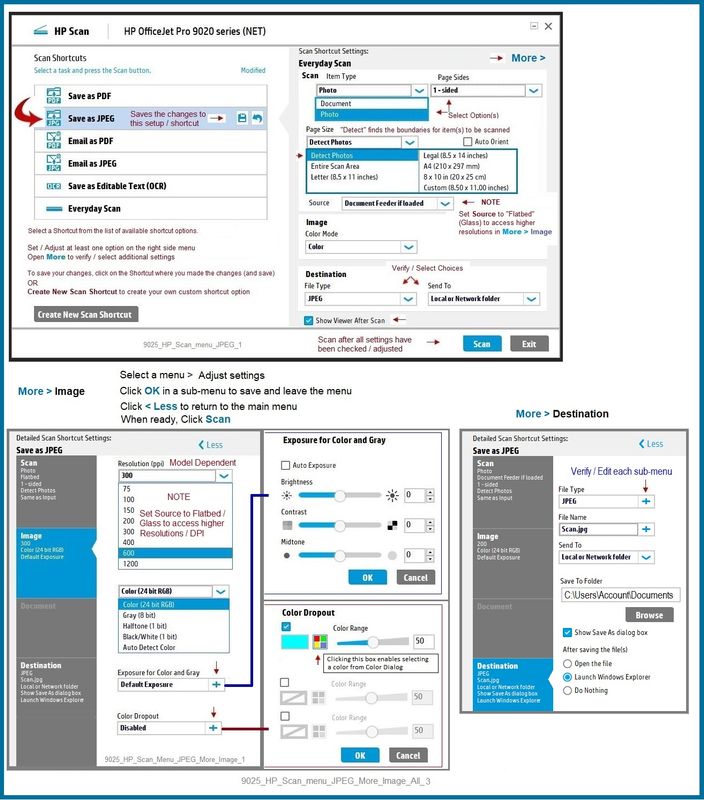
Printer Home Page - References and Resources – Learn about your Printer - Solve Problems
“Things that are your printer”
NOTE: Content depends on device type and Operating System
Categories: Alerts, Access to the Print and Scan Doctor (Windows), Warranty Check, HP Drivers / Software / Firmware Updates, How-to Videos, Bulletins/Notices, Lots of How-to Documents, Troubleshooting, User Guides / Manuals, Product Information (Specifications), more
When the website support page opens, Select (as available) a Category > Topic > Subtopic
HP OfficeJet Pro 7740 Wide Format All-in-One Printer series
Thank you for participating in the HP Community.
The Community is a separate wing of the HP website - We are not an HP business group.
Our Community is comprised of volunteers - people who own and use HP devices.
Click Thumbs Up to say Thank You.
Question / Concern Answered, Click "Accept as Solution"
Dragon-Fur

3 REPLIES 3
08-11-2021 10:05 AM
HP Recommended
Welcome to the HP Community.
@Bogleg wrote:I'm using an HP 7740 printer/scanner, running Windows 10. I wish to scan multiple items and have them individually recognised. At the moment, all I'm getting is a blue box on one item. Can you help, please?
If you mean to scan several photos / images on the printer flatbed,
If you mean to extract images from an item placed on the printer flatbed,
The following answer is relevant:
If you have not done so > Install the Full Feature Software / Full Driver printer software
Place items on glass / flatbed
Separate items by about 1 inch on a side
Open HP Scan>
Select: Save as JPEG > Set Page Size to Detect Photos
Open More > menu
Edit / Verify settings in each sub-menu
Click < Less to return to main menu
When ready, Scan
Preparation
If you have not done so,
In addition to the HP Smart application,
Install the Full Feature Software / full driver printer software for the printer.
HP Smart and other print software / applications benefit from having the full driver installed.
Printer Software Check
Notes
If the full driver printer software is installed, you will see the printer listed in Control Panel > icon view > Programs and Features.
The installation of the printer software adds two shortcut icons to the Desktop.
The Printer Assistant is named for the printer and provides access to Print , Scan , and Tools
HP Scan is named for itself and provides a direct call to the HP Scan software.
Printer software not installed?
Method - Use the Easy Start Wrapper to Install the Full Feature / Full Driver Software
For printers that support the option,
Use the Easy Start wrapper to install and configure the printer software.
- Home Page - HP Easy Start
- Open Category Software and Drivers
- Topic: Software-Utility
- Download-and-Save the current version of the Easy Start wrapper to install your print software
- If using USB: Disconnect the USB cable between the printer and computer before installing the software.
- Right-Click on the downloaded package and "Run as Administrator" to start the installation
- When asked, Select to install the “Full Driver” / “Full Feature Software”
- If using USB: Connect the cable when instructed to do so (near the end of the installation process).
- After the software is installed, Restart the computer and log in.
Notes >> Easy Start... The Journey
- Full Administrator Rights are required to complete the HP Software installation.
- About 2/3 of the way through the setup, you will be given the opportunity to select the software - select the "Full Driver" set (as opposed to the basic driver or other application).
- You can skip / ignore suggestion(s) that you add the HP Account – you’ll need the account at some point, for now, you can skip this suggestion (as many times as it insists it’s a good idea) during the full driver software installation.
- If you see it, you can skip / ignore suggestion(s) regarding Instant Ink subscription. Instant Ink subscription is NOT mandatory.
- Full driver includes print and scan functions supported by your printer and provides the printer features on which other applications / software might depend.
========================================================================
Example - HP Scan - Save as JPEG - Detect Photos
Printer Home Page - References and Resources – Learn about your Printer - Solve Problems
“Things that are your printer”
NOTE: Content depends on device type and Operating System
Categories: Alerts, Access to the Print and Scan Doctor (Windows), Warranty Check, HP Drivers / Software / Firmware Updates, How-to Videos, Bulletins/Notices, Lots of How-to Documents, Troubleshooting, User Guides / Manuals, Product Information (Specifications), more
When the website support page opens, Select (as available) a Category > Topic > Subtopic
HP OfficeJet Pro 7740 Wide Format All-in-One Printer series
Thank you for participating in the HP Community.
The Community is a separate wing of the HP website - We are not an HP business group.
Our Community is comprised of volunteers - people who own and use HP devices.
Click Thumbs Up to say Thank You.
Question / Concern Answered, Click "Accept as Solution"
Dragon-Fur
08-12-2021 08:58 AM
HP Recommended
You are welcome.
If the disc to which you refer is the software for the printer -- No disc.
You can download the available software / firmware:.
Open Category Software and drivers for HP OfficeJet Pro 7740 Wide Format All-in-One Printer series
The Easy Start Software wrapper and the installation web-pack (Full Feature Software) is available in sub-category Software-Utility
In some cases,
If you don't wish to use the Easy Start wrapper,
You can download, save the main package located in
HP OfficeJet Pro 7740 Wide Format All-in-One Print and Scan Driver and Accessories
For some printers,
Download, save, installation of the main installation package still works without using the wrapper.
Thank you for participating in the HP Community.
The Community is a separate wing of the HP website - We are not an HP business group.
Our Community is comprised of volunteers - people who own and use HP devices.
Click Thumbs Up to say Thank You.
Question / Concern Answered, Click "Accept as Solution"
Dragon-Fur

Be alert for scammers posting fake support phone numbers and/or email addresses on the community.
If you think you have received a fake HP Support message, please report it to us by clicking on "Flag Post".
† The opinions expressed above are the personal opinions of the authors, not of HP. By using this site, you accept the Terms of Use and Rules of Participation.


Didn't find what you were looking for?
Ask the community
† The opinions expressed above are the personal opinions of the authors, not of HP. By using this site, you accept the <a href="https://www8.hp.com/us/en/terms-of-use.html" class="udrlinesmall">Terms of Use</a> and <a href="/t5/custom/page/page-id/hp.rulespage" class="udrlinesmall"> Rules of Participation</a>.