-
×InformationNeed Windows 11 help?Check documents on compatibility, FAQs, upgrade information and available fixes.
Windows 11 Support Center. -

-
×InformationNeed Windows 11 help?Check documents on compatibility, FAQs, upgrade information and available fixes.
Windows 11 Support Center. -
- HP Community
- Printers
- Scanning, Faxing, and Copying
- Re: Multiple scanner options

Create an account on the HP Community to personalize your profile and ask a question
07-05-2020 05:37 AM
I have a HP Envy 5546 printer / scanner that is shared between 2 PCs over a wireless network. Printing is fine from both machines and scanning works OK from one (mine) but I am having problems setting up the scanner from the second (my wifes).
On my machine, I have an icon on the desktop that goes to "C:\Program Files (x86)\HP\HP Scan Extended\bin\HPScan.exe". I spent a long time on the telephone recently to a HP support technician who remotely accessed both machine and tried to set up my wife's machine and we eventually managed to get a desktop icon to link to
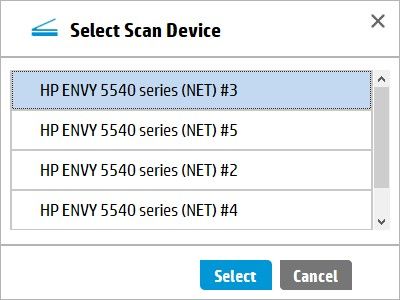
"C:\Program Files (x86)\HP\HP ENVY 5540 series\bin\HPScan.exe", which is subtly different. However, as a result of the various tests, installations and reinstallations of the printer software, when my wife clicks on this link, she gets the option of 5 different scanners, only one of which actually works, which is most inconvenient. The support technician didn't know how to delete the unwanted four scanners. Please see the screen dump below.
Can anyone please help me to delete the unwanted scanners?
Regards and TIA
Phil
Solved! Go to Solution.
Accepted Solutions
07-07-2020 01:49 PM
@Phil_g3swh, Welcome to HP Support Community!
Follow the steps below-
- Go to the device manager.
- Select Imaging devices and remove all the other entries which are duplicate or extra
I hope that answers your concern adequately. Let me know!
Please click “Accepted Solution” if you feel my post solved your issue, it will help others find the solution. Click the “Kudos/Thumbs Up" on the bottom right to say “Thanks” for helping!
TEJ1602
I am an HP Employee
07-07-2020 01:49 PM
@Phil_g3swh, Welcome to HP Support Community!
Follow the steps below-
- Go to the device manager.
- Select Imaging devices and remove all the other entries which are duplicate or extra
I hope that answers your concern adequately. Let me know!
Please click “Accepted Solution” if you feel my post solved your issue, it will help others find the solution. Click the “Kudos/Thumbs Up" on the bottom right to say “Thanks” for helping!
TEJ1602
I am an HP Employee