• ×
    Information
    Need Windows 11 help?
    Check documents on compatibility, FAQs, upgrade information and available fixes.
    Windows 11 Support Center.
  • post a message
  • ×
    Information
    Need Windows 11 help?
    Check documents on compatibility, FAQs, upgrade information and available fixes.
    Windows 11 Support Center.
  • post a message
Guidelines
Join the HP Community Solve‑a‑thon | Help Others & Share Your Solutions | Live on Zoom | 2:30 PM to 2:30 AM IST | Every Wednesday Click here to know more
Common problems HP Solution Center not working : Adobe Flash Player Error and Unable to scan
We would like to share some of the most frequently asked questions about HP Solution Center not working : Adobe Flash Player Error and Unable to Scan.
HP Recommended
HP M277dw
Microsoft Windows 10 (32-bit)

When I scan a document on my MF277dw, I often only get an option of which folder to put the scan into.  I don't get an option to name the scanned doc.  How do I name it, when the option isn't offered on the screen?  I'm using HP Scan and Capture to utilize this function.

1 ACCEPTED SOLUTION

Accepted Solutions
HP Recommended

@BruceMN 


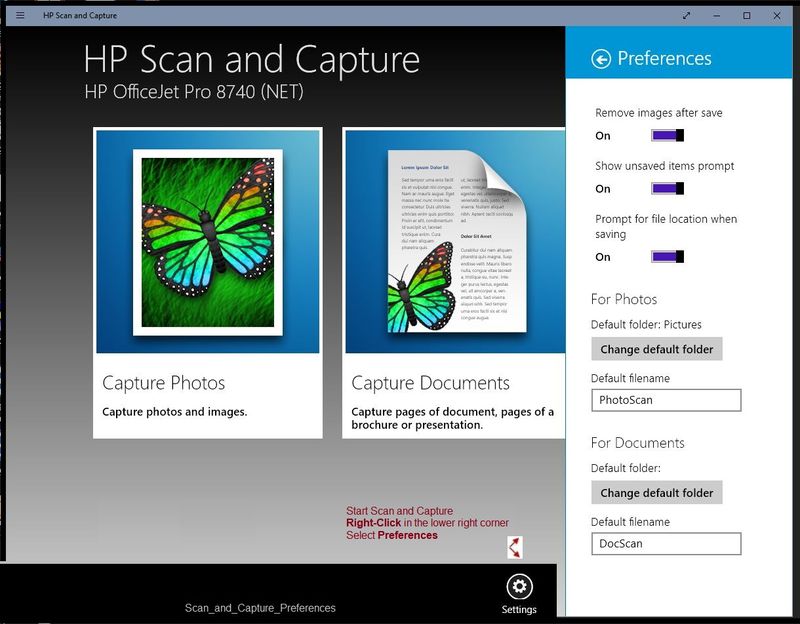
Open Scan and Capture

Right-Click in the lower right corner

Click on the Settings wheel

Select Preferences

Adjust settings for Photos or Documents:  Default Folder and Default Filename


Example

Scan_and_Capture_PreferencesScan_and_Capture_Preferences 


Thank you for participating in the HP Community Forum.

We are a world community of HP enthusiasts dedicated to supporting HP technology.

Click Thumbs Up on a post to say Thank You!

Answered? Click post "Accept as Solution" to help others find it.


Dragon-Fur

View solution in original post

3 REPLIES 3
HP Recommended

@BruceMN 


Open Scan and Capture

Right-Click in the lower right corner

Click on the Settings wheel

Select Preferences

Adjust settings for Photos or Documents:  Default Folder and Default Filename


Example

Scan_and_Capture_PreferencesScan_and_Capture_Preferences 


Thank you for participating in the HP Community Forum.

We are a world community of HP enthusiasts dedicated to supporting HP technology.

Click Thumbs Up on a post to say Thank You!

Answered? Click post "Accept as Solution" to help others find it.


Dragon-Fur

HP Recommended

Thank You Dragon Fur.  My Photo scan was set up correctly, but my doc scan was not.  I think I always use photo scan, but my mouse have moved to doc occasionally and that's why it came up with no naming option.  Thanks for your input!

HP Recommended

@BruceMN 


You are welcome.


I am glad to hear the issue is resolved.


Happy "Scanning"!


Thank you for participating in the HP Community Forum.

We are a world community of HP enthusiasts dedicated to supporting HP technology.

Click Thumbs Up on a post to say Thank You!

Answered? Click post "Accept as Solution" to help others find it.


Dragon-Fur

† The opinions expressed above are the personal opinions of the authors, not of HP. By using this site, you accept the <a href="https://www8.hp.com/us/en/terms-of-use.html" class="udrlinesmall">Terms of Use</a> and <a href="/t5/custom/page/page-id/hp.rulespage" class="udrlinesmall"> Rules of Participation</a>.