-
×InformationNeed Windows 11 help?Check documents on compatibility, FAQs, upgrade information and available fixes.
Windows 11 Support Center. -

-
×InformationNeed Windows 11 help?Check documents on compatibility, FAQs, upgrade information and available fixes.
Windows 11 Support Center. -
- HP Community
- Printers
- Scanning, Faxing, and Copying
- New HP computer, Old HP Printer. After change to new PC, sc...

Create an account on the HP Community to personalize your profile and ask a question
11-02-2020 04:21 PM
I have a new ENVY TE01-1022 computer running up-to-date Windows 10 and an HP ENVY Photo 7858 and just updated the software on the printer. With my old computer, scanning was perfect. Since wirelessly connecting the printer to the new computer, (before and after updating its software), when scanning a document the resulting PDF is upside down.
I ran the HP Printer and Scan Doctor and the resultant Test Scan, within the app, was right-side up. After running the app, scans with the computer and printer are still upside down.
How can I fix this problem?
Solved! Go to Solution.
Accepted Solutions
11-09-2020 04:53 AM
Hi @jdljal,
I'd like to help!
Follow the below instructions-
Load your documents, complete the scan, and then edit, if necessary.
-
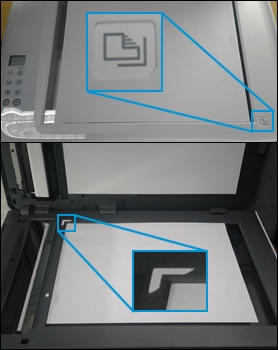
Place the first item you want to scan face-down on the scanner glass, aligning it with the guide at the edge of the glass.

-
In HP Scan, click Scan.
The printer scans your document or photo, and then HP Scan displays a preview.
-
To add pages or scan the other side, click the Add pages icon
on the bottom bar, place the next item face-down on the scanner glass, and then click Scan. -
Double-click individual pages to rotate, crop, or change brightness and contrast, or click More for advanced options.
-
When you finish editing your scan, click Save or Send.
You may refer to - How to Scan (Windows)
Hope this helps! Keep me posted.
And, Welcome to the HP Support Community.
Please click “Accept as Solution” if you feel my post solved your issue, it will help others find the solution.
Click the “Kudos, Thumbs Up" on the bottom right to say “Thanks” for helping
11-09-2020 04:53 AM
Hi @jdljal,
I'd like to help!
Follow the below instructions-
Load your documents, complete the scan, and then edit, if necessary.
-
Place the first item you want to scan face-down on the scanner glass, aligning it with the guide at the edge of the glass.

-
In HP Scan, click Scan.
The printer scans your document or photo, and then HP Scan displays a preview.
-
To add pages or scan the other side, click the Add pages icon
on the bottom bar, place the next item face-down on the scanner glass, and then click Scan. -
Double-click individual pages to rotate, crop, or change brightness and contrast, or click More for advanced options.
-
When you finish editing your scan, click Save or Send.
You may refer to - How to Scan (Windows)
Hope this helps! Keep me posted.
And, Welcome to the HP Support Community.
Please click “Accept as Solution” if you feel my post solved your issue, it will help others find the solution.
Click the “Kudos, Thumbs Up" on the bottom right to say “Thanks” for helping