• ×
    Information
    Need Windows 11 help?
    Check documents on compatibility, FAQs, upgrade information and available fixes.
    Windows 11 Support Center.
  • post a message
  • ×
    Information
    Need Windows 11 help?
    Check documents on compatibility, FAQs, upgrade information and available fixes.
    Windows 11 Support Center.
  • post a message
Guidelines
Is your HP DeskJet 3830 series scanner not working? Here is the solution Click here to view the instructions!
Common problems HP Solution Center not working : Adobe Flash Player Error and Unable to scan
We would like to share some of the most frequently asked questions about HP Solution Center not working : Adobe Flash Player Error and Unable to Scan.
HP Recommended
HP ENVY Photo 7858 All-in-One Printer

When I scan multiple page documents using the feeder on my new HP Envy Photo Printer it says it successfully scans the whole document and then when I review it, it’s only the first page.

3 REPLIES 3
HP Recommended

@Tamdabaker 


Welcome to the HP Community Forum.


@Tamdabaker wrote:

Product:  HP ENVY Photo 7858 All-in-One Printer 

Operating System:  Unknown

Software / Application:  Unknown

Connection Type:  Unknown


When I scan multiple page documents using the feeder on my new HP Envy Photo Printer it says it successfully scans the whole document and then when I review it, it’s only the first page.


If you want a better answer, we need some additional information.


For example,

Is this a new problem? 

That is, have you been able to scan documents before now?

If yes, do you know what, if anything, has changed?


Next,

  • What is your Operating System / version?
  • Which software / application are you using to scan?
  • Are you using the ADF (Automatic Document Feeder)?
  • Is the document one sided?  (This printer does not automatically scan duplex.)
  • If you are scanning on the printer glass, have you used "Add Page" (or similar)  to scan the rest of the document?


General Example - HP Scan - Mobile - Scan Document

HP_Smart_Mobile_Scan_Edit_3HP_Smart_Mobile_Scan_Edit_3


General Example - HP Smart - Windows - Scan - Document

HP_Smart_Win_Scan_Edit_Document_Set_1HP_Smart_Win_Scan_Edit_Document_Set_1


=+=+=+=+=+=+=+=+=+=+=+=+=+=+=+=+=+=+=+=+=

References / Resources


HP Printer Home Page - References and Resources

Learn about your Printer  - Solve Problems

“Things that are your printer”

When the website support page opens, Select (as available) a Category > Topic Subtopic

NOTE:  Content depends on device type and Operating System

Categories:  Alerts, Access to the Print and Scan Doctor (Windows), Warranty Check, HP Drivers / Software / Firmware Updates, How-to Videos, Bulletins/Notices, Lots of How-to Documents, Troubleshooting, Manuals > User Guides, Product Information (Specifications), Supplies, and more

Open

HP ENVY Photo 7858 All-in-One Printer 


Thank you for participating in the HP Community --

People who own, use, and support HP devices.

Click Yes to say Thank You

Question / Concern Answered, Click "Accept as Solution"


Dragon-Fur

HP Recommended

I just purchased the HP ENVY Photo 7858 and this was the first time I tried to scan something. I used the Scan app and used the feeder which seemed to work, and said it worked but when I viewed the scan, it was only the first page.  The document was only one sided and it was 11 pages long. My PC is a Lenova PC and I am running Windows 10 version 22H2.  Let me know if you have any other questions.

HP Recommended

@Tamdabaker 


Update - Add Universal Scan Driver (after full driver installation)


I don't know -- should work.

Perhaps if you provide even more detail, we can discover whether it is an error or a setting issue.


Apologies for the "mud" - 


  • Which software / application are you using to scan? 

"Scan" app could mean different applications.

For example, 

Are you using HP Smart or Microsoft / Windows Scan?

Perhaps HP Scan?


Example - Microsoft Scan - Main Menu

Scan_App_Main_Menu_1Scan_App_Main_Menu_1


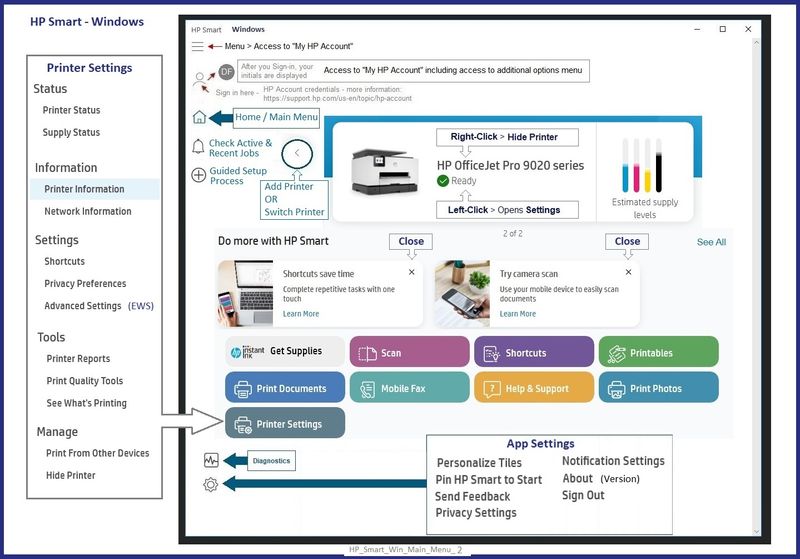
Example - HP Smart - Windows - Main Menu


HP_Smart_Win_Main_Menu_2HP_Smart_Win_Main_Menu_2


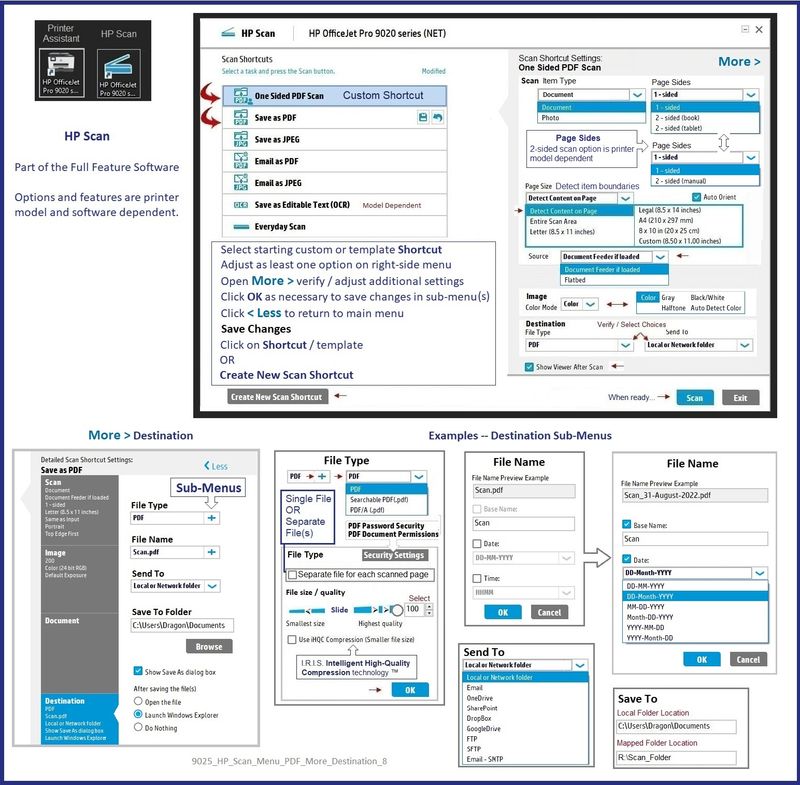
HP Scan is part of the full driver printer software

Example - HP Scan - Main Menu >  PDF > More > Destination

9025_HP_Scan_Menu_PDF_More_Destination_89025_HP_Scan_Menu_PDF_More_Destination_8


If you have not done so,

Install the Full Feature Software / full driver printer software.


Printer Software - Windows


>>> Full Feature Software - Web Pack Installation Package - Information and Download <<<

HP ENVY Photo 7800 All-in-One Print and Scan Driver and Accessories 


+-+-+-+-+-+-+-+-+-+-+-+-+-+-+-+-+-+-+-+-+-+-+-+-+-+-+-+-+-+-+-+-+

Basic Instructions - Install the Full Feature Software / Full Driver printer software


Preparation


  • If the printer software is still / already installed, Uninstall the printer software  from Control Panel > icon view > Programs and Features > Restart the computer and log in – Reference Uninstall HP printer software and drivers


NOTE:  If the printer also installs Help files - Uninstall the printer help file package from Programs and Features when you are uninstalling the main printer software.


  • >>> After the printer software is uninstalled, check that the printer is not still lurking in Devices and Printers.  If the printer is listed, Right-Click on the printer and "Remove" > Restart the computer and sign in.


Continuing

  • If using VPN, shut it off to install software.  NOTE >> If you don’t know what this is, you are not using a VPN – ignore this part.


  • Reminder:  If using USB cable between printer and computer, disconnect the cable before installing software.  Later... Connect the cable when instructed (near the end of the installation procedure).


  • Observation:  It is possible (assuming your Wireless Network is stable) that using a Wireless connection to install the printer software might work better than using an Ethernet Connection.   Personal choice - the Wireless connection method is recommended when you face insurmountable issues installing the software.


Installation

  • Download and Save the Full Feature Software Web Pack installation package or the Easy Start Software
  • Open File Explorer
  • Navigate to the folder in which you saved the installation file  (likely Downloads)
  • Right-Click on the installation package and “Run as Administrator
  • If using a USB printer cable to connect the printer to the computer, connect the cable when instructed to do so, near the end of the installation procedure
  • After the software is installed, Restart the computer and log in


+-+-+-+-+-+-+-+-+-+-+-+-+-+-+-+-+-+-+-+-+-+-+-+-+-+-+-+-+-+-+-+-+

Next,

After the full driver is installed,

Add this driver - Universal Scan adds the OCR libraries to the HP Scan software.


HP Universal Scan - Full Feature Software and Driver 


=+=+=+=+=+=+=+=+=+=+=+=+=+=+=+=+=+=+=+=+=

References / Resources


 Product Specifications for the HP ENVY Photo 7858 All-in-One Printer (K7S08A)


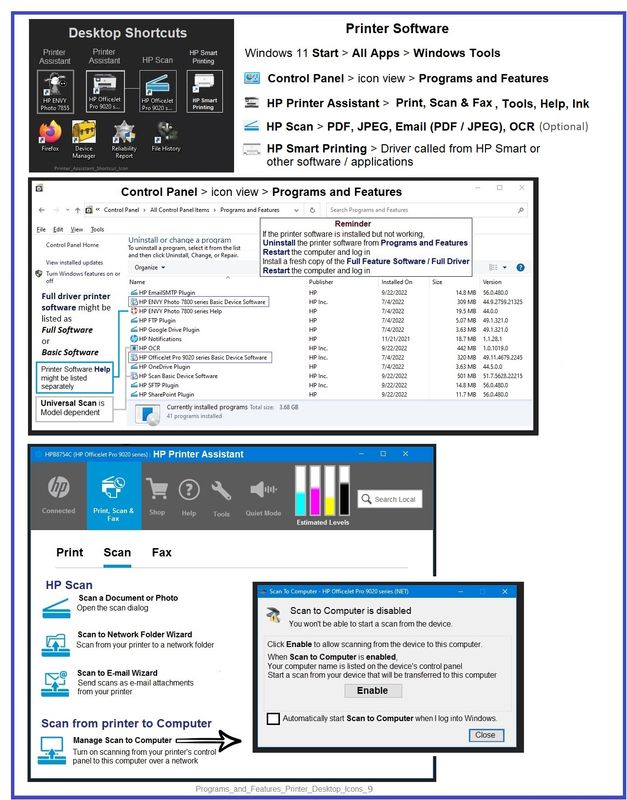
Example - Full Feature Software - Installed - Programs and Features

Programs_and_Features_Printer_Desktop_Icons_9Programs_and_Features_Printer_Desktop_Icons_9


Thank you for participating in the HP Community --

People who own, use, and support HP devices.

Click Yes to say Thank You

Question / Concern Answered, Click "Accept as Solution"


Dragon-Fur

† The opinions expressed above are the personal opinions of the authors, not of HP. By using this site, you accept the <a href="https://www8.hp.com/us/en/terms-of-use.html" class="udrlinesmall">Terms of Use</a> and <a href="/t5/custom/page/page-id/hp.rulespage" class="udrlinesmall"> Rules of Participation</a>.