-
×InformationNeed Windows 11 help?Check documents on compatibility, FAQs, upgrade information and available fixes.
Windows 11 Support Center. -

-
×InformationNeed Windows 11 help?Check documents on compatibility, FAQs, upgrade information and available fixes.
Windows 11 Support Center. -
- HP Community
- Printers
- Scanning, Faxing, and Copying
- Print queue doesn't clear

Create an account on the HP Community to personalize your profile and ask a question
03-23-2019 03:49 PM
Every time I print a document, it stays in my queue. A short time later, I get an error message (blue box, bottom right corner) that says it couldn't print, even though it did. Then I'm unable to print anything else until I go into the queue and "Cancel all Documents" and that takes a minute or two to clear. Then once the printer icon is no longer shown in hidden icons, I can print another document.
03-25-2019 04:21 AM
Hi @JanS717
Welcome to the HP Support Community.
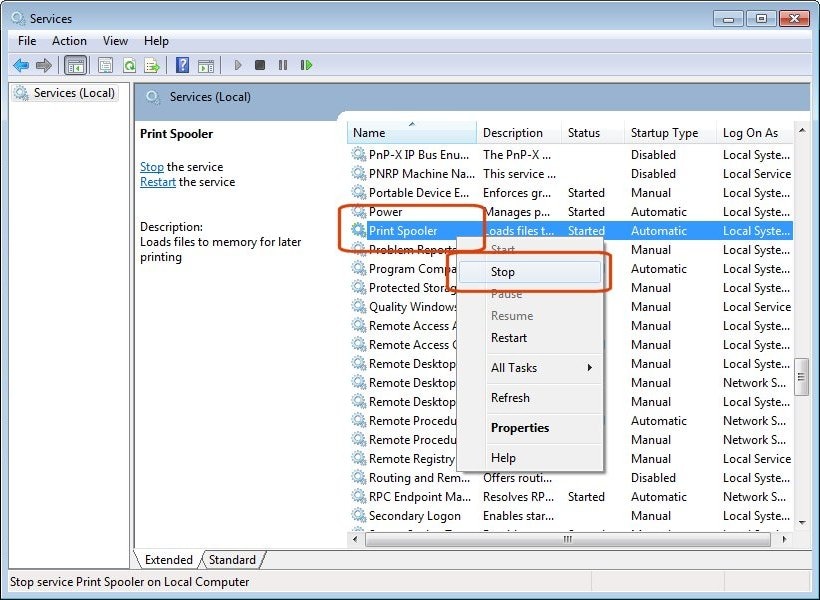
Try these steps to delete the job files are restart the print spooler -
1) Turn off the printer using the power button.
2) Search Windows for run, and click the Run Windows application in the list of results.
3) Type services.msc in the Run window, and then press Enter on the keyboard.
The Services menu opens.
4) Right-click Print Spooler and select Stop.

5) After the service has been stopped, close the service window and use Windows Explorer to browse to C:\Windows\System32\Spool\PRINTERS.
6) Delete all files inside the PRINTERS folder.
7) Restart your computer.
8) Turn on your printer.
9) Try printing again.
If the issue still persists, try these steps -
Step 1 HP Print and Scan Doctor -
Click on this link to download and run HP Print and Scan Doctor.
Step 2 Re-install the printer drivers -
1) In the search box, type and open "Uninstall a Program".
2) Look for HP Printer software.
3) Right-click to uninstall.
4) In the search box, type and open “Devices and printers”.
5) In the Devices and Printers, look for your HP printer. If you see it listed right-click on it and choose “Delete” or “Remove Device”.
6) Open the run command with the "Windows key + R" key combo.
7) Type printui.exe /s and click Ok. (Note: there is a space in between “printui.exe” and “/s”).
8) Click on the "Drivers" tab.
9) Look for HP Printer driver. If you see it Click on it and click “Remove” at the bottom.
10) Select Ok.
11) Select Apply and Ok on the Print Server Properties windows.
12) Close Devices and Printers Once the software and drivers are removed.
13) Restart the computer.
14) Download and install the software and drivers from here.
15)Click on the downloaded file and follow the on-screen instructions.
Let me know how that goes.
Please click “Accept as Solution” if you feel my post solved your issue, it will help others find the solution.
Click the “Kudos, Thumbs Up" on the bottom right to say “Thanks” for helping!
Have a great day!
Asmita
I am an HP Employee
06-05-2019 04:00 PM
I got to the place that says: $$_system32_spool_printers_420476df... CDF-MS File
Is this what I'm supposed to Delete? I followed steps 1-4 and just wanted to make sure I was deleting the right thing for #5.
Thank you for your help and patience.
06-05-2019 04:45 PM
Yes delete everything you see in the Folder and continue with the instructions 😊
If the information I've provided was helpful, give us some reinforcement by clicking the "Solution Accepted" on this Post and it will also help other community members with similar issue.
KrazyToad
I Am An HP Employee