• ×
    Information
    Need Windows 11 help?
    Check documents on compatibility, FAQs, upgrade information and available fixes.
    Windows 11 Support Center.
  • post a message
  • ×
    Information
    Need Windows 11 help?
    Check documents on compatibility, FAQs, upgrade information and available fixes.
    Windows 11 Support Center.
  • post a message
Guidelines
Join the HP Community Solve‑a‑thon | Help Others & Share Your Solutions | Live on Zoom | 2:30 PM to 2:30 AM IST | Every Wednesday Click here to know more
Common problems HP Solution Center not working : Adobe Flash Player Error and Unable to scan
We would like to share some of the most frequently asked questions about HP Solution Center not working : Adobe Flash Player Error and Unable to Scan.
HP Recommended
HP ENVY 5530
iOS 12 - 12.0.1

In OS X, HP ENVY 5530 scans photo to computer but will not save to desktop or Photos.  I have seen error message saying to enable third party actions but don't know how to do that on iMac desktop.  Help?

1 ACCEPTED SOLUTION

Accepted Solutions
HP Recommended

@Batteryman59


Welcome to the HP Support Community!

  • Which version of OS is installed on your iMac?
  • Do you any application to scan?

Scan with HP Easy Scan (recommended)


Step 1: Install the HP Easy Scan app

  1. Make sure your printer is on and connected to your Mac with a USB cable or local wireless network.

  2. Open Finder , select Applications, and then look for HP Easy Scan.
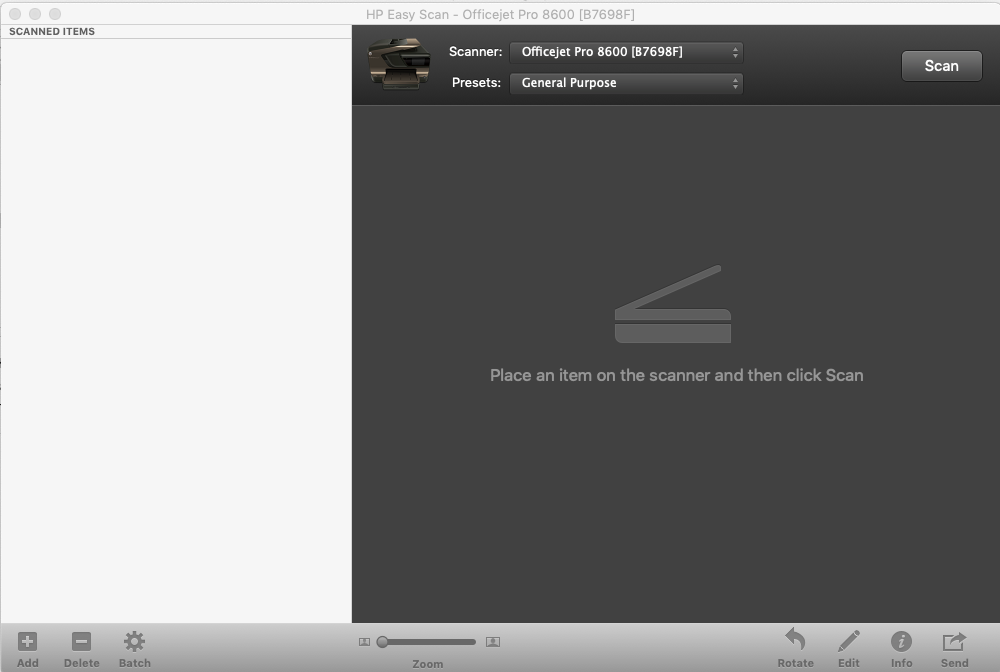
    • If HP Easy Scan displays in the list, open it. On the upper bar, click HP Easy Scan, and then click Check for Updates. Download any available updates, and then reopen the app.

    • If HP Easy Scan does not display, download and install the HP Easy Scan app from the App Store, and then open the app.

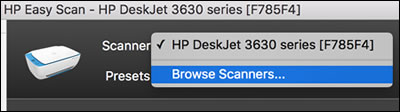
  3. In HP Easy Scan, click the Scanner drop-down menu, and then select your printer.

    If your printer does not display, click Browse Scanners, and then select your printer from the list. If your printer still does not display, skip to What if HP Easy Scan cannot find my printer in Frequently asked questions (FAQs).

    Clicking Browse Scanners to find  a printer

Step 2: Scan the required document

Click on Scan at the right top corner of this window.


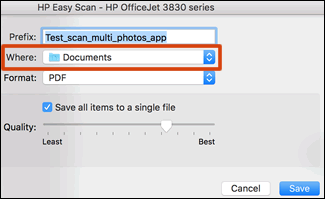
Once the Scan is complete and you click on Done, click on send option at the right bottom corner of the window, click folder, set the destination where you want this file to be saved. Open the drop-down menu to change the folder.

Using the Where menu to select a folder to save the scan to


Let me know how this goes.


If you feel my post solved your issue, please click “Accept as Solution”, it will help others find the solution. Click the “Kudos/Thumbs Up" on the bottom right to say “Thanks” for helping!

KUMAR0307
I am an HP Employee

View solution in original post

1 REPLY 1
HP Recommended

@Batteryman59


Welcome to the HP Support Community!

  • Which version of OS is installed on your iMac?
  • Do you any application to scan?

Scan with HP Easy Scan (recommended)


Step 1: Install the HP Easy Scan app

  1. Make sure your printer is on and connected to your Mac with a USB cable or local wireless network.

  2. Open Finder , select Applications, and then look for HP Easy Scan.
    • If HP Easy Scan displays in the list, open it. On the upper bar, click HP Easy Scan, and then click Check for Updates. Download any available updates, and then reopen the app.

    • If HP Easy Scan does not display, download and install the HP Easy Scan app from the App Store, and then open the app.

  3. In HP Easy Scan, click the Scanner drop-down menu, and then select your printer.

    If your printer does not display, click Browse Scanners, and then select your printer from the list. If your printer still does not display, skip to What if HP Easy Scan cannot find my printer in Frequently asked questions (FAQs).

    Clicking Browse Scanners to find  a printer

Step 2: Scan the required document

Click on Scan at the right top corner of this window.


Once the Scan is complete and you click on Done, click on send option at the right bottom corner of the window, click folder, set the destination where you want this file to be saved. Open the drop-down menu to change the folder.

Using the Where menu to select a folder to save the scan to


Let me know how this goes.


If you feel my post solved your issue, please click “Accept as Solution”, it will help others find the solution. Click the “Kudos/Thumbs Up" on the bottom right to say “Thanks” for helping!

KUMAR0307
I am an HP Employee

† The opinions expressed above are the personal opinions of the authors, not of HP. By using this site, you accept the <a href="https://www8.hp.com/us/en/terms-of-use.html" class="udrlinesmall">Terms of Use</a> and <a href="/t5/custom/page/page-id/hp.rulespage" class="udrlinesmall"> Rules of Participation</a>.


