-
×InformationNeed Windows 11 help?Check documents on compatibility, FAQs, upgrade information and available fixes.
Windows 11 Support Center. -

-
×InformationNeed Windows 11 help?Check documents on compatibility, FAQs, upgrade information and available fixes.
Windows 11 Support Center. -
- HP Community
- Printers
- Scanning, Faxing, and Copying
- Re: Scan a selected area

Create an account on the HP Community to personalize your profile and ask a question
03-02-2018 02:52 PM
Scanning a A4 page from a photo album to save in JPEG (600 dpi). After scanning one can adjust the area to be saved or add a new area.
When the adjusted or new area does not include the left and top side the result is a partial scan of the selected area.
It seems the scanner does not scan the area I selected to be scanned.
Solved! Go to Solution.
Accepted Solutions
03-02-2018 04:39 PM
I am not entirely sure what you are trying to do.
A couple of ideas to get closer to what you want...
Download, save, and install:
- Place the item to be scanned on the glass oriented and placed correctly for your printer model
- Open the HPSE program
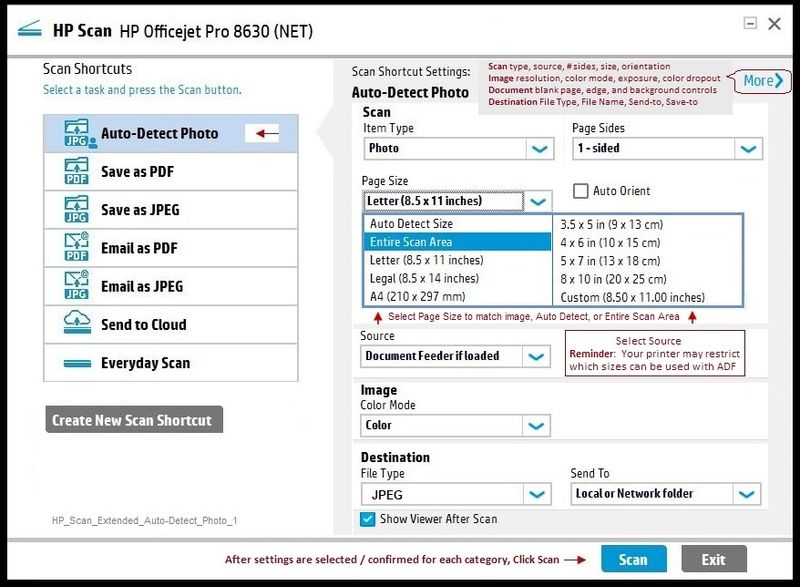
- Select the format in which you want to save the scan (left side of menu) (jpeg / pdf)
- Select the Page Size (right side)
For example:
Select "Auto Detect Size" to grab / cut-out one or more photos on the glass (or even from within a document page)
Select "Entire Scan Area" to grab everything on the glass
Select a particular page / paper size
- Select other options on the right side of the menu
- CHECK (select) Show Viewer After Scan
- Click on More to find more options / settings, including DPI
- When you are done selecting options, Click Scan
- Evaluate the output.
General Example
Note this example uses a previously made "custom shortcut".
Create a shortcut: Select your own options > click Create a New Scan Shortcut
HP_Scan_Extended_Auto-Detect_Photo_1
HP_Scan_Extended_Shortcut_1B
If you opt to scan as a PDF file, you can combine scans (of your photos / images) into a single document.
If you use the "Auto Detect" feature, you can later create a document the contains your saved scan image files.
Click Thumbs Up on a post to say Thank You!
Answered? Click post "Accept as Solution" to help others find it.
03-02-2018 04:39 PM
I am not entirely sure what you are trying to do.
A couple of ideas to get closer to what you want...
Download, save, and install:
- Place the item to be scanned on the glass oriented and placed correctly for your printer model
- Open the HPSE program
- Select the format in which you want to save the scan (left side of menu) (jpeg / pdf)
- Select the Page Size (right side)
For example:
Select "Auto Detect Size" to grab / cut-out one or more photos on the glass (or even from within a document page)
Select "Entire Scan Area" to grab everything on the glass
Select a particular page / paper size
- Select other options on the right side of the menu
- CHECK (select) Show Viewer After Scan
- Click on More to find more options / settings, including DPI
- When you are done selecting options, Click Scan
- Evaluate the output.
General Example
Note this example uses a previously made "custom shortcut".
Create a shortcut: Select your own options > click Create a New Scan Shortcut
HP_Scan_Extended_Auto-Detect_Photo_1
HP_Scan_Extended_Shortcut_1B
If you opt to scan as a PDF file, you can combine scans (of your photos / images) into a single document.
If you use the "Auto Detect" feature, you can later create a document the contains your saved scan image files.
Click Thumbs Up on a post to say Thank You!
Answered? Click post "Accept as Solution" to help others find it.
03-03-2018 03:25 PM
You are welcome.
I can speculate the "why":
In general, different software provide different options.
HP Scan works and it is supported in the basic architecture of the HP Full Feature Software for that version of the printer software.
At least some of the newer printers offer a version of HP Scan that looks (and behaves more like) the HPSE program.
For the rest of us, HP Scan Extended allows us access to the cool features we might otherwise miss.
Click Thumbs Up on a post to say Thank You!
Answered? Click post "Accept as Solution" to help others find it.