
-
×InformationNeed Windows 11 help?Check documents on compatibility, FAQs, upgrade information and available fixes.
Windows 11 Support Center. -
-
×InformationNeed Windows 11 help?Check documents on compatibility, FAQs, upgrade information and available fixes.
Windows 11 Support Center. -
- HP Community
- Printers
- Scanning, Faxing, and Copying
- Scan driver error diagnosis

Create an account on the HP Community to personalize your profile and ask a question
Your account also allows you to connect with HP support faster, access a personal dashboard to manage all of your devices in one place, view warranty information, case status and more.
Common problems HP Solution Center not working : Adobe Flash Player Error and Unable to scan
We would like to share some of the most frequently asked questions about HP Solution Center not working : Adobe Flash Player Error and Unable to Scan.

It has been a while since anyone has replied. Simply ask a new question if you would like to start the discussion again.

04-29-2020 10:24 AM
 HP Recommended
Product: OfficeJet Pro 6970
Operating System: Microsoft Windows 10 (32-bit)
Failure to scan. Print and scan doctor 5.3.1 activated and solutions advised do not resolve the issue. The driver check fails each time.
5 REPLIES 5


05-06-2020 10:43 AM
HP Recommended
Welcome to HP support community.
Perform root level uninstallation to remove all the printer related software's.
- In Windows, search for and open Programs and Features.
- Select your HP printer.
- Select Uninstall.
- In Windows, search for and open Devices and Printers.
- In the Devices and Printers window look for your HP Printer. If you see it listed, right-click on it and choose "Delete" or "Remove Device.”
- Open up the run command with the "Windows Key + R" key combo.
- Type printui.exe /s and click OK.
- Click on Drivers tab.
- Look for HP Printer driver. If you see it click on it and click Remove at the bottom.
- Select OK.
- Remove all instances of the same.
- Select Apply and OK on the Print Server Properties windows.
- Close Devices and Printers.
- Restart the PC again.
Download and install printer full feature driver
Click here to download the driver.
I hope that helps.
To thank me for my efforts to help you, please mark my post as an accepted solution so that it benefits several others.
Cheers.
Sandytechy20
I am an HP Employee

05-06-2020 05:15 PM
HP Recommended
Hi. I am trying to use an HP ENVY 6255 All-in-one printer for several computers in the same household, and am able to print documents from my HP PC with Windows 10 64-bit, but have so far been unsuccessful in my attempts to scan documents. At first the error message was "Go to 123.HP.support" to download drivers, which I did, and that message no longer appears.
The latest error message, after attempting to scan a document, and waiting while the screen blinks "connecting", is "One or more of the following problems has prevented the scan from being completed:
- The connection to the computer has been lost
- The scan application on the computer is currently in use
- An OCR application is not installed on the computer
Check the compute for more information".
However, when I return to my computer (in another room), there is no information on display on the computer, and I have attempted the following, to no avail:
- I have removed all software pertaining to the old printer from the system
- I have removed and reinstalled the printer, and its software
- I have ensured the printer is connected to the Network, and the printed Network Configuration Page indicates that all salient features are ready or enabled.
- I have run the latest version of the HP Print and Scan Doctor several times with the same result, namely, under the Finding and Fixing Problems tab, both the Recommended Updates and Windows Scan items are found and fixed", but the printer will not print the Test Page when that tab is clicked, and the printer will still not scan when I attempt a regular scan.
- I have also disconnected the printer, reconnected it and restarted my computer, with no improvement.
In case it is relevant, with the printer and computer in different rooms I cannot connect them physically with a USB cable, and have been attempted to do all this over the wireless network.
Any assistance or suggestions would be very much appreciated. Thank-you.
05-06-2020 05:50 PM
HP Recommended
Welcome to HP support community.
Check Windows Image Acquisition settings
-
In Windows, search for and open View local services.
-
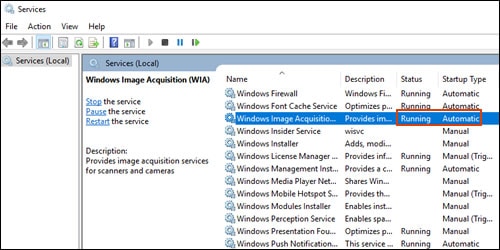
In the Services window, scroll down the list and find Windows Image Acquisition (WIA).
-
Look at the Status and Startup Type values.
-
If the status is Started or Running and the Startup Type is Automatic, WIA is running correctly. Skip to the next step.
-
If the status is Disabled or no status displays, right-click Windows Image Acquisition (WIA), click Properties, click the General tab, select Automatic from the Startup type dropdown menu, and then click Start.
If the Start button is grayed out, go back to the Services menu, make sure Remote Procedure Call, Shell Hardware Detection, RPC Endpoint Mapper, and DCOM Server Process Launcher are running and set as Automatic, and then start WIA.
-
You can refer this HP document for more assistance:- Click here
I hope that helps.
To thank me for my efforts to help you, please mark my post as an accepted solution so that it benefits several others.
Cheers.
Sandytechy20
I am an HP Employee
05-07-2020 07:55 PM
HP Recommended
Hi, Sandy, thank-you for the quick response and the suggestions.
My WIA is hung up on "Starting", which, after a quick search thru Google, seems to be a fairly common issue. Rather than try anything there, I thought you might know better how to address this, being with the Home Team, so to speak.
05-10-2020 08:58 AM
HP Recommended
This might require one on one interaction to fix the issue.
I request you to talk to HP support.
They might have multiple options to help you with this.
- Click on this link - https://support.hp.com/us-en/contact-hp?openCLC=true
- Select the country.
- Enter the serial of your device.
- Select the country from the drop-down.
- Click on "Show Options".
- Fill the web-form. A case number and phone number will now populate for you.
I hope that helps.
Cheers.
Sandytechy20
I am an HP Employee

Be alert for scammers posting fake support phone numbers and/or email addresses on the community.
If you think you have received a fake HP Support message, please report it to us by clicking on "Flag Post".
† The opinions expressed above are the personal opinions of the authors, not of HP. By using this site, you accept the Terms of Use and Rules of Participation.


Didn't find what you were looking for?
Ask the community
† The opinions expressed above are the personal opinions of the authors, not of HP. By using this site, you accept the <a href="https://www8.hp.com/us/en/terms-of-use.html" class="udrlinesmall">Terms of Use</a> and <a href="/t5/custom/page/page-id/hp.rulespage" class="udrlinesmall"> Rules of Participation</a>.