• ×
    Information
    Need Windows 11 help?
    Check documents on compatibility, FAQs, upgrade information and available fixes.
    Windows 11 Support Center.
  • post a message
  • ×
    Information
    Need Windows 11 help?
    Check documents on compatibility, FAQs, upgrade information and available fixes.
    Windows 11 Support Center.
  • post a message
Guidelines
Is your HP DeskJet 3830 series scanner not working? Here is the solution Click here to view the instructions!
Common problems HP Solution Center not working : Adobe Flash Player Error and Unable to scan
We would like to share some of the most frequently asked questions about HP Solution Center not working : Adobe Flash Player Error and Unable to Scan.
HP Recommended
ENVY 6055
Microsoft Windows 10 (64-bit)

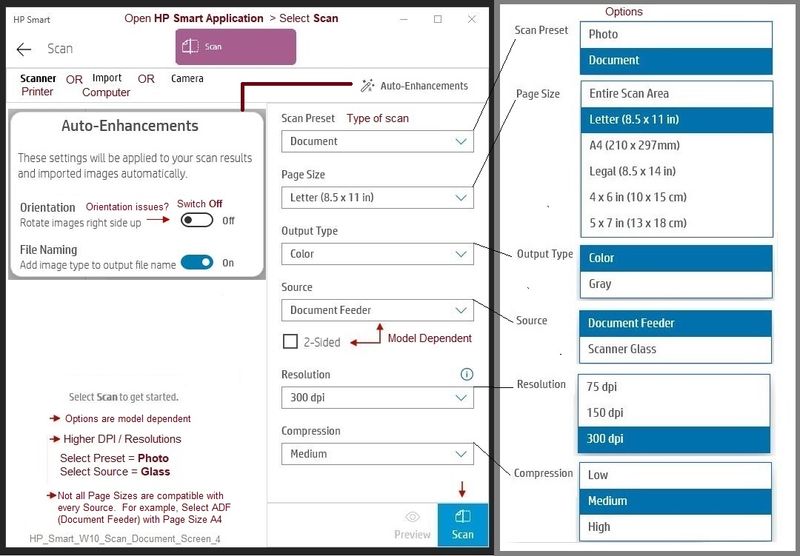
Just purchased ENVY 6055.  In scanning a 3-page document, first page is upside down, second page is right side up, third page might be right side up or upside down.  If I just scanned the first page by itself, it's a simple matter to rotate the page, but this, obviously, is not a solution for multiple pages with this issue.  Is these some option to force pages to be right side up?

1 ACCEPTED SOLUTION

Accepted Solutions
HP Recommended

@WWC1966 


==============================================================

Welcome to the HP Community.

Reminder to those reading:

Do NOT respond to individuals who post phone numbers or email addresses.

These might be scammers trying to steal your information / money.

HP does not post phone numbers or email in Community messages.

==============================================================


If you using Scan as opposed to printing,

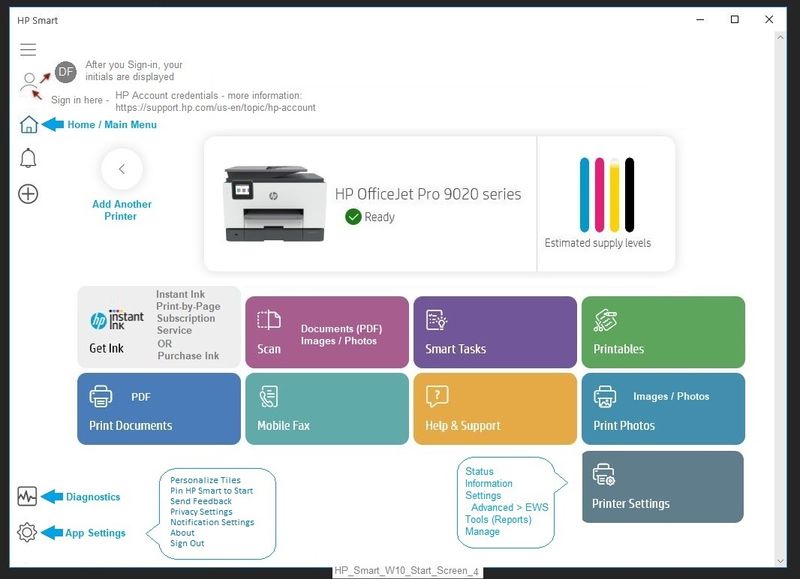
If you are using HP Smart,

Switch off the Auto-Enhancements for Orientation.


Open HP Smart

Select to Scan

Click open Auto-Enhancements

Switch OFF Orientation

undefined


undefined


Printer  Home Page - References and Resources – Learn about your Printer  - Solve Problems

 “Things that are your printer”

NOTE:  Content depends on device type and Operating System

Categories:  Alerts, Access to the Print and Scan Doctor (Windows), Warranty Check, HP Drivers / Software / Firmware Updates, How-to Videos, Bulletins/Notices, Lots of How-to Documents, Troubleshooting, Manuals > User Guides, Product Information (Specifications), more

When the website support page opens, Select (as available) a Category > Topic > Subtopic

HP ENVY 6055 All-In-One Printer 


Thank you for participating in the HP Community.

The Community is a separate wing of the HP website - We are not a business group of HP..

Our Community is comprised of volunteers - people who own and use HP devices.

Click Thumbs Up to say Thank You.

Question Resolved / Answered, Click "Accept as Solution"

Dragon-Fur

View solution in original post

1 REPLY 1
HP Recommended

@WWC1966 


==============================================================

Welcome to the HP Community.

Reminder to those reading:

Do NOT respond to individuals who post phone numbers or email addresses.

These might be scammers trying to steal your information / money.

HP does not post phone numbers or email in Community messages.

==============================================================


If you using Scan as opposed to printing,

If you are using HP Smart,

Switch off the Auto-Enhancements for Orientation.


Open HP Smart

Select to Scan

Click open Auto-Enhancements

Switch OFF Orientation

undefined


undefined


Printer  Home Page - References and Resources – Learn about your Printer  - Solve Problems

 “Things that are your printer”

NOTE:  Content depends on device type and Operating System

Categories:  Alerts, Access to the Print and Scan Doctor (Windows), Warranty Check, HP Drivers / Software / Firmware Updates, How-to Videos, Bulletins/Notices, Lots of How-to Documents, Troubleshooting, Manuals > User Guides, Product Information (Specifications), more

When the website support page opens, Select (as available) a Category > Topic > Subtopic

HP ENVY 6055 All-In-One Printer 


Thank you for participating in the HP Community.

The Community is a separate wing of the HP website - We are not a business group of HP..

Our Community is comprised of volunteers - people who own and use HP devices.

Click Thumbs Up to say Thank You.

Question Resolved / Answered, Click "Accept as Solution"

Dragon-Fur

† The opinions expressed above are the personal opinions of the authors, not of HP. By using this site, you accept the <a href="https://www8.hp.com/us/en/terms-of-use.html" class="udrlinesmall">Terms of Use</a> and <a href="/t5/custom/page/page-id/hp.rulespage" class="udrlinesmall"> Rules of Participation</a>.