
-
×InformationNeed Windows 11 help?Check documents on compatibility, FAQs, upgrade information and available fixes.
Windows 11 Support Center. -
-
×InformationNeed Windows 11 help?Check documents on compatibility, FAQs, upgrade information and available fixes.
Windows 11 Support Center. -
- HP Community
- Printers
- Scanning, Faxing, and Copying
- Re: Scan to computer issue

Create an account on the HP Community to personalize your profile and ask a question
Your account also allows you to connect with HP support faster, access a personal dashboard to manage all of your devices in one place, view warranty information, case status and more.
Common problems HP Solution Center not working : Adobe Flash Player Error and Unable to scan
We would like to share some of the most frequently asked questions about HP Solution Center not working : Adobe Flash Player Error and Unable to Scan.

It has been a while since anyone has replied. Simply ask a new question if you would like to start the discussion again.

08-23-2022 10:50 PM
 HP Recommended
Operating System: Microsoft Windows 10 (64-bit)
I have a HP OFFICEJET PRO 6968 that I was gifted but I do not have the original manual with disc. I have connected printer to my network but I am unable to set up scan to computer. When I go to scan to computer setting it shows “You cannot use this function because it has been disabled. For more information contact the person who set up the printer” is there any way to do this without contacting who gave it to me?
2 REPLIES 2


08-24-2022 07:11 AM
HP Recommended
Welcome to the HP User Community.
There are places to check / adjust the setups.
For example,
- Scan to Computer - Set / Enable in the Printer Assistant - part of the full driver printer software.

and...
- Webscan is accessed and managed in the Embedded Web Server (EWS)
- HP Smart application can scan to your local computer, Cloud storage, or email.
- HP Scan software (part of the full driver printer software) can scan to your local computer, a mapped network location, Cloud Storage, or email.
===============================================================================
If you have not done so,
Consider: Check / Update the Printer Firmware
HP Officejet 6950/6960/Pro 6960/Pro 6970 All-in-One Printer series Firmware Update
===============================================================================
If you have not done so,
Check / Install the Full Feature Software / full driver printer software.
>>> Check / Install the Full Feature Software / full driver printer software
The full driver provides the foundation on which other programs and printing software depend.
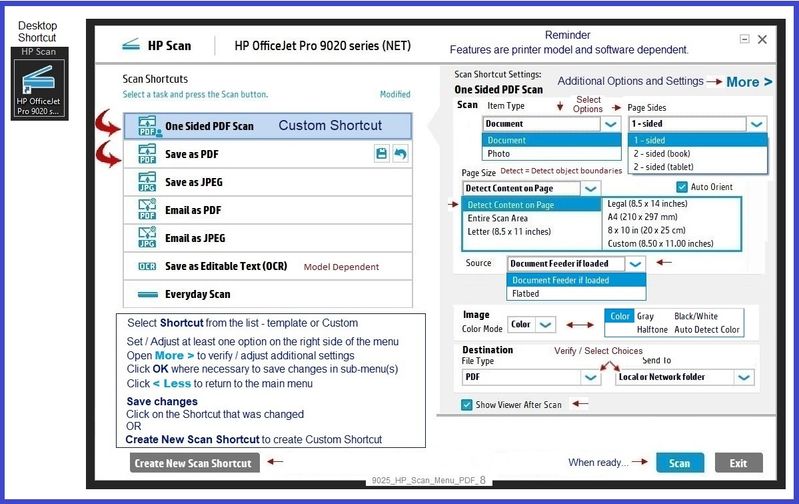
The driver includes HP Scan – HP Scan supports scanning / saving / printing your scan content.
Preparation
If you have not done so,
In addition to the HP Smart application,
Install the Full Feature Software / full driver printer software for the printer.
HP Smart and other print software / applications benefit from having the full driver installed.
Make sure your VPN is switched Off when installing the HP Smart application or the printer software.
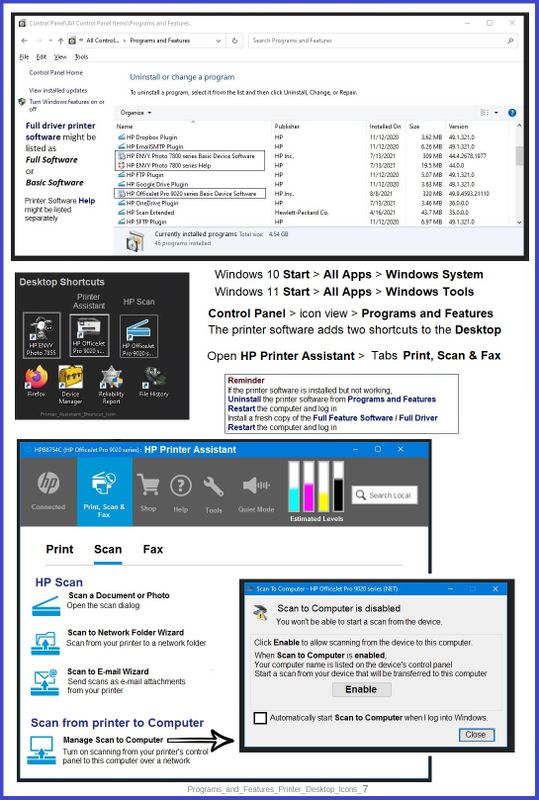
Printer Software Check - Is the printer software installed?
Notes
When the full driver printer software is installed,
Find the printer software listed in Control Panel > icon view > Programs and Features.
The installation of the full printer software adds two shortcut icons to the Desktop.
The Printer Assistant is named for the printer and provides access to Print , Scan , and Tools
HP Scan is named for itself and provides a direct call to the HP Scan software.
Next,
Download and Save the software installation package:
HP Easy Start Printer Setup Software
Basic Instructions - Install the Full Feature Software / Full Driver printer software
Preparation
- If the printer software is still / already installed, Uninstall the printer software from Control Panel > icon view > Programs and Features > Restart the computer and log in – Reference Uninstall HP printer software and drivers
After the printer software is uninstalled, check that the printer is not still lurking in Devices and Printers.
If the printer is listed, Right-Click on the printer and "Remove" > Restart the computer and sign in.
- If using VPN, shut it off to install software. NOTE >> If you don’t know what this is, you are not using a VPN – ignore this part.
- Reminder: If using USB cable between printer and computer, disconnect the cable before installing software. Later... Connect the cable when instructed (near the end of the installation procedure).
- Observation: It is possible (assuming your Wireless Network is stable) that using a Wireless connection to install the printer software might work better than using an Ethernet Connection. Personal choice - the Wireless connection method is recommended when you face insurmountable issues installing the software.
Installation
- Download and Save the Full Feature Software installation package or the Easy Start Software
- Open File Explorer
- Navigate to the folder in which you saved the installation file (likely Downloads)
- Right-Click on the installation package and “Run as Administrator”
- After the software is installed, Restart the computer and log in
If using Easy Start
- Skip any extra software / offers you do not want – Wording varies as does the number of times you have to “skip” or opt-out of various options.
- When asked, opt for "Full Software and Drivers" (exact wording might vary).
- If, after the Full Software and Drivers option is selected, the installation terminates (suddenly stops and disappears – never comes back): Open your Downloads folder > Look for and Right-Click on the full Web installation package and “Run as Administrator”
NOTES
- - - - - - - - - - - - - - - - - - - - - - - - - - - - - - - - - - - - - - - - - - - - - - - - - - - - - - - - - -
Preparation > Check / enable the printer as the “Default Printer”
Settings > Devices > Printers and scanners
UNCHECK (clear box) Let Windows manage my default printer
Select (Left-Click) your printer from the list of printers > Manage > Set as Default
- - - - - - - - - - - - - - - - - - - - - - - - - - - - - - - - - - - - - - - - - - - - - - - - - - - - - - - - - -
Example - HP Scan - Main Menu
===============================================================================
HP Smart for Windows
HP Smart is an application available in the Microsoft Store
OR
Open the Homepage / Support Website for your printer
Category Software and Drivers > Check/ Get the App
>>> Open and Read >>> HP printer setup (HP Smart app)
NOTES:
- Read FAQ - including - What are the requirements to set up a printer using the HP Smart app?
- Disconnect from Virtual Private Network (VPN) connection before downloading.
- Turn on Wi-Fi on your computer or mobile device and connect to your network. If the computer is connected to the network with an Ethernet cable, temporarily disconnect the cable and use the Wi-Fi connection during the setup.
- Enable Bluetooth for an HP Smart app setup: Enable Bluetooth on your computer or mobile device so that HP Smart can detect the printer during the setup. Source: How to scan with an HP printer > FAQ > Why can't I connect my wireless printer or scan over the network?
- HP Smart requires that you sign into the application using your HP Account credentials.
- When working through a browser to access HP Smart, be sure you have Cookies enabled. If cookies are enabled and you are having trouble, clear Cache and Cookies. And / Or … Try a different browser – assign that browser as the Default. (Note: Chrome not working? Use / Assign a different default browser.)
- Where possible, HP Smart benefits (likes) having the Full Feature Software / full driver printer software installed. For example, full driver provides access to Shortcuts and Printing Preferences.
- Document includes the HP Smart application download links for Windows and Mobile devices, plus an FAQ section to assist with questions / issues.
- FAQ examples:
- What are the requirements to use the HP Smart app?
- Which printers are compatible with the HP Smart app?
- Why do I need to sign in or create an account to use the HP Smart app features?
- Which languages does the HP Smart app support?
- Older versions of the HP Smart app no longer support the required login feature.
- Update the application to the latest version to access / use HP Smart
- FAQ examples:

===============================================================================
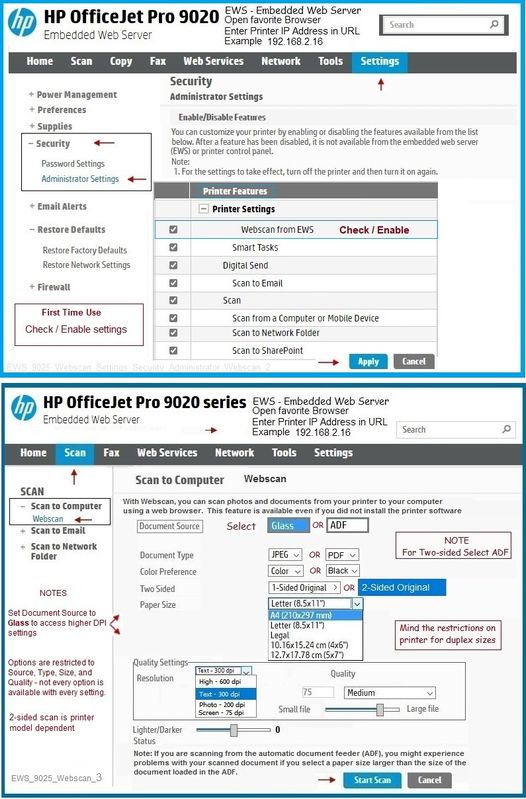
Webscan
If you are trying to use Webscan in the Embedded Web Server (EWS),
First Time Use >> Check / Enable the access to this feature.
Webscan – located in the Embedded Web Server (EWS) – No additional software
This option requires a network connection and EWS
EWS > HP Document / How-to
Use the HP printer Embedded Web Server (EWS)
NOTE: Webscan feature is not available on Laser printers
If the printer is on the network,
If the EWS feature is available on your printer,
First Time Use Only: Enable Webscan
- Open your favorite browser > type / enter Printer IP address into URL / Address bar
- Tab Settings > Security > Administrator Settings > Enable >> Check box next to Webscan
- Click Apply to save any changes
Use Webscan
- Open your favorite browser > type / enter Printer IP address into URL / Address bar
- Tab Scan > Webscan
- Set up Webscan the way you want it - for example, set the Source to ADF
- Click Start Scan to scan your document / image using Webscan
- After the scan is complete, Save the scan to your computer.
- Optional >> Expand the “white background” area to a size to accommodate your data. If unknown, try 1300x1300
- File > Select “From Scanner or Camera”
- Select your printer > Follow the prompts to scan and then save your item
Example - Webscan - Enable / Use
=+=+=+=+=+=+=+=+=+=+=+=+=+=+=+=+=+=+=+=+=+=+=+=+=+=+=+=+=+=+
References / Resources
Printer Specifications for HP OfficeJet Pro 6900 Printers
HP Printer Home Page - References and Resources – Learn about your Printer - Solve Problems
“Things that are your printer”
When the website support page opens, Select (as available) a Category > Topic > Subtopic
NOTE: Content depends on device type and Operating System
Categories: Alerts, Access to the Print and Scan Doctor (Windows), Warranty Check, HP Drivers / Software / Firmware Updates, How-to Videos, Bulletins/Notices, Lots of How-to Documents, Troubleshooting, Manuals > User Guides, Product Information (Specifications), Supplies, and more
Open
HP OfficeJet Pro 6968 All-in-One Printer
Thank you for participating in the HP Community.
Our Community is comprised of volunteers - people who own and use HP devices.
Click Helpful = Yes to say Thank You
Question / Concern Answered, Click "Accept as Solution"
Dragon-Fur

08-24-2022 10:35 PM
HP Recommended
I tried all of this on my wife's laptop for my 6968 All in one printer. The "scan to computer" works from my laptop, but for my wife it tells me "you cannot use this function because it ahs been disabled. For more information contact the person who set up the printer" I get the same message for the Webscan on the EWS. That was me and i am not sure what went wrong, and why HP cannot seem to fix this. I have found post on the internet going back to 2012! It should not be this hard. Please help me to fix this.

Be alert for scammers posting fake support phone numbers and/or email addresses on the community.
If you think you have received a fake HP Support message, please report it to us by clicking on "Flag Post".
† The opinions expressed above are the personal opinions of the authors, not of HP. By using this site, you accept the Terms of Use and Rules of Participation.


Didn't find what you were looking for?
Ask the community
† The opinions expressed above are the personal opinions of the authors, not of HP. By using this site, you accept the <a href="https://www8.hp.com/us/en/terms-of-use.html" class="udrlinesmall">Terms of Use</a> and <a href="/t5/custom/page/page-id/hp.rulespage" class="udrlinesmall"> Rules of Participation</a>.